> For the complete documentation index, see [llms.txt](https://docs.snyk.io/llms.txt). Markdown versions of documentation pages are available by appending `.md` to page URLs; this page is available as [Markdown](https://docs.snyk.io/developer-tools/snyk-cli/scan-and-maintain-projects-using-the-cli/snyk-cli-for-snyk-code/scan-source-code-with-snyk-code-using-the-cli.md).
# Scan source code with Snyk Code using the CLI
How to scan source code with Snyk Code using the CLI
{% hint style="info" %}
**Snyk is rolling out a new navigation.** The steps on this page describe the classic interface. If your view looks different, visit [Navigate the Snyk Web UI](https://docs.snyk.io/navigate-the-snyk-web-ui#where-things-moved) to map these options to the new interface.
{% endhint %}
## Scan source code with Snyk Code using the CLI
When you test your repository source code using the Snyk CLI, you can:
* [Test the repository directly from its root folder](#testing-a-repository-from-its-root-folder).
* [Test the repository from another location](#testing-a-repository-from-a-different-location).
Testing a folder also tests all its sub-folders and files. To test a single file, specify the filename for a file in the current directory or the absolute path for a file in another directory.
In bash, you can also test a file with a relative path by prefixing the path with `$PWD`. For example, `snyk code test $PWD/*path/to/file*`.
To exclude certain directories or files from the Snyk Code CLI test, you can use the following means:
* The `snyk ignore --file-path` command. See [Excluding directories and files from the Snyk Code test](/developer-tools/snyk-cli/scan-and-maintain-projects-using-the-cli/snyk-cli-for-snyk-code/exclude-directories-and-files-from-snyk-code-cli-tests.md).
* Manually creating a `.snyk` file in the tested folder. See [Excluding directories and files from the import process](https://docs.snyk.io/scan-fix-and-prevent/scan-with-snyk/snyk-projects/import-project-repository/exclude-directories-and-files-from-project-import).
### Testing a repository from its root folder
To test the repository folder, in the terminal, enter the following:
```
snyk code test
```
No additional options are required for using the `snyk code test` command to test a repository from its root folder.
Snyk Code tests the folder and displays the [test results](/developer-tools/snyk-cli/scan-and-maintain-projects-using-the-cli/snyk-cli-for-snyk-code/view-snyk-code-cli-results.md) in the terminal.
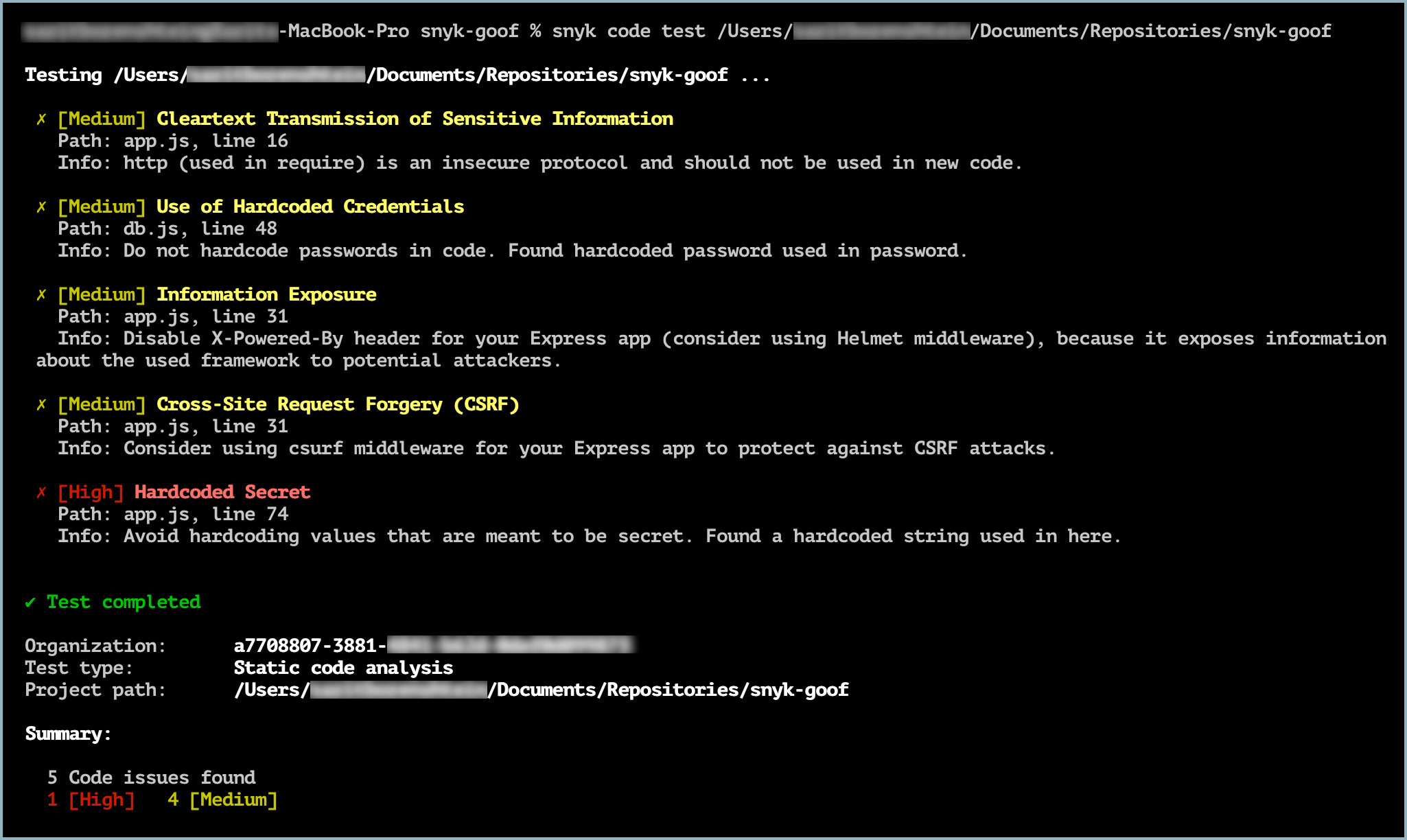
For example, to test the `snyk-goof` repository from its root folder, first change the directory to the root folder of the repository. Then enter:
```
snyk code test
```
Snyk Code tests the `snyk-goof` repository, and displays the vulnerability issues that were discovered:
Example of Snyk Code CLI test results
### Testing a repository from a different location
To test a repository from another folder, in the terminal, enter the following:
```
snyk code test
```
The `path/to/folder` is the full path of the repository you want to test using Snyk Code using the CLI.
For example, to test the `snyk-goof` repository from another directory, enter:
```
snyk code test /Users/username/Documents/Repositories/snyk-goof
```
Example of Snyk Code CLI test results
* To explore the test results, see [View Snyk Code CLI results](/developer-tools/snyk-cli/scan-and-maintain-projects-using-the-cli/snyk-cli-for-snyk-code/view-snyk-code-cli-results.md).
* To work with the test results, see [Displaying the CLI results in an HTML format using the Snyk-to-HTML feature](/developer-tools/snyk-cli/scan-and-maintain-projects-using-the-cli/cli-tools/snyk-to-html.md).
### Publish Snyk Code CLI results
{% hint style="info" %}
Snyk recommends using version v1.1300.0+ or later.\
The minimum supported CLI version is v1.1297.0.
{% endhint %}
You can publish Snyk Code results to a Snyk Project with or without using an integration.
You do not need to connect to an SCM integration such as GitHub or GitLab for this to work. It works directly with the results you upload from Snyk CLI.
* Sync with Snyk Web UI: After creating a Project from the CLI, you can manage it in the Snyk web interface. If you mark an issue as **Ignored** in the UI, future CLI scans for that Project are not being reported again.
* If the Project does not exist, Snyk automatically creates a new CLI Project for you with the value provided in the `--project-name` option.
* If the Project already exists, Snyk adds your latest scan as a new snapshot to that same Project. This allows you to track its security history over time.
### Publishing CLI results to a Snyk Code Project
Using Snyk Code through the CLI allows you to publish test results of local code to a Snyk Project in Snyk Web UI. Future CLI tests of this Project will respect issues that were ignored in the Web UI.
This allows using Snyk Code as a blocking CI/CD gate to test and block builds at the main branch level and then have developers review the results in the Web UI, fix any newly introduced vulnerabilities, or ignore irrelevant ones.
In the terminal, enter the following command:
```
snyk code test --report --project-name=""
```
After using this option, log in to Snyk and view your Projects to see the snapshot.
#### Commands to publish Snyk Code CLI results
Running the `snyk code test` command with the `--report` option, as shown, returns the results to the terminal window, along with a URL to the Snyk Code Project where the results have been published. Refer to the following screenshot.
Snyk code test results with --report option
If a Snyk Code Project created with the CLI does not yet exist for the provided value in the option, the Snyk CLI creates a new Project. If a Project created using the CLI already exists, a new snapshot is made under the same Project.
To make the Project easier to interpret in Snyk Web UI, you can use additional commands to specify a target name and also target references, such as Git branches. The following command will create or upload an existing Project named `` under a target named ``.
```
snyk code test --report --project-name="" --target-name=""
```
The following command creates or uploads an existing Project named `` under a target named `` and grouped by the "`$(git branch --show-current)"` branch name.
```
snyk code test --report --project-name="" --target-name="" --target-reference="$(git branch --show-current)"
```
Code analysis Projects grouped by branch
You can use the `--help` flag with the `snyk code test` command to view inline documentation directly in your terminal.
```
snyk code test --help
```
#### How Snyk organizes CLI scans
Snyk uses the `--project-name` or `--target-name` you provided in the command to identify which Project to update.
You do not need to connect to an SCM integration such as GitHub or GitLab for this to work. It works directly with the results you upload from Snyk CLI.
* Sync with Snyk Web UI: After creating a Project from the CLI, you can manage it in the Snyk web interface. If you mark an issue as **Ignored** in the UI, it will be suppressed in all future Project scans.
* If the Project is new, Snyk automatically creates a new CLI Project for you with the value provided in the `--project-name` option.
* If the Project already exists, Snyk adds your latest scan as a new snapshot to that same Project. This allows you to track its security history over time.
#### Troubleshooting published Snyk Code CLI results
You may see this error: `There was a problem running Code analysis. The findings for this project may exceed the allowed size limit.`
This error indicates that the contents of the scanned Project exceed the limit. To complete the scan, consider the following troubleshooting steps:
* Partition the Project repository by scanning sub-directories instead of the whole repository, for example:
* Create two Projects for your frontend and backend directories, and scan them separately.
* Create and scan Projects for each MicroService.
* Exclude unnecessary files from the scanning process using the [.snyk exclude option](/developer-tools/snyk-cli/scan-and-maintain-projects-using-the-cli/snyk-cli-for-snyk-code/exclude-directories-and-files-from-snyk-code-cli-tests.md#exclude-directories-and-files-from-the-cli-test). For example, you can exclude test files from the scan.
* Set a severity threshold using the [`--severity-threshold=high`](/developer-tools/snyk-cli/scan-and-maintain-projects-using-the-cli/failing-of-builds-in-snyk-cli.md#combining-security-policies-with-severity-threshold) to focus on more critical issues and gain visibility into urgent matters.
### Ignore CLI results for Snyk Code
You can ignore issues in Snyk Web UI. The ignores will be used to [publish CLI results to a Snyk Code Project](#publish-cli-results-to-a-snyk-code-project).
Ignoring issues in the Web UI
[snyk-to-html](https://github.com/snyk/snyk-to-html) does not respect the ignored issues. Anything that is ignored in Snyk Web UI is not ignored in the report that `snyk-to-html` generates.
For [publishing workflows](#publish-cli-results-to-a-snyk-code-project), after the CLI results are published to a Snyk Code Project, issues that were ignored in the Web UI will be ignored in CLI tests when you use the following command:
```
snyk code test --report --project-name="PROJECT_NAME"
```
* Assuming that the --project-name provided matches what is in the Web UI
* Ignores that have been applied to the Project with a `PROJECT_NAME` suppress the issue the next time that the CLI runs for the same `PROJECT_NAME`.
---
# Agent Instructions
This documentation is published with GitBook. GitBook is the documentation platform designed so that both humans and AI agents can read, navigate, and reason over technical content effectively. Learn more at gitbook.com.
## Querying This Documentation
If you need additional information that is not directly available in this page, you can query the documentation by asking a question.
Perform an HTTP GET request on the following URL with the `ask` and `goal` query parameters:
```
GET https://docs.snyk.io/developer-tools/snyk-cli/scan-and-maintain-projects-using-the-cli/snyk-cli-for-snyk-code/scan-source-code-with-snyk-code-using-the-cli.md?ask=&goal=
```
`ask` is the immediate question: it should be specific, self-contained, and written in natural language.
`goal` is what the user is ultimately trying to achieve, the reason they need the answer. Sharing it helps GitBook give you a better, more relevant answer. A goal is most helpful when it describes the outcome the user wants rather than restating the question. For example, with `ask=how do I create an API token`, a goal like `automate deployments from our CI pipeline` lets GitBook tailor the answer to that use case.
The response will contain a direct answer to the question and relevant excerpts and sources from the documentation.
Use this mechanism when the answer is not explicitly present in the current page, you need clarification or additional context, or you want to retrieve related documentation sections.
%20(1)%20(1)%20(1)%20(1)%20(1)%20(1)%20(1)%20(1)%20(1)%20(1)%20(1)%20(1)%20(1)%20(1)%20(1)%20(1)%20(1)%20(1)%20(1)%20(1)%20(1)%20(1)%20(1)%20(1)%20(1)%20(1)%20(1)%20(1)%20(1)%20(1)%20(1)%20(1)%20(1)%20(1)%20(1)%20(1)%20(1)%20(1)%20(1)%20(1)%20(1)%20(1)%20(1)%20(1)%20(1)%20(2).png?alt=media)
%20(6).png?alt=media)
%20(4).png?alt=media)
%20(7)%20(1).png?alt=media)