# View Snyk Code CLI results

The Snyk CLI enables you to perform the following actions on the results of the `snyk code test` command:

* [Analyze Snyk Code CLI results](#analyze-snyk-code-cli-results): View test results and analyze vulnerabilities.
* [Filter results by severity level](#filter-results-by-severity-level): Filter the `snyk code test` results shown in the terminal to display only issues with a specific severity level and higher.
* [Output test results](#output-test-results): Output the `snyk code test` results to a JSON or SARIF format in the terminal instead of displaying the results in the standard CLI format.
* [Export test results](#export-test-results): Export the CLI Code results to a JSON or SARIF format file.

{% hint style="info" %}
For `snyk code test`, the JSON and SARIF formats are the same; thus, examples are shown in only one format.

You can also [display the CLI results in HTML format using `snyk-to-html`](https://docs.snyk.io/developer-tools/snyk-cli/scan-and-maintain-projects-using-the-cli/cli-tools/snyk-to-html).
{% endhint %}

## Analyze Snyk Code CLI results

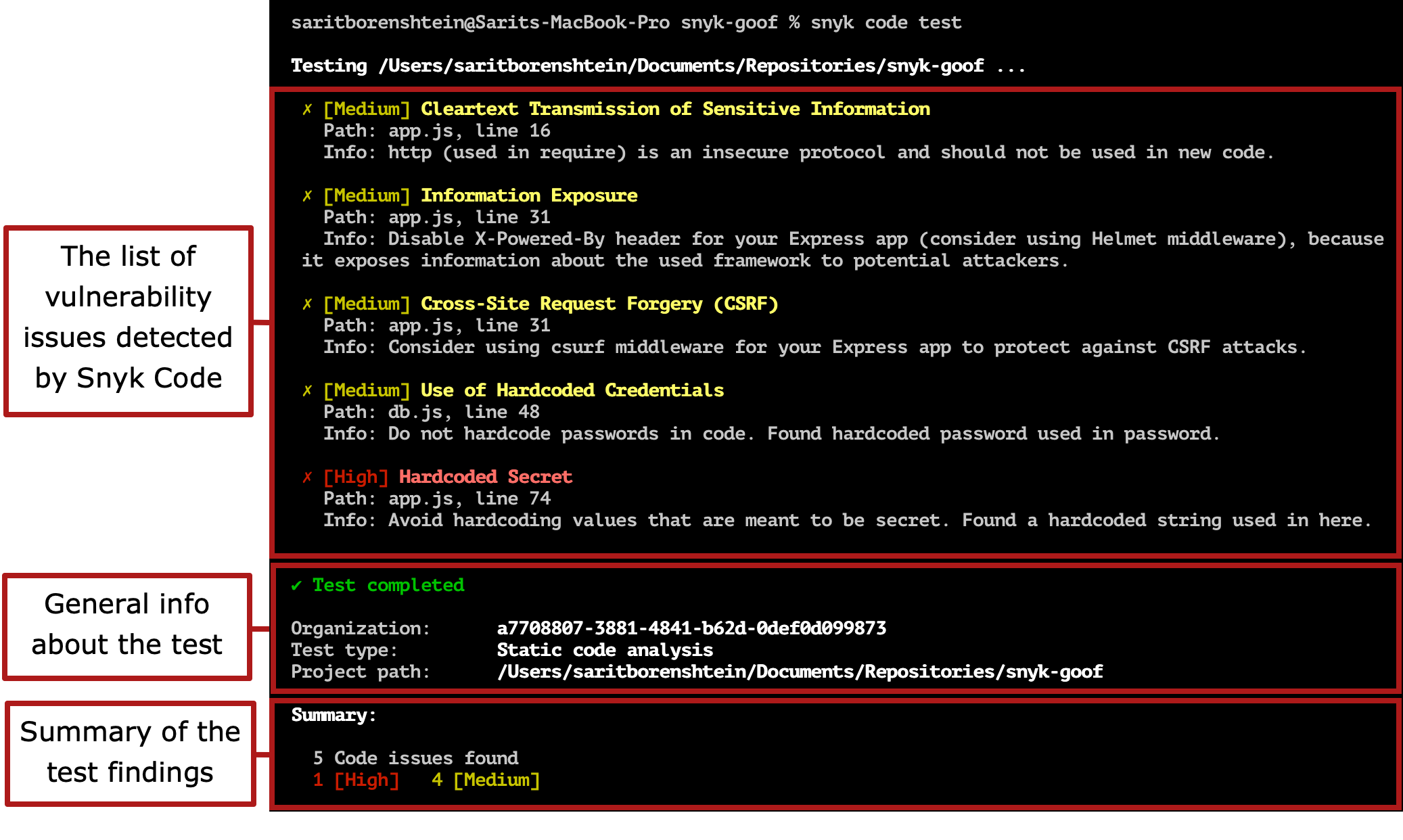
After you run the `snyk code test` command in the CLI, the results of the test are displayed:

<figure><img src="https://2533899886-files.gitbook.io/~/files/v0/b/gitbook-x-prod.appspot.com/o/spaces%2F-MdwVZ6HOZriajCf5nXH%2Fuploads%2Fgit-blob-e66124baa7a1b960b071b5d906f66775acf902f8%2FSnyk%20Code%20-%20CLI%20-%20snyk%20code%20test%20-%20Results%20Details%20-%202.png?alt=media" alt="Snyk Code test restuls from the CLI"><figcaption><p>Snyk Code test restuls from the CLI</p></figcaption></figure>

Note that if you ignored issues on the Snyk Web UI, these issues would still appear in the CLI results. Each section on this page explains one section of the displayed results.

### List of vulnerability issues detected by Snyk Code

The list of issues discovered in the Snyk Code test is organized by the severity level of the issues, from low to high.

For each detected issue, the following information is provided:

<figure><img src="https://2533899886-files.gitbook.io/~/files/v0/b/gitbook-x-prod.appspot.com/o/spaces%2F-MdwVZ6HOZriajCf5nXH%2Fuploads%2Fgit-blob-fbc0bf19af6a55aff08f8d0c6e4248a1b8a377ec%2FSnyk%20Code%20-%20CLI%20-%20snyk%20code%20test%20-%20Results%20-%20Issue%20summary%20-%202.png?alt=media" alt="CLI test information for each Snyk Code issue"><figcaption><p>CLI test information for each Snyk Code issue</p></figcaption></figure>

* Header: The severity level and vulnerability type of the issue.
* Path: The file name and the line in the file where the issue was found. These location details refer to the sink of the issue, meaning where the vulnerability may be executed in the tested repository.
* Info: A description of the data flow of the issue.

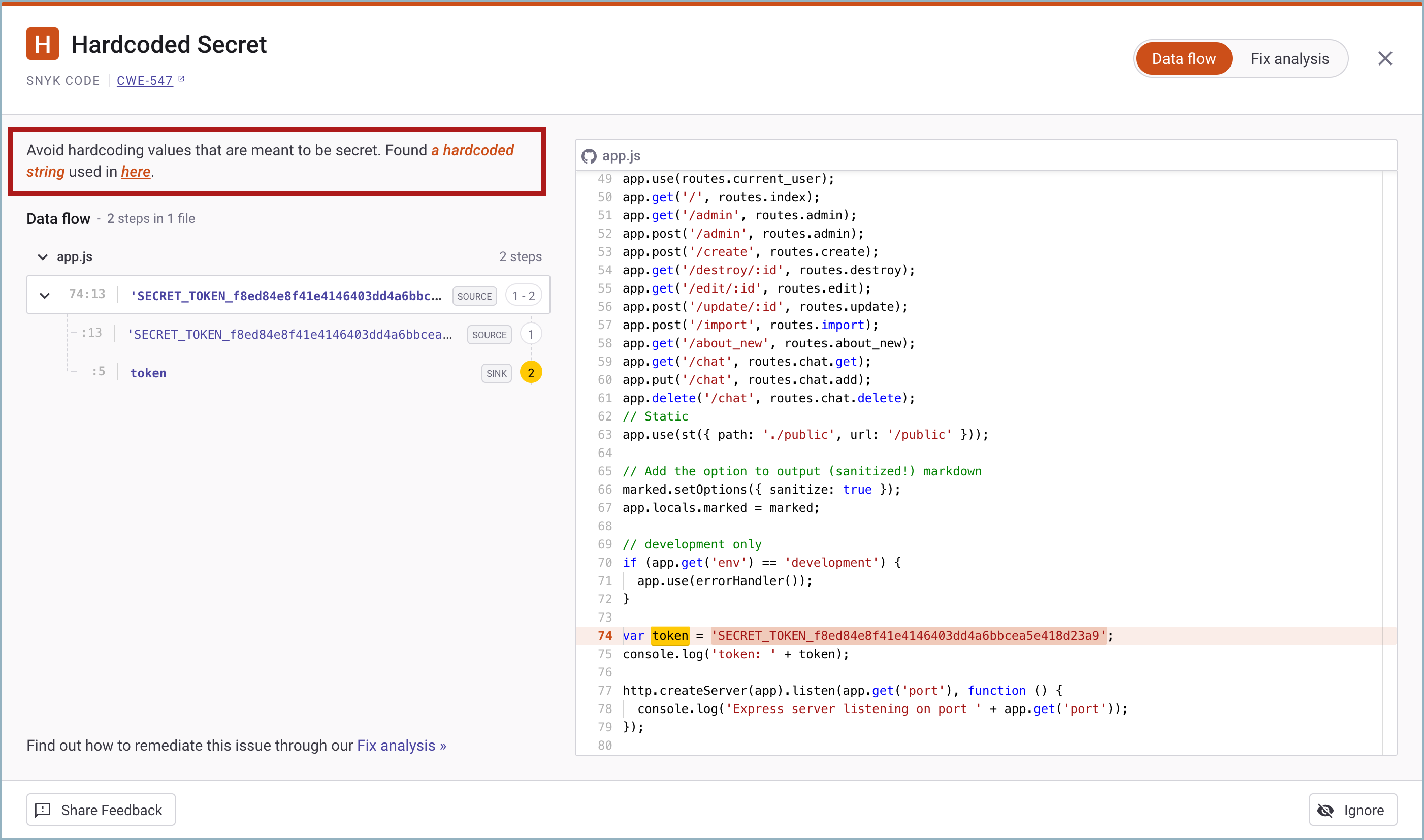
The message that appears in the `Info` section is the same as the one in the **Data flow** section on the Web UI:

<figure><img src="https://2533899886-files.gitbook.io/~/files/v0/b/gitbook-x-prod.appspot.com/o/spaces%2F-MdwVZ6HOZriajCf5nXH%2Fuploads%2Fgit-blob-96c695d5dfd00904db34d48d1f10c6af2b88a140%2FSnyk%20Code%20-%20CLI%20-%20snyk%20code%20test%20-%20Results%20-%20Issue%20summary%20-%20In%20the%20UI%20-%202.png?alt=media" alt="CLI test Info for Snyk Code issue in the Data flow section"><figcaption><p>CLI test Info for Snyk Code issue in the Data flow section</p></figcaption></figure>

### General information about the test results

The general information about the test results includes the following details:

<figure><img src="https://2533899886-files.gitbook.io/~/files/v0/b/gitbook-x-prod.appspot.com/o/spaces%2F-MdwVZ6HOZriajCf5nXH%2Fuploads%2Fgit-blob-369dbbfa1f0cf299b05ed1a7e711daa67f391b29%2FSnyk%20Code%20-%20CLI%20-%20snyk%20code%20test%20-%20Results%20-%20Test%20summary%20-%202.png?alt=media" alt="Details in general information about the CLI test results"><figcaption><p>Detals in general information about the CLI test results</p></figcaption></figure>

* Test success: Whether the test was completed or not.
* Organization: The Snyk ID or internal name of the Organization under which the test run. For more information, see [Set the Snyk Organization for the CLI tests](https://docs.snyk.io/developer-tools/snyk-cli/scan-and-maintain-projects-using-the-cli/snyk-cli-for-snyk-code/set-the-snyk-organization-for-the-cli-tests).
* Test type: The type of test command that generated the results. For Snyk Code, it is always `Static code analysis`**.**
* Project path: The path of the tested repository.

### Summary of the test findings

The summary of the test findings includes the following details:

<figure><img src="https://2533899886-files.gitbook.io/~/files/v0/b/gitbook-x-prod.appspot.com/o/spaces%2F-MdwVZ6HOZriajCf5nXH%2Fuploads%2Fgit-blob-d32f21feaf51453ec7da9679991ec81c6477ef02%2FSnyk%20Code%20-%20CLI%20-%20snyk%20code%20test%20-%20Results%20-%20Summary%20-%202.png?alt=media" alt="Summary ot CLI test findings for Snyk Code issues"><figcaption><p>Summary ot CLI test findings for Snyk Code issues</p></figcaption></figure>

* The number of vulnerability issues that Snyk Code discovered in the tested repository.
* The number of discovered issues at each severity level.

{% hint style="info" %}
The `snyk code test` command has exit codes. See the help for [definitions of these codes](https://docs.snyk.io/developer-tools/commands/code-test#exit-codes). To see the exit code, run `snyk code test -d`.

For a summary of exit codes for all CLI commands, see the [CLI commands and options summary](https://docs.snyk.io/developer-tools/snyk-cli/cli-commands-and-options-summary).
{% endhint %}

## Filter results by severity level

You can filter the test results that are shown in the CLI terminal and display only issues with a specific severity level and higher.

To display only issues above a specific severity level, enter the following:

```
snyk code test <path/to/folder> --severity-threshold=<low|medium|high>
```

The results will include only issues with the specified severity level and issues with a higher severity level.

For example, in the `snyk-goof-master` folder, eight issues were found, four with a High severity level and four with Medium:

<figure><img src="https://2533899886-files.gitbook.io/~/files/v0/b/gitbook-x-prod.appspot.com/o/spaces%2F-MdwVZ6HOZriajCf5nXH%2Fuploads%2Fgit-blob-d904b9579f1e5e41a088f5d58283be6a2e76992f%2FSnyk%20Code%20-%20CLI%20-%20snyk%20code%20test%20-%20Results%20-%20Filter%20Severity%20-%20Example%20-%20before%20-%202.png?alt=media" alt="CLI test results for Snyk Code with High and Medium severity"><figcaption><p>CLI test results for Snyk Code with High and Medium severity</p></figcaption></figure>

To display only issues with a High severity level and above, enter the following:

```
snyk code test /Users/username/Documents/Repositories/snyk-goof-master --severity-threshold=high
```

The results show four issues, all with a High severity level. Issues with a lower severity level are not displayed:

![CLI test results for Snyk Code with High severity](https://2533899886-files.gitbook.io/~/files/v0/b/gitbook-x-prod.appspot.com/o/spaces%2F-MdwVZ6HOZriajCf5nXH%2Fuploads%2Fgit-blob-9fff1a212e986c9d6e8cc02f2602f27e1a8c0a53%2FSnyk%20Code%20-%20CLI%20-%20snyk%20code%20test%20-%20Results%20-%20Filter%20Severity%20-%20Example%20-%20after%20-%202.png?alt=media)

## Severity levels in JSON and SARIF files

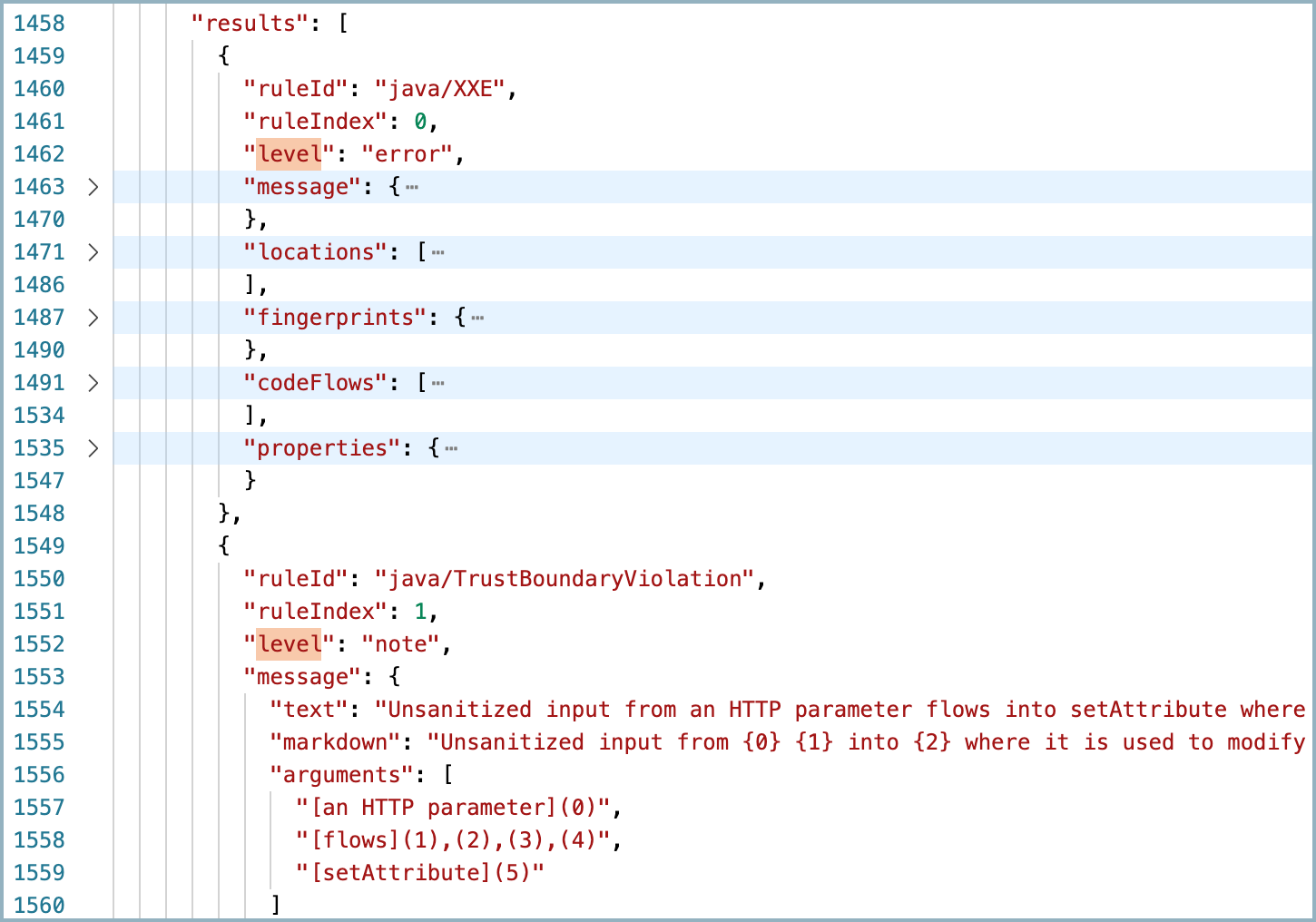
The severity levels of the issues discovered by running `snyk code test` are displayed differently in JSON and SARIF files. The severity levels in the JSON and SARIF results are as follows:

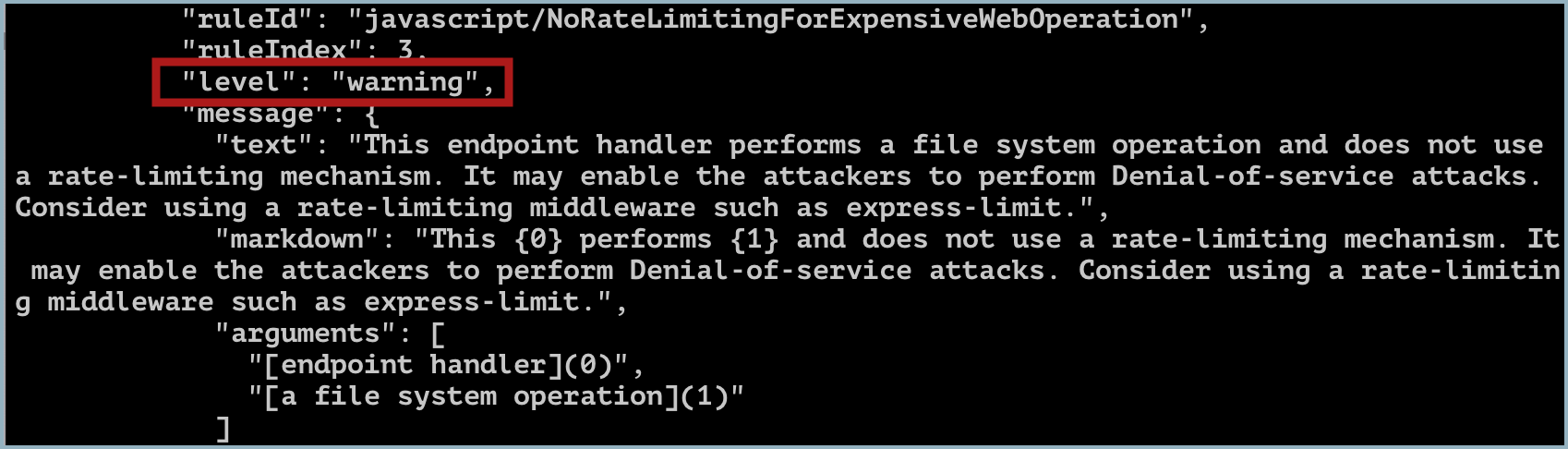
* High = **error**
* Medium = **warning**
* Low = **note/info**

The designation Critical is not used in Snyk Code.

An example of medium-level severity displayed in the terminal follows:

<figure><img src="https://2533899886-files.gitbook.io/~/files/v0/b/gitbook-x-prod.appspot.com/o/spaces%2F-MdwVZ6HOZriajCf5nXH%2Fuploads%2Fgit-blob-eb04fddbfd5bee9570fb6a195ada03ada86af4e3%2Fsnyk%20Code%20-%20CLI%20-%20JSON%20and%20SARIF%20-%20Severity%20Level%20Results%20-%20in%20the%20Terminal.png?alt=media" alt="Medium severity in JSON or SARIF output"><figcaption><p>Medium severity in JSON or SARIF output</p></figcaption></figure>

The following shows examples of high-level and low-level severity in a file:

<figure><img src="https://2533899886-files.gitbook.io/~/files/v0/b/gitbook-x-prod.appspot.com/o/spaces%2F-MdwVZ6HOZriajCf5nXH%2Fuploads%2Fgit-blob-f261ef222cff9227461eb20d4cad5eab9f16c30d%2Fsnyk%20Code%20-%20CLI%20-%20JSON%20and%20SARIF%20-%20Severity%20Level%20Results.png?alt=media" alt="High and low severity levels in JSON or SARIF file"><figcaption><p>High and low severity levels in JSON or SARIF file</p></figcaption></figure>

## Output test results

You can output the `snyk code test` results to JSON or SARIF format in the terminal instead of displaying the results in the Snyk CLI format.

You can also [export the test results to a JSON or SARIF format file](#export-test-results). SARIF is an open standard for the output of static analysis tools. For more information, see the [SARIF site](https://sarifweb.azurewebsites.net/).

The severity levels of the issues discovered by running `snyk code test` and reported in JSON and SARIF files are displayed differently from the results in the terminal. For more information, see [Severity levels in the JSON and SARIF files](#severity-levels-in-json-and-sarif-files).

To output the test results to JSON format, enter the following:

```
snyk code test <path/to/folder> --json
```

To output the test results to SARIF format, enter the following:

```
snyk code test <path/to/folder> --sarif
```

The test results appear in the terminal in JSON or SARIF format.

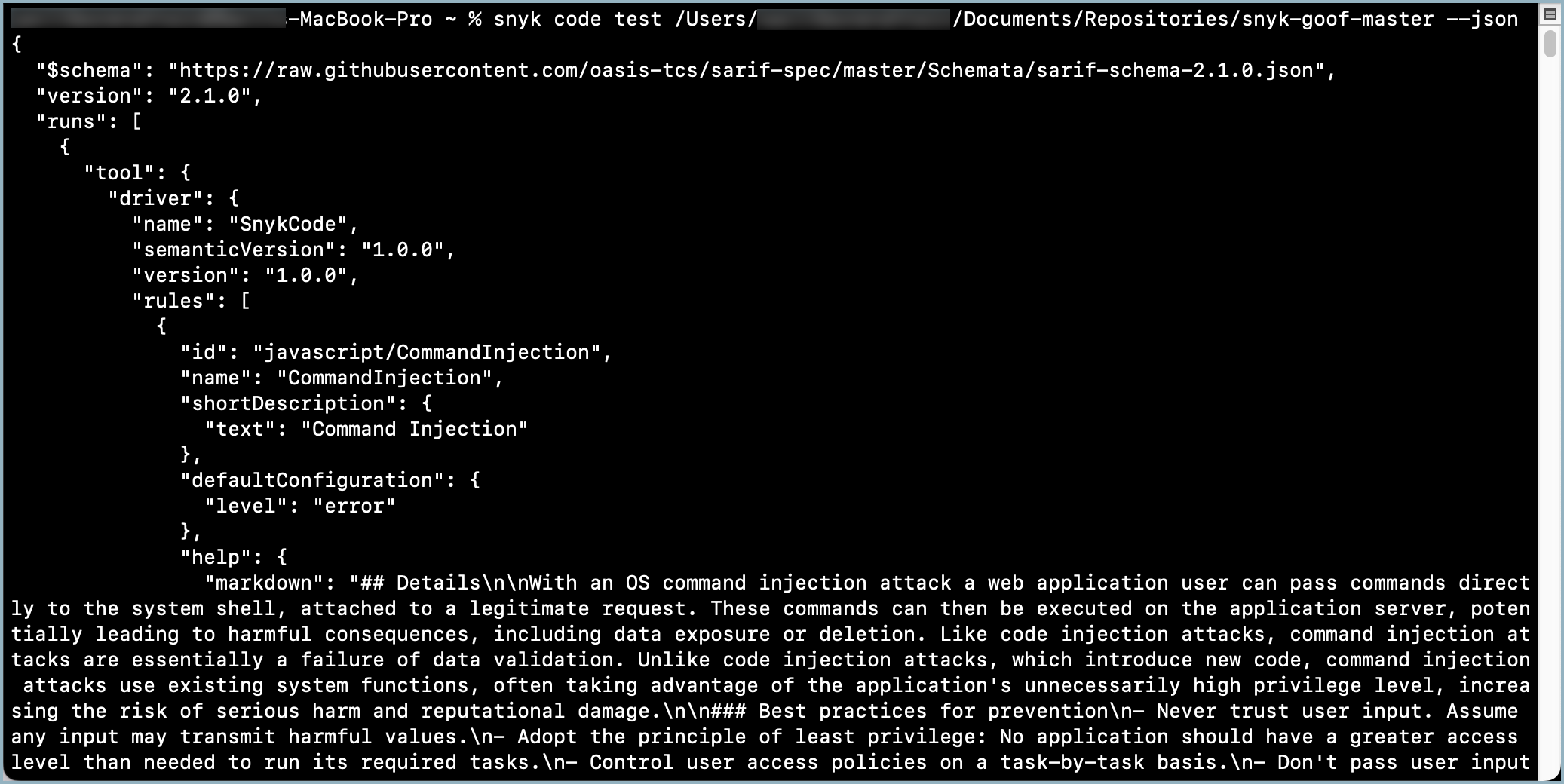
Because JSON and SARIF are the same for `snyk code test`, only a JSON example is shown here. The example shows how to output the test results of the `snyk-goof-master` folder in JSON format in the terminal by using the following command:

```
snyk code test /Users/username/Documents/Repositories/snyk-goof-master --json
```

The test results appear in the terminal in JSON format:

<figure><img src="https://2533899886-files.gitbook.io/~/files/v0/b/gitbook-x-prod.appspot.com/o/spaces%2F-MdwVZ6HOZriajCf5nXH%2Fuploads%2Fgit-blob-8742a4eaac82623a5df26d3bc4e16e98793585b5%2Fsnyk%20Code%20-%20CLI%20-%20results%20-%20JSON%20output%20in%20the%20terminal.png?alt=media" alt="snyk code test results in JSON format"><figcaption><p><code>snyk code test</code> results in JSON format</p></figcaption></figure>

## Export test results

You can export the `snyk code test` results to a JSON or SARIF format file. When you export the results, you must provide a name for the new file.

You can also [output the test results to JSON or SARIF format in the terminal](#output-test-results).

The severity levels of the issues discovered by running `snyk code test` and reported in JSON and SARIF files are displayed differently from the results in the terminal. For more information, see [Severity levels in the JSON and SARIF files](#severity-levels-in-json-and-sarif-files).

You can use two methods to export the results to either a JSON or SARIF file. The following instructions show a JSON file, but you can also export a SARIF file.

### Export test results to a new file with a standard display of results in the terminal

The `snyk code test --json-file-output=<path/to/new_file>` command is available in the Snyk CLI v. 1.910.0 and higher. To update your Snyk CLI version, see [Install or update the Snyk CLI](https://docs.snyk.io/developer-tools/snyk-cli/install-the-snyk-cli).

To export the results to a new JSON file, with a standard display of results in the terminal, use the following command:

```
snyk code test --json-file-output=<path/to/new_json_file>
```

To export the test results to a new SARIF file, use the following command:

```
snyk code test --sarif-file-output=<path/to/new_sarif_file>
```

The test results appear in the terminal in the standard format, and a JSON or SARIF file is created in the path you specified.

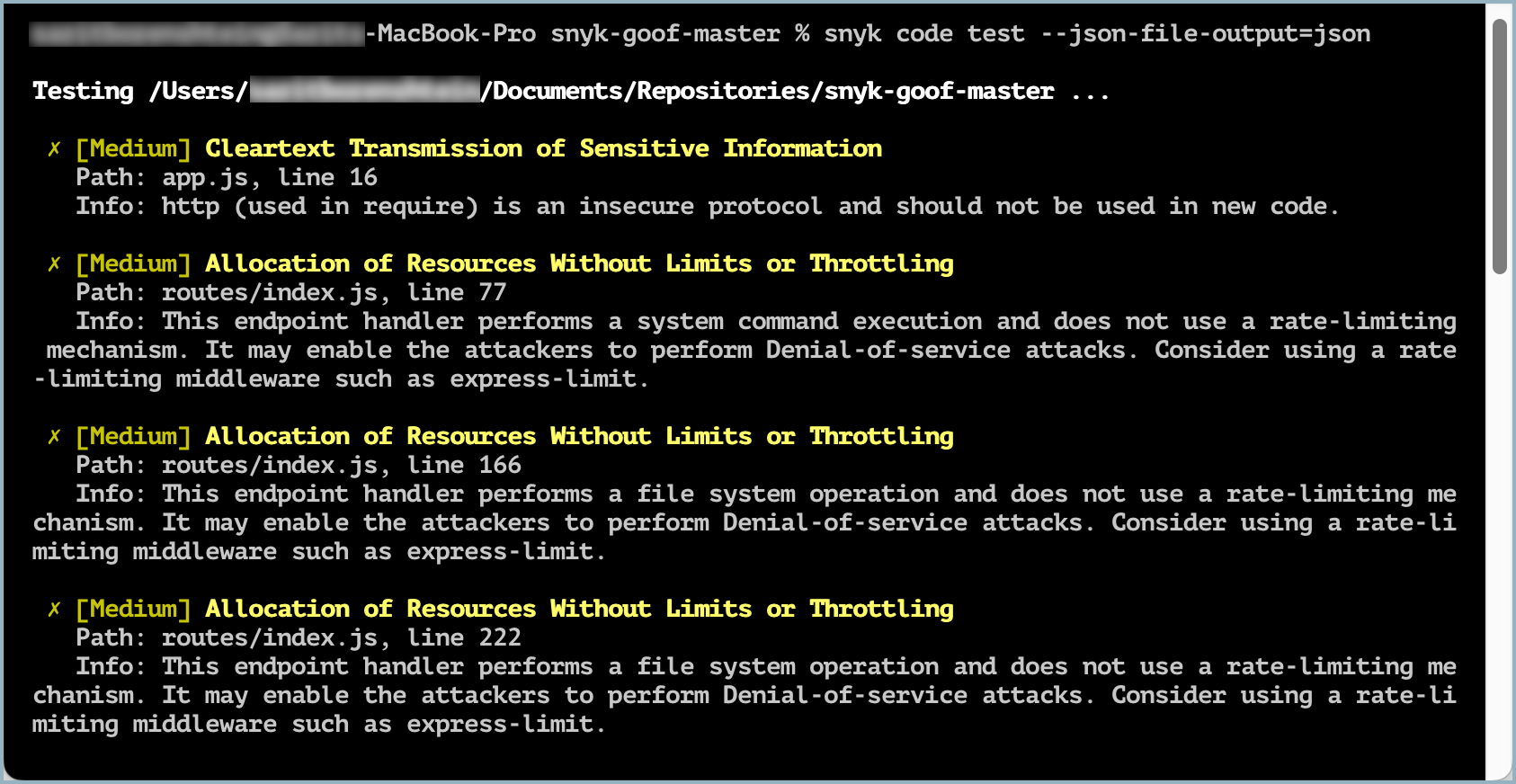
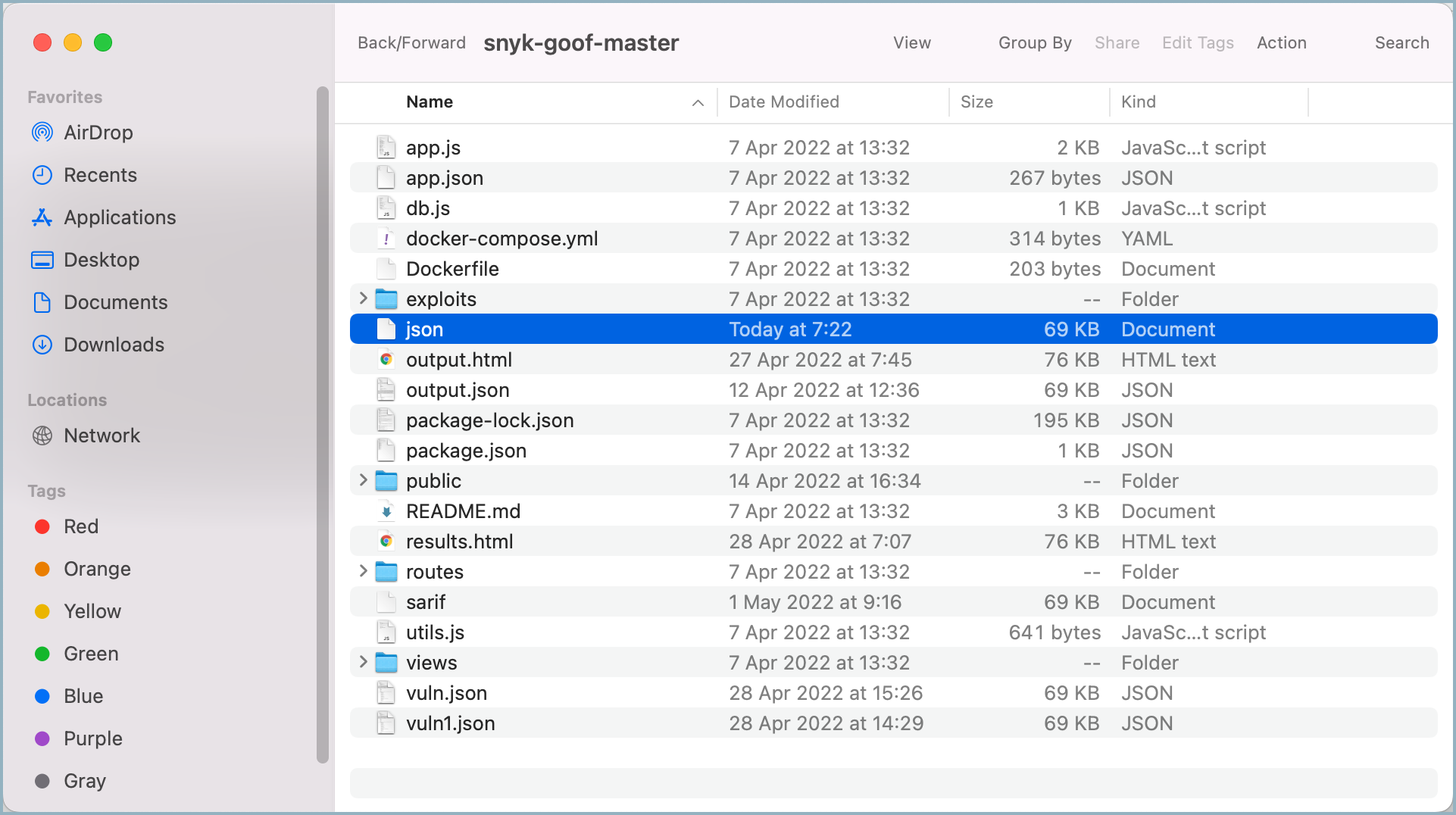
Because JSON and SARIF are the same for snyk code test, only a JSON example is shown here. To export the test results of the `snyk-goof-master` folder to a JSON file called `json`, change the directory to the root folder of the repository, and enter the following:

```
snyk code test --json-file-output=json
```

In the terminal, the Code test results appear in the standard format:

<figure><img src="https://2533899886-files.gitbook.io/~/files/v0/b/gitbook-x-prod.appspot.com/o/spaces%2F-MdwVZ6HOZriajCf5nXH%2Fuploads%2Fgit-blob-d55666b1c20b0fc8efefd0623bcb759442288ec4%2Fsnyk%20Code%20-%20CLI%20-%20results%20-%20export%20to%20JSON%20-%20with%20terminal%20results%20-%202%20.png?alt=media" alt="snyk code test results in the terminal"><figcaption><p><code>snyk code tes</code>t results in the terminal</p></figcaption></figure>

In the repository folder, a JSON file is created:

<figure><img src="https://2533899886-files.gitbook.io/~/files/v0/b/gitbook-x-prod.appspot.com/o/spaces%2F-MdwVZ6HOZriajCf5nXH%2Fuploads%2Fgit-blob-f1c78279b357561cc83548f6b7f62f11e0844b33%2Fsnyk%20Code%20-%20CLI%20-%20results%20-%20export%20to%20JSON%20-%20with%20terminal%20results%20-%20JSON%20file.png?alt=media" alt="JSON file in repository"><figcaption><p>JSON file in repository</p></figcaption></figure>

### Export the results to a new file without a display of results in the terminal

To export the results to a new JSON file without displaying the results in the terminal, use the following command:

```
snyk code test --json > <path/to/new_json_file>
```

To export the results to a SARIF file without displaying the results in the terminal, use the following command:

```
snyk code test --sarif > <path/to/new_sarif_file>
```