> For the complete documentation index, see [llms.txt](https://docs.snyk.io/llms.txt). Markdown versions of documentation pages are available by appending `.md` to page URLs; this page is available as [Markdown](https://docs.snyk.io/scan-fix-and-prevent/scan-with-snyk/snyk-projects/project-collections-groupings/project-collections.md).

# Project collections

On this page you will find information about how to create and use Project collections:

* [Select all filtered Projects that are visible to create a Project collection](#select-all-filtered-projects-that-are-visible-to-create-a-project-collection)
* [Add Projects to an existing Project collection using filters](#add-projects-to-an-existing-project-collection-using-filters)
* [Add individually selected Projects to an existing Project collection](#add-individually-selected-projects-to-an-existing-project-collection)
* [Manage a Project collection](#manage-a-project-collection)
* [Perform actions on Projects within a collection](#perform-actions-on-projects-within-a-collection)
* [View your Project collections on the collection listing page](#view-your-project-collections-on-the-collection-listing-page)

{% hint style="info" %}
If you move a Project between Organizations, the Project will also be removed from any Project collections it is part of.
{% endhint %}

## Select all filtered Projects that are visible to create a Project collection

1. On your Projects page, select the **Collections** tab, and click the **Create collection** button at the end of the search field. You can also create a collection through an empty Collection listing page.

   <figure><img src="/files/LVz8L6wt25IhOBxcVYbP" alt="Enter the Collections listing page"><figcaption><p>Enter the Collections listing page</p></figcaption></figure>
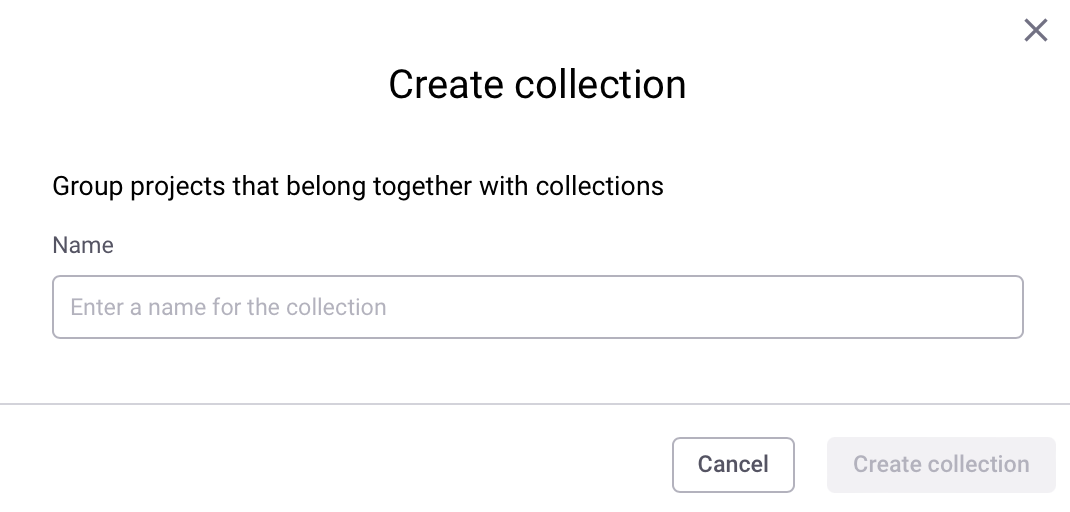
2. Enter a name for your collection in the **Name** field, then click **Create collection**.\
   Only alphanumerics and the characters -\_/:. are permitted in collection names.

   <figure><img src="/files/vtvsSSCktfL2AuNOxtof" alt="Name your collection" width="563"><figcaption><p>Name your collection</p></figcaption></figure>
3. You have successfully created a collection that you can populate.

## Add Projects to an existing Project collection using filters

1. On the right side of the Project listing page, beneath the View Import Log button, select **Group by none** from the drop-down list.
2. Using the **Filters** drop-down, apply the filters corresponding to the Projects you would like to add to a newly created Collection.
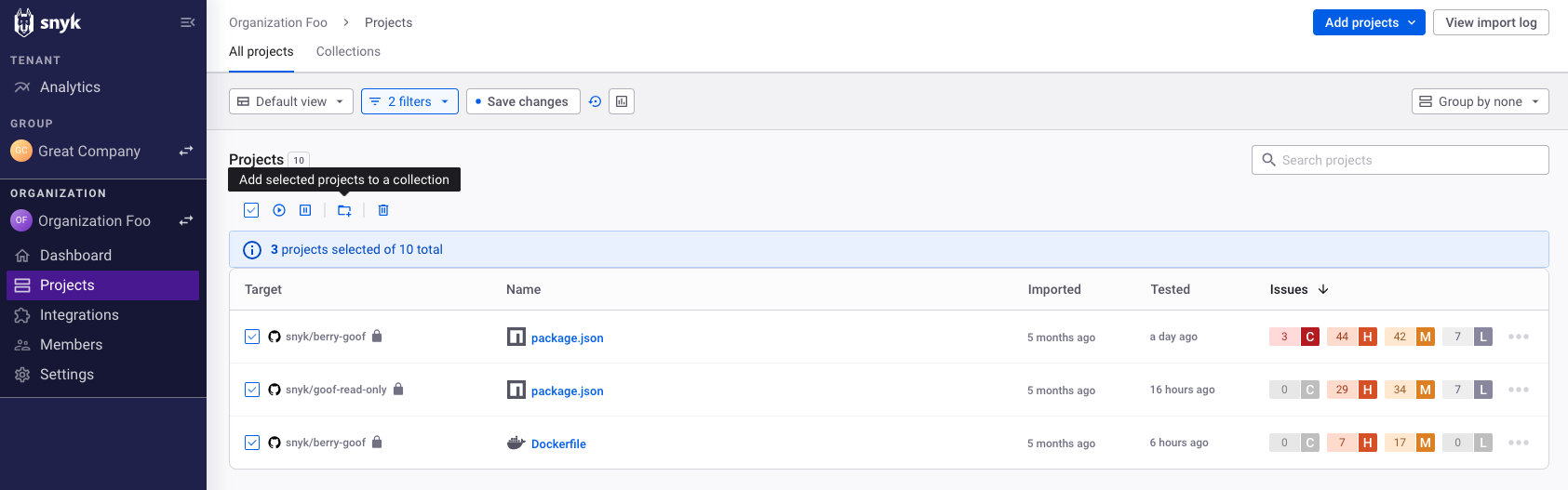
3. Select all of your filtered Projects that are visible on the page using the **Select All** button beneath the Projects count, and then click **Add selected projects to a Collection**

   <figure><img src="/files/TRFL3g9fZzsv2jpe3nQe" alt="Select all filtered Projects that are visible"><figcaption><p>Select all filtered Projects that are visible</p></figcaption></figure>
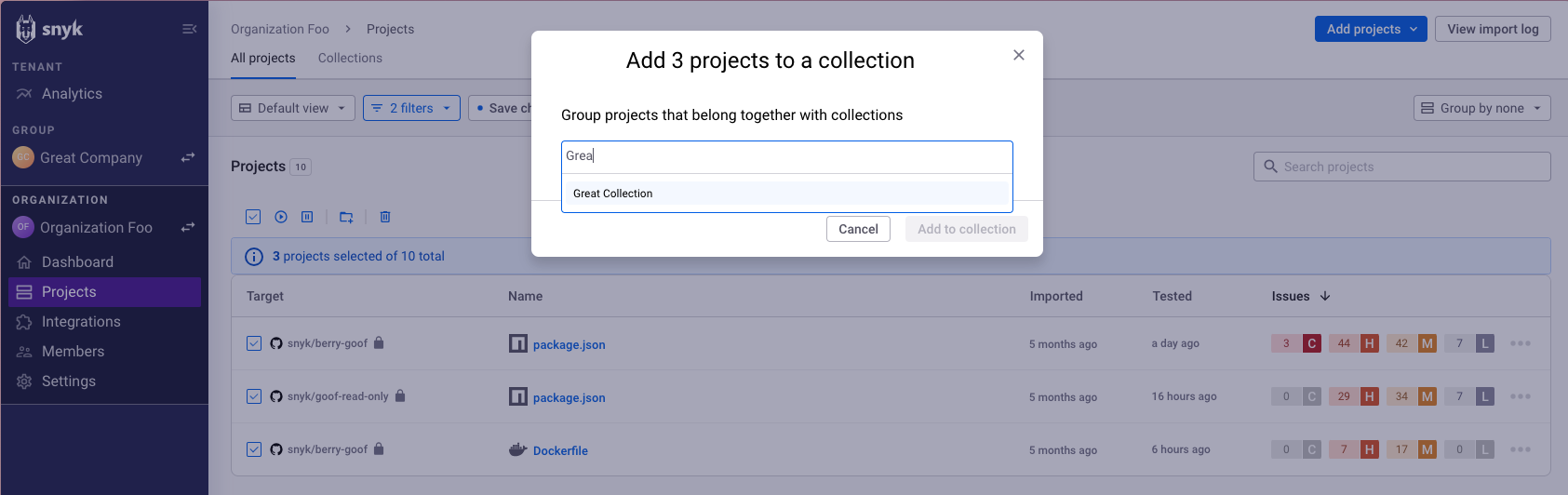
4. Enter the name of the collection you would like to add your selected Projects to and click **Add to collection**.

   <figure><img src="/files/vhrv3mM3oSUylxUxL09a" alt="Enter a name for your collection"><figcaption><p>Enter a name for your collection</p></figcaption></figure>
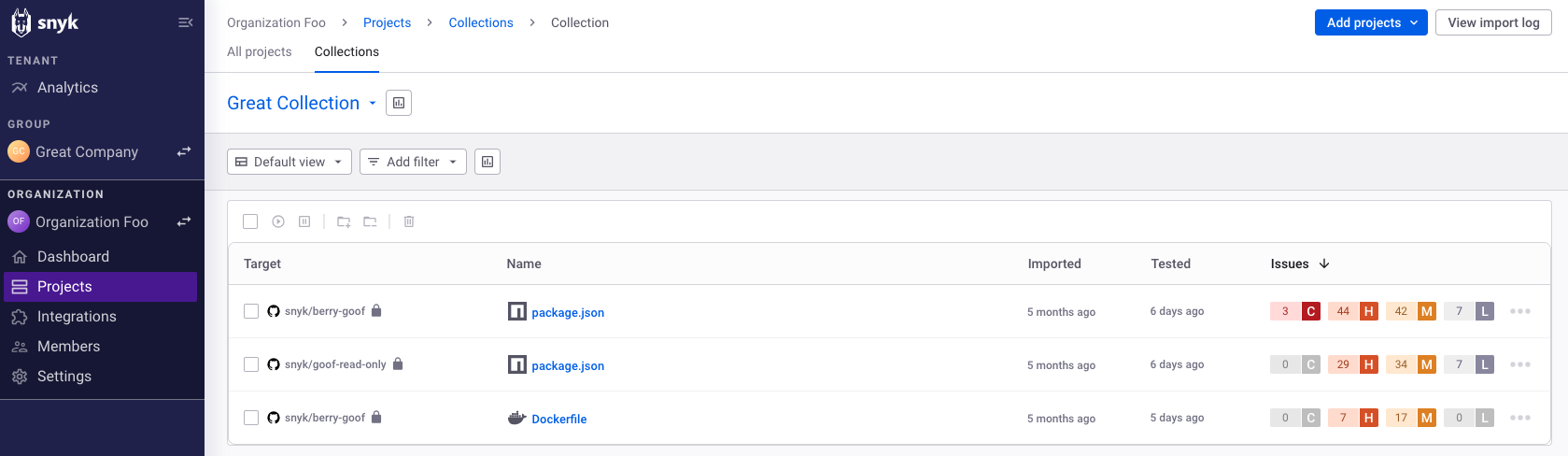
5. Your Projects are now in the collection that you created previously.

   <figure><img src="/files/tr3RM16cwEmoSd7X8dKi" alt="View your Projects in the previously created collection"><figcaption><p>View your Projects in the previously created collection</p></figcaption></figure>

## Add individually selected Projects to an existing Project collection

1. In the Projects page, select the Projects that you want to add to a collection, and then select **Add selected projects to a collection**.
2. Enter the name of the collection you would like to add your selected Projects to and click **Add to collection.**
3. View your selected Projects in your collection.

## Manage a Project collection

1. On your Projects page, select the **Collections** ta&#x62;**.**
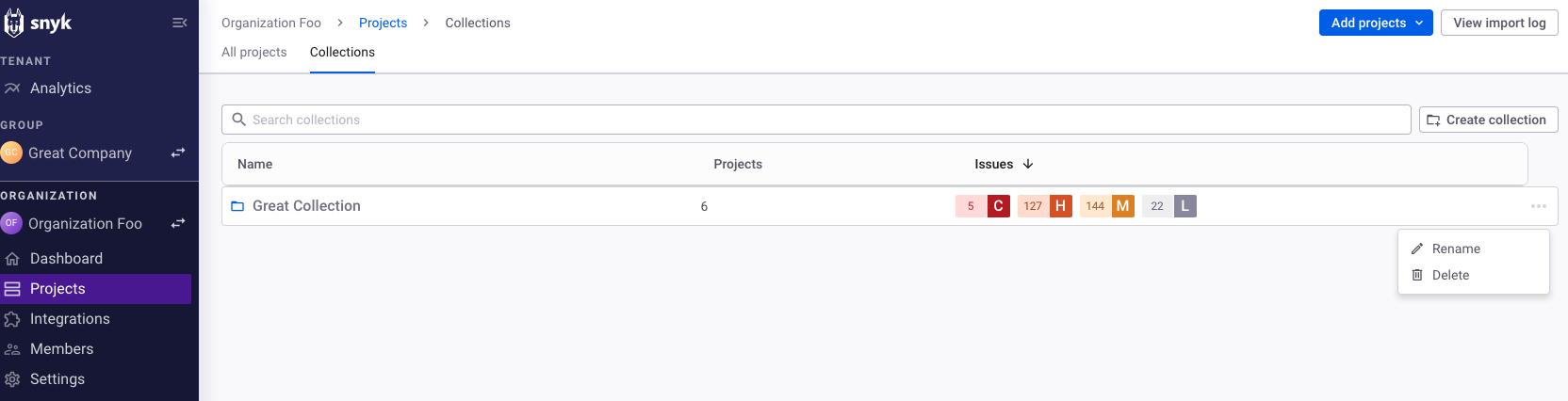
2. For the collection you want to manage, select the three dots next to the collection.
3. Choose the option to rename or delete the collection.

   <figure><img src="/files/2GcjYBj66MC7X18BoS9I" alt="Click the three dots next to the collection you want to configure and either rename or delete the collection"><figcaption><p>Click the three dots next to the collection you want to configure and either rename or delete the collection</p></figcaption></figure>

## Perform actions on Projects within a collection

1. In your collection, use the checkboxes to select individual Projects or the **select all** checkbox to select all visible Projects in a collection.
2. You can perform the following actions:
   1. Activate selected Projects.
   2. Deactivate selected Projects.
   3. Add the selected Projects to a collection. In this case, the action will add the selected Projects to another collection that you have created.
   4. Remove selected Projects from a collection.
   5. Delete selected Projects.

This example shows what happens when you click **Remove selected projects from a collection**.

3. You have successfully removed the selected Projects from your collection.

## View your Project collections on the collection listing page

If you have created a collection or multiple collections, you can view them on the collection listing page.

1. On your Projects page, select the **Collections** ta&#x62;**.**
2. You can view all of your collections on the Collections listing page and sort by name, number of Projects, and issue count.


---

# Agent Instructions
This documentation is published with GitBook. GitBook is the documentation platform designed so that both humans and AI agents can read, navigate, and reason over technical content effectively. Learn more at gitbook.com.

## Querying This Documentation
If you need additional information that is not directly available in this page, you can query the documentation dynamically by asking a question.

Perform an HTTP GET request on the current page URL with the `ask` query parameter, and the optional `goal` query parameter:

```
GET https://docs.snyk.io/scan-fix-and-prevent/scan-with-snyk/snyk-projects/project-collections-groupings/project-collections.md?ask=<question>&goal=<endgoal>
```

`ask` is the immediate question: it should be specific, self-contained, and written in natural language.
`goal` is optional and describes the broader end goal you are ultimately trying to accomplish on behalf of the user. GitBook uses it to tailor the answer towards what is most useful for that goal.

The response will contain a direct answer to the question and relevant excerpts and sources from the documentation.

Use this mechanism when the answer is not explicitly present in the current page, you need clarification or additional context, or you want to retrieve related documentation sections.