> For the complete documentation index, see [llms.txt](https://docs.snyk.io/llms.txt). Markdown versions of documentation pages are available by appending `.md` to page URLs; this page is available as [Markdown](https://docs.snyk.io/scan-fix-and-prevent/scan-with-snyk/snyk-open-source/package-repository-integrations/npm-teams-and-npm-enterprise-integration.md).
# npm Teams and npm Enterprise integration
How to integrate Snyk with npm Teams, npm Enterprise, and Azure Artifacts npm feeds
{% hint style="info" %}
**Snyk is rolling out a new navigation.** The steps on this page describe the classic interface. If your view looks different, visit [Navigate the Snyk Web UI](https://docs.snyk.io/navigate-the-snyk-web-ui#where-things-moved) to map these options to the new interface.
{% endhint %}
## npm Teams and npm Enterprise integration
Snyk can use custom npm Teams and npm Enterprise repositories, and Azure Artifacts npm feeds, with npm and Yarn Projects.
{% hint style="info" %}
**Feature availability**\
This feature is available only with Enterprise plans. For more information, see [plans and pricing](https://snyk.io/plans/).
This guide is relevant for Snyk Web UI integrations only. The Snyk CLI already supports Yarn and npm projects with private npm Teams and npm Enterprise registries.
{% endhint %}
Snyk uses this integration when it creates fix pull requests and merge requests. npm and Yarn use the registry to reach your private dependencies and regenerate the lockfile.
Snyk does not use the integration to scan. Snyk reads your dependencies from the lockfile, so private packages listed in the lockfile appear in scan results. For a Project without a lockfile, Snyk resolves dependencies from the public npm registry and cannot resolve packages that exist only in your private registry.
You can add configuration to tell Snyk where your private npm Teams and npm Enterprise Node.js packages are hosted and under what scope.
This is the same information you would normally add in your `.yarnrc` or `.npmrc`
### JavaScript language settings
1. Navigate to **Settings** > **Languages** > **JavaScript** and either the npm or Yarn settings, depending on your Project type. Yarn is shown in the screenshot.
2. If you have not previously connected to npm Teams or npm Enterprise, you will be asked to configure an integration first. See [npm Teams and npm Enterprise registry settings](#npm-teams-and-npm-enterprise-registry-settings).
3. After you have set up the integration, select **Add registry configuration.**
1. Select **npm** as the **Package source**.
2. If you want to configure this registry as the default registry url, leave the scope blank.
3. If you want to configure only scoped packages to use this registry, add a scope.
4. If you want to add a mix of default registry url and scoped packages, add multiple configurations, one for the default and one per scope.
4. When you have added all the registries and scopes you want, click **Update settings**.
5. To test the integration, open a Pull/Merge Request on a Project that contains private dependencies to see a lockfile updated and included in the Snyk Fix Pull Request where previously none was generated.
Test of npm integration
### npm Teams and npm Enterprise registry settings
You can configure token-based authentication for npm Teams and npm Enterprise integrations.
#### Token requirements
For the public npm registry (`https://registry.npmjs.org`), use an npm granular access token. npm no longer supports classic tokens. For details, see [About access tokens](https://docs.npmjs.com/about-access-tokens/) in the npm documentation. Create the token with the following settings:
* Packages and scopes: **Read-only** access to every private package or scope that your Projects depend on. For packages owned by an npm organization, select the organization's scope, for example `@your-org`. Snyk does not need write access.
* Organizations: **No access**. This setting only covers managing the organization. Package access comes from **Packages and scopes**.
* Expiration: choose a date that suits your rotation policy. After the token expires, Snyk can no longer use it to reach your registry. Update the token in the integration before it expires.
To check the token before you add it to Snyk, run the following commands.
The first command checks that the token authenticates, which is what the Snyk connection check verifies. Confirm that it returns your npm username, for example `{"username":"your-npm-user"}`:
```bash
curl -s -H "Authorization: Bearer " \
https://registry.npmjs.org/-/whoami
```
The second command checks that the token can read a private package. Confirm that it returns `200`:
```bash
curl -s -o /dev/null -w "%{http_code}\n" \
-H "Authorization: Bearer " \
https://registry.npmjs.org/
```
For a scoped package, encode the slash in the package name, for example `@your-scope%2fyour-package`.
#### Configure the credentials
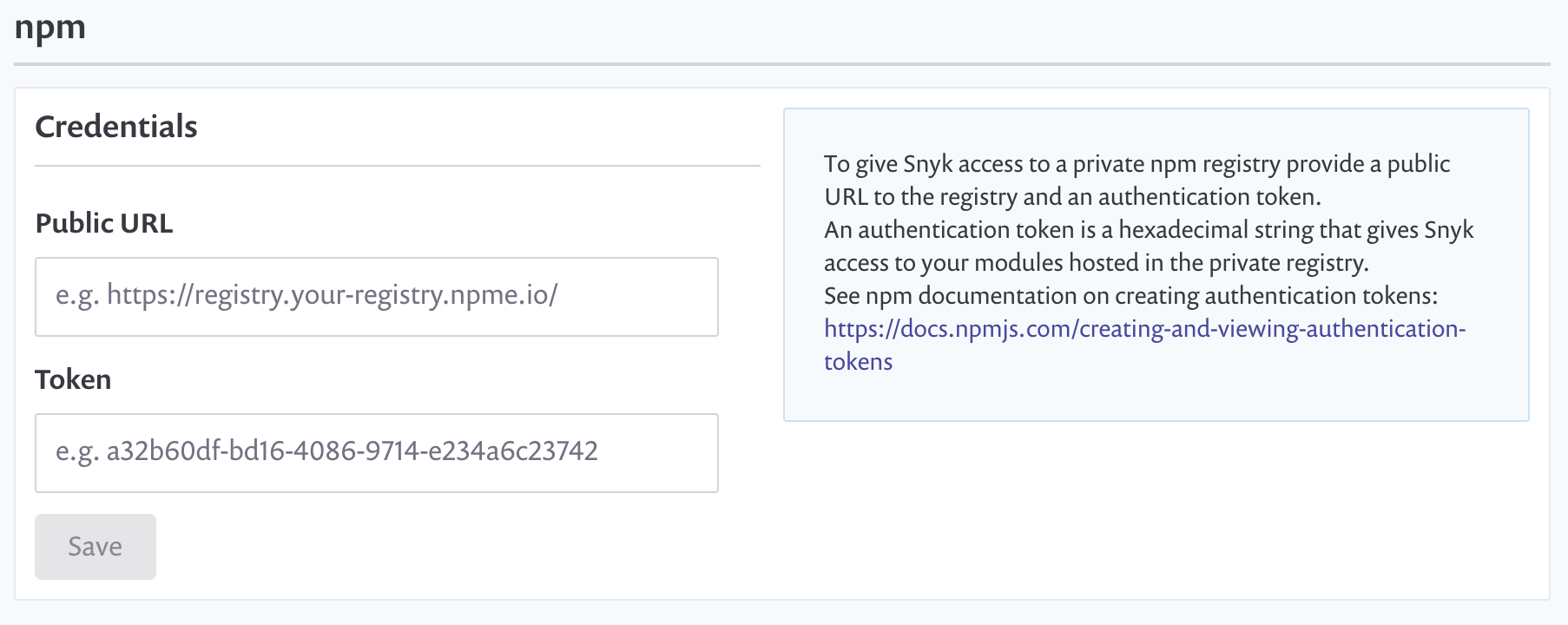
1. Navigate to **Settings > Integrations > Package Repositories > npm.**\
You should see the **Credentials** screen at the beginning.
2. Enter **Public URL** and **Token** values.
3. Click **Save**.
npm credentials screen
### Azure Artifacts npm feeds
Snyk does not have a separate Azure Artifacts integration for npm. Use the npm integration with your Azure Artifacts feed URL and a personal access token (PAT).
1. In Azure DevOps, create a PAT with the **Packaging** > **Read** scope.
2. In Snyk, navigate to **Settings** > **Integrations** > **Package Repositories** > **npm**.
3. Enter the feed registry URL as the **Public URL**. The URL ends with `/npm/registry/`, for example:
* Project-scoped feed: `https://pkgs.dev.azure.com/`*your-organization*`/`*your-project*`/_packaging/`*your-feed*`/npm/registry/`
* Organization-scoped feed: `https://pkgs.dev.azure.com/`*your-organization*`/_packaging/`*your-feed*`/npm/registry/`
4. Enter the PAT as the **Token**. Enter the PAT itself, not a base64-encoded value.
5. Click **Save**.
6. Add the feed as a registry in the [JavaScript language settings](#javascript-language-settings).
You can copy the feed URL from **Connect to feed** > **npm** in Azure Artifacts.
---
# Agent Instructions
This documentation is published with GitBook. GitBook is the documentation platform designed so that both humans and AI agents can read, navigate, and reason over technical content effectively. Learn more at gitbook.com.
## Querying This Documentation
If you need additional information that is not directly available in this page, you can query the documentation by asking a question.
Perform an HTTP GET request on the following URL with the `ask` and `goal` query parameters:
```
GET https://docs.snyk.io/scan-fix-and-prevent/scan-with-snyk/snyk-open-source/package-repository-integrations/npm-teams-and-npm-enterprise-integration.md?ask=&goal=
```
`ask` is the immediate question: it should be specific, self-contained, and written in natural language.
`goal` is what the user is ultimately trying to achieve, the reason they need the answer. Sharing it helps GitBook give you a better, more relevant answer. A goal is most helpful when it describes the outcome the user wants rather than restating the question. For example, with `ask=how do I create an API token`, a goal like `automate deployments from our CI pipeline` lets GitBook tailor the answer to that use case.
The response will contain a direct answer to the question and relevant excerpts and sources from the documentation.
Use this mechanism when the answer is not explicitly present in the current page, you need clarification or additional context, or you want to retrieve related documentation sections.