> For the complete documentation index, see [llms.txt](https://docs.snyk.io/llms.txt). Markdown versions of documentation pages are available by appending `.md` to page URLs; this page is available as [Markdown](https://docs.snyk.io/scan-fix-and-prevent/scan-with-snyk/snyk-iac/getting-started-with-cloud-scans/manage-cloud-issues/view-cloud-issues-in-the-snyk-web-ui.md).

# View cloud issues in the Snyk Web UI

You can view cloud issues for an Organization through the Snyk Web UI.

To view your cloud issues in the Snyk Web UI, navigate to the Organization, and on the menu, select **Cloud.**

<figure><img src="/files/Y9lhqRhIxojCkXrI4mFH" alt=""><figcaption><p>Select Cloud to view the issues</p></figcaption></figure>

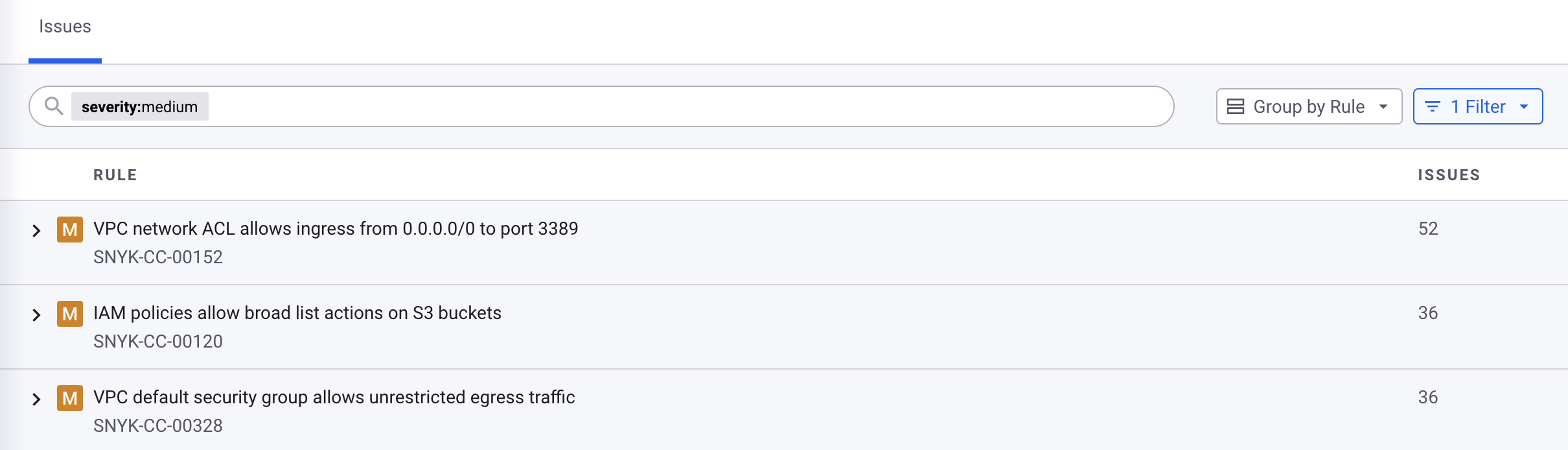
By default, Snyk displays open issues across all cloud environments in an Organization. The issues are initially [grouped by the security rule they failed](#group-issues-by-rule), but you can choose to [group them by resource](#group-issues-by-resource).

## Group issues by rule

Issues are grouped by rule by default.

If you have grouped them by resource instead, you can group them by rule again by selecting the **Group by Resource** drop-down menu next to the search bar and selecting **Rule**:

<figure><img src="/files/hkPBSrKSGnRXLaevEJJy" alt=""><figcaption><p>Group by rule</p></figcaption></figure>

The rules are sorted by severity and then by number of issues, both from highest to lowest.

## Rule details

Each rule shows the following information:

* Severity
  * C: Critical
  * H: High
  * M: Medium
  * L: Low
* Rule title
* Rule ID
* Number of open issues

<figure><img src="/files/kUYfVIvlzTGwvVLSCzsG" alt=""><figcaption><p>Issues grouped by rule</p></figcaption></figure>

By default, when you expand a rule you see all the resources with an open issue associated with that rule. Each resource shows the following information:

<figure><img src="/files/SmOwzuPvA54dOVrOD0IT" alt=""><figcaption><p>A rule expanded to show resources</p></figcaption></figure>

* Resource name
* Environment kind (provider)
* Environment name
* Environment native ID (Amazon Web Services account ID, Google project ID, Azure subscription, and so on)
* Resource tags
* Age of issue

## Group issues by resource

If issues are currently grouped by rule, you can group them by resource instead by selecting the **Group by Rule** drop-down menu next to the search bar and selecting **Resource**:

<figure><img src="/files/LOJftH6C9wBtzVlZe0Cq" alt=""><figcaption><p>Group by resource</p></figcaption></figure>

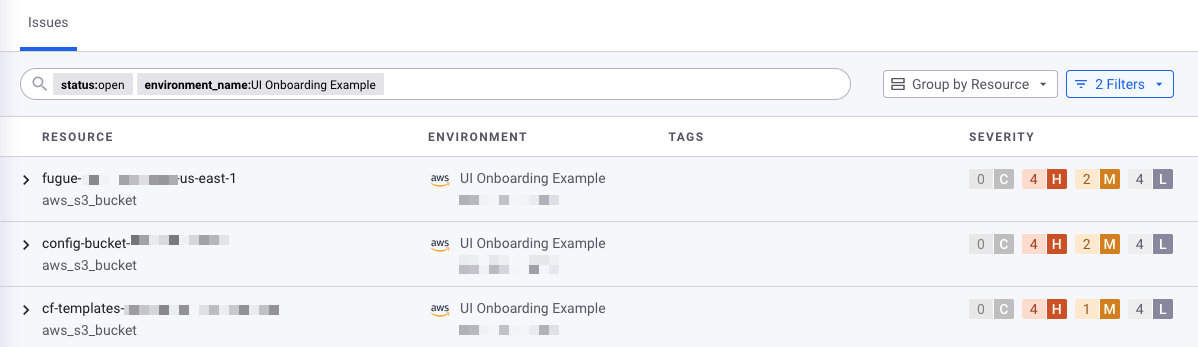
The resources are sorted by severity of issue and then by number of issues, both from highest to lowest.

## Resource details

Each resource shows the following information:

* Resource name
* Resource type
* Environment kind
* Environment name
* Environment native ID
* Resource tags
* Severity of open issues
* Number of issues for each severity

<figure><img src="/files/cn258lOnR72EqUjQ0USD" alt=""><figcaption><p>Issues grouped by resource</p></figcaption></figure>

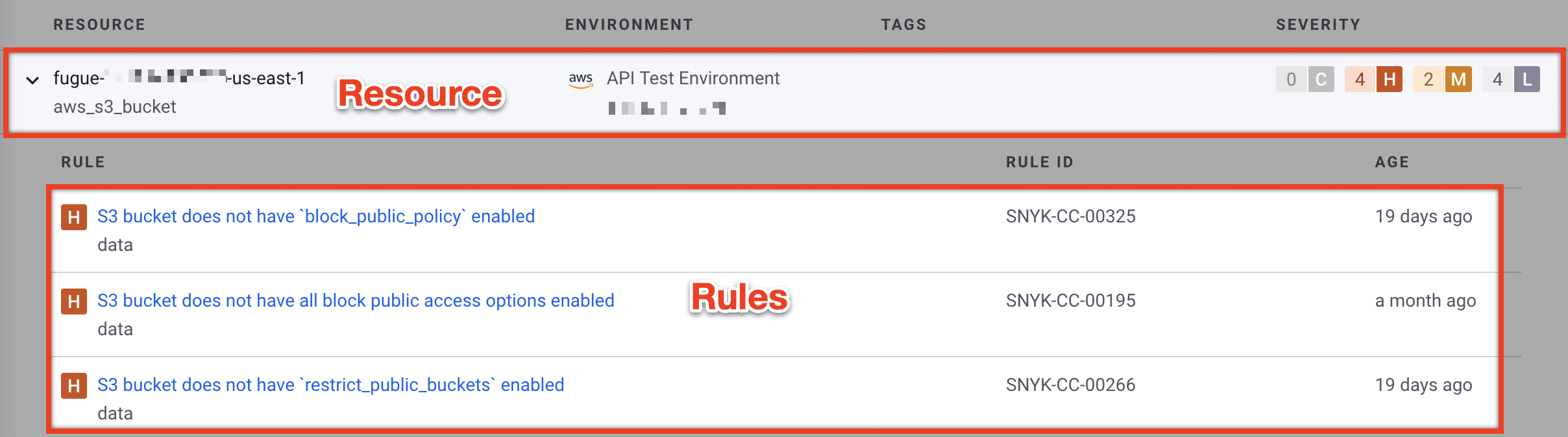
By default, when you expand a resource you see all the rules with an open issue associated with that resource.

<figure><img src="/files/PqsX8qkEmoKbe5Hwa9pf" alt=""><figcaption><p>A resource expanded to show rules</p></figcaption></figure>

Each rule shows the following information:

* Severity
* Rule title
* Rule category
* Rule ID
* Age of issue

## View issue details on issue summary panel

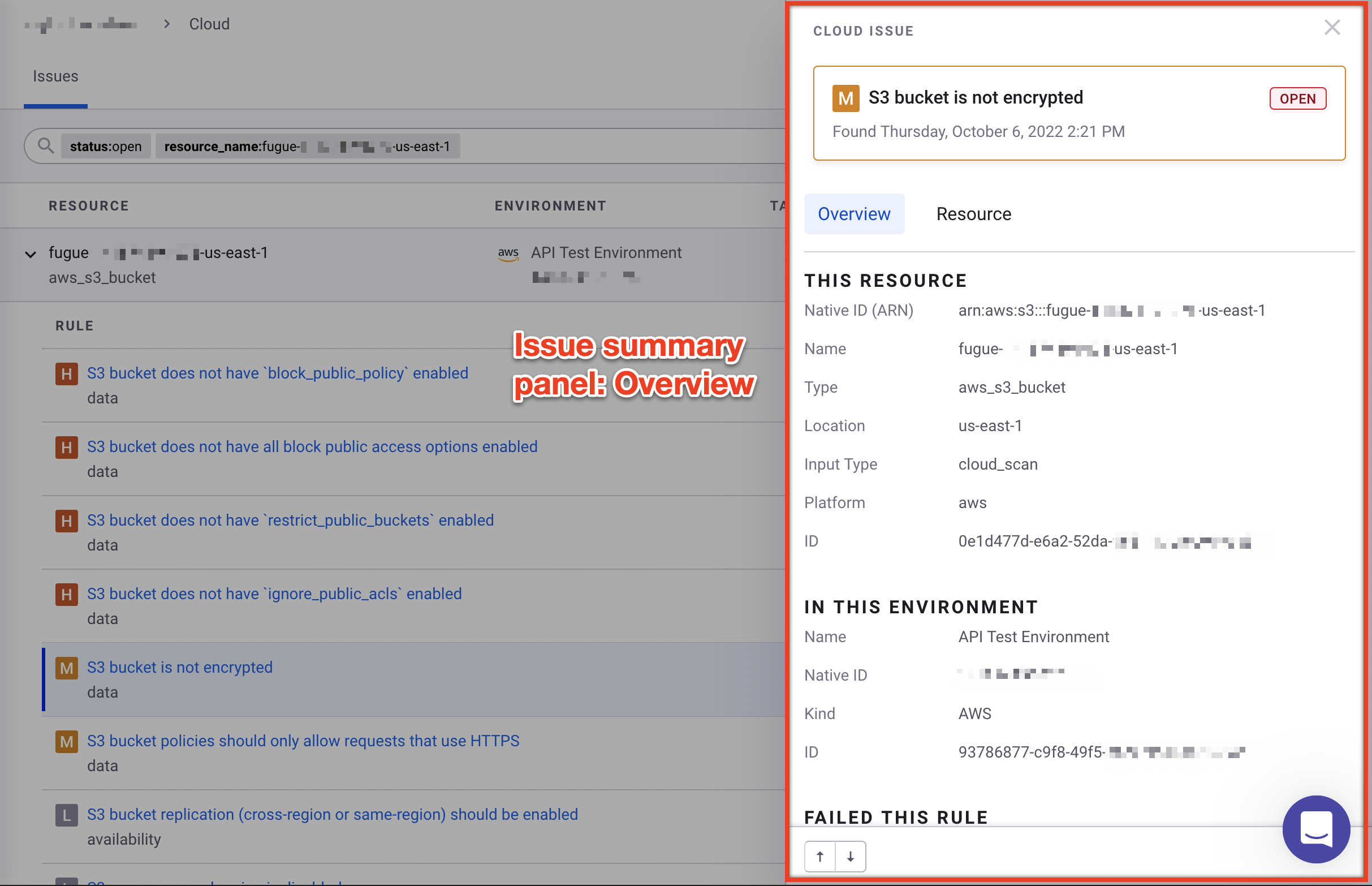
To view an issue, expand an issue then select a corresponding resource or rule. Snyk displays a panel with the cloud issue details.

The cloud issue summary panel displays the **Overview** by default, which contains the following information:

* Severity
* Status (open or closed)
* Resource details:
  * Native ID (Amazon Resource Name); AWS only
  * Name
  * Type
  * Location (AWS region, Google project, Azure subscription, Terraform file, and so on)
  * Input type (`cloud_scan`, `tf_hcl`, and so on)
  * Platform (`aws`, `google`, `azure`, and so on)
  * ID
* Environment details:
  * Name
  * Native ID (AWS account ID, Google project, Azure subscription, `:cli`, and so on)
  * Kind (AWS, Google, Azure, CLI, and so on)
  * ID
* Rule details:
  * Title
  * Category
  * Severity
  * ID, with a link to fix advice
  * Rule description (**Why to fix it** section)

<figure><img src="/files/96LEk08w9RtM7lsVALcm" alt=""><figcaption><p>Issue summary panel, Overview tab</p></figcaption></figure>

Select the **Resource** tab to view the scanned resource's attributes:

<figure><img src="/files/BuHpTO7iCmC0qMgdQnpQ" alt=""><figcaption><p>Issue summary panel, Resource tab</p></figcaption></figure>

## Filter issues

To filter which cloud issues are shown:

1. Select the **Filter** drop-down menu. The name of the menu shows how many filters are selected, for example, "1 Filter".
2. Select the parameter you want to filter by, for example "Severity".
3. Check the box for the values you want to show, for example "High".

By default, the **Status** filter is set to include only open issues.

You can also filter issues by compliance control, resource type, environment name, and more.

<figure><img src="/files/zxe8uwl8OCHCxHT9GmQs" alt=""><figcaption><p>Filters on the issues page</p></figcaption></figure>

## Search issues

As you select filters from the **Filters** drop-down menu, the search bar is populated with key-value pairs.

To search cloud issues by key-value pair:

1. Select the search bar.
2. Select a key from the drop-down list, or type in a key from the list of available filters.
3. Select a value from the drop-down list, or type in a value.

To remove a key-value pair, select the **X** or press the **Delete** key on your keyboard.


---

# Agent Instructions
This documentation is published with GitBook. GitBook is the documentation platform designed so that both humans and AI agents can read, navigate, and reason over technical content effectively. Learn more at gitbook.com.

## Querying This Documentation
If you need additional information that is not directly available in this page, you can query the documentation dynamically by asking a question.

Perform an HTTP GET request on the current page URL with the `ask` query parameter, and the optional `goal` query parameter:

```
GET https://docs.snyk.io/scan-fix-and-prevent/scan-with-snyk/snyk-iac/getting-started-with-cloud-scans/manage-cloud-issues/view-cloud-issues-in-the-snyk-web-ui.md?ask=<question>&goal=<endgoal>
```

`ask` is the immediate question: it should be specific, self-contained, and written in natural language.
`goal` is optional and describes the broader end goal you are ultimately trying to accomplish on behalf of the user. GitBook uses it to tailor the answer towards what is most useful for that goal.

The response will contain a direct answer to the question and relevant excerpts and sources from the documentation.

Use this mechanism when the answer is not explicitly present in the current page, you need clarification or additional context, or you want to retrieve related documentation sections.