> For the complete documentation index, see [llms.txt](https://docs.snyk.io/llms.txt). Markdown versions of documentation pages are available by appending `.md` to page URLs; this page is available as [Markdown](https://docs.snyk.io/scan-fix-and-prevent/scan-with-snyk/snyk-api-web/configure-targets/configure-authentication/manage-credentials.md).
# Manage credentials
How to manage credentials for Snyk API & Web targets
{% hint style="info" %}
**Snyk is rolling out a new navigation.** The steps on this page describe the classic interface. If your view looks different, visit [Navigate the Snyk Web UI](https://docs.snyk.io/navigate-the-snyk-web-ui#where-things-moved) to map these options to the new interface.
{% endhint %}
## Manage credentials
Manage and rotate authentication credentials securely across your Snyk API & Web targets.
The Credentials Manager is a centralized hub for handling target authentication data across your account. Instead of re-entering sensitive information for every target, you can manage credentials in one secure location.
Using the Credentials Manager simplifies the password rotation process and improves security for sensitive credentials.
### Add a credential
1. Navigate to the **Credentials** section in your account settings.
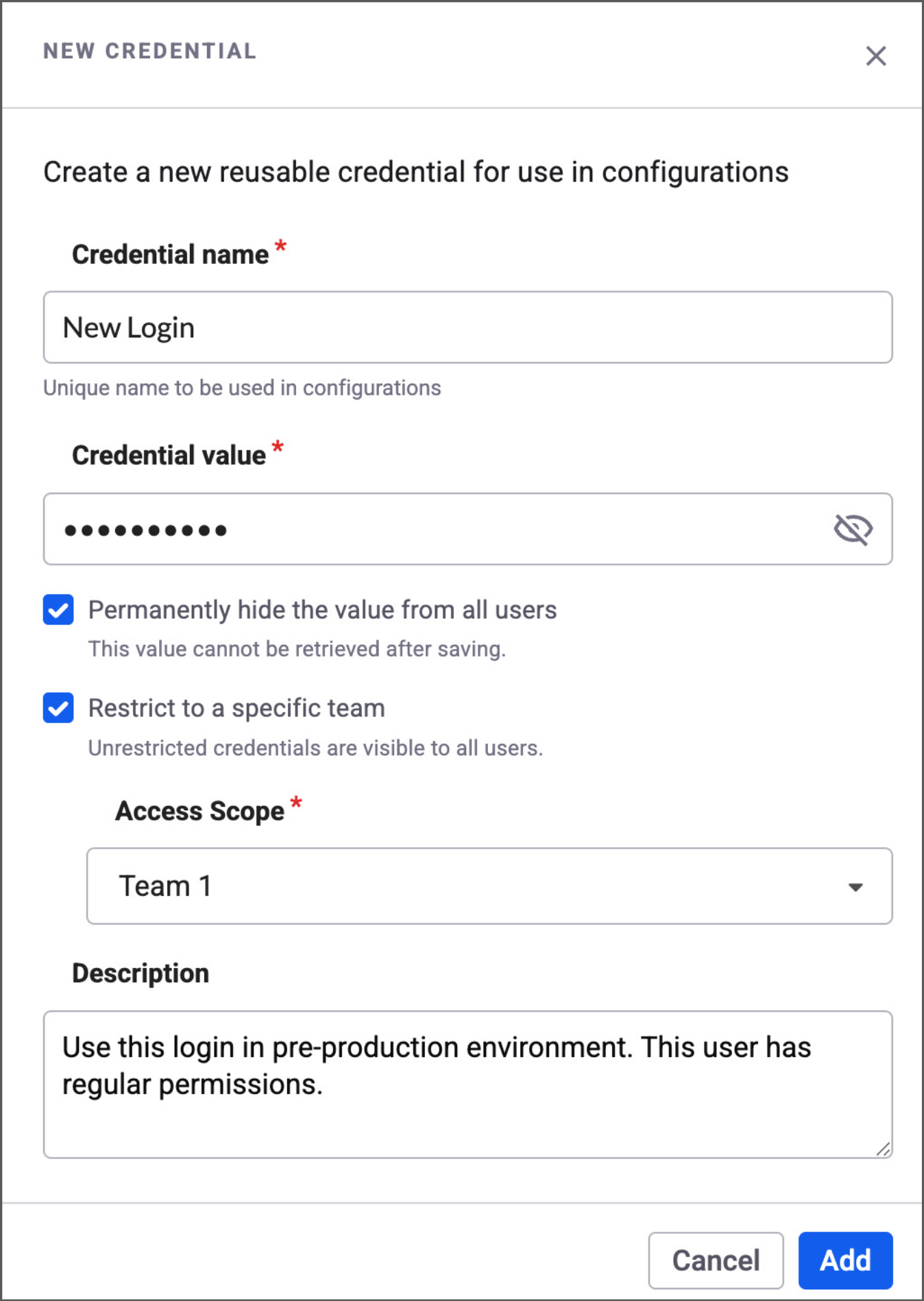
2. Click **Add Credential**.
3. Configure the credential:
* **Sensitive**: Select this option to permanently hide credential values from all users. You can update sensitive credential values but never view them after saving.
* **Scope**: Choose whether the credential is available account-wide or restricted to specific teams. Everyone in the account can use account-wide credentials.
* **Description** (optional): Add relevant information to help your team understand when to use this credential.
4. Click **Save**.
### Link a credential to a target
After creating a credential, link it to any target:
1. Navigate to the **Targets** page.
2. Locate your target and click the **gear icon** to access the target settings.
3. In the authentication or header configuration section, select the option to **Link from Credentials Manager**.
4. Choose the appropriate credential from the dropdown list.
### Where you can use credentials
You can securely store sensitive information in several areas across Snyk API & Web. Look for the **Add Credential** icon in the following locations:
**Target Settings > Authentication:**
* Login Form fields
* Custom Variables for Login Sequences
* Authentication Payloads
* Static Headers or Cookies
* Basic Auth username and password
**Target Settings > Scanner:**
* Custom Headers and Cookies
* API Parameter Custom Values
* Postman Environment Values
**Target Settings > Extra Hosts:**
* Custom Headers and Cookies
### Permissions and scope
Access to Credentials depends on your user role and assigned permissions:
* Update Target Configuration: Users with this permission can create credentials and use them within their specific targets.
* Manage Credentials: Users with this permission can create, view, update, and delete credentials across the account or team, even if someone else created the credential.
* Scoped Credentials: You can scope credentials to the entire account or restrict them to users from specific teams.
For more information about permissions, visit the Snyk API & Web permissions documentation.
### Transitioning from obfuscated values
The Credentials Manager replaces the Secret Obfuscation feature:
* Obfuscation toggle: The option to turn obfuscation on or off for account owners is hidden. Centralized management through the Credentials Manager is now the standard for sensitive data.
* Existing configurations: All existing configurations continue to work. You can keep them or replace them with Credentials Manager credentials. Snyk recommends replacing them.
* Obfuscated values: You cannot retrieve previously obfuscated values. To create new obfuscated values, use Sensitive Credentials in the Credentials Manager.
---
# Agent Instructions
This documentation is published with GitBook. GitBook is the documentation platform designed so that both humans and AI agents can read, navigate, and reason over technical content effectively. Learn more at gitbook.com.
## Querying This Documentation
If you need additional information that is not directly available in this page, you can query the documentation by asking a question.
Perform an HTTP GET request on the following URL with the `ask` and `goal` query parameters:
```
GET https://docs.snyk.io/scan-fix-and-prevent/scan-with-snyk/snyk-api-web/configure-targets/configure-authentication/manage-credentials.md?ask=&goal=
```
`ask` is the immediate question: it should be specific, self-contained, and written in natural language.
`goal` is what the user is ultimately trying to achieve, the reason they need the answer. Sharing it helps GitBook give you a better, more relevant answer. A goal is most helpful when it describes the outcome the user wants rather than restating the question. For example, with `ask=how do I create an API token`, a goal like `automate deployments from our CI pipeline` lets GitBook tailor the answer to that use case.
The response will contain a direct answer to the question and relevant excerpts and sources from the documentation.
Use this mechanism when the answer is not explicitly present in the current page, you need clarification or additional context, or you want to retrieve related documentation sections.