> For the complete documentation index, see [llms.txt](https://docs.snyk.io/llms.txt). Markdown versions of documentation pages are available by appending `.md` to page URLs; this page is available as [Markdown](https://docs.snyk.io/scan-fix-and-prevent/scan-with-snyk/snyk-api-web/configure-targets/configure-authentication/configure-two-factor-authentication.md).
# Two-factor authentication
How to configure two-factor authentication for Snyk API & Web targets
{% hint style="info" %}
**Snyk is rolling out a new navigation.** The steps on this page describe the classic interface. If your view looks different, visit [Navigate the Snyk Web UI](https://docs.snyk.io/navigate-the-snyk-web-ui#where-things-moved) to map these options to the new interface.
{% endhint %}
## Two-factor authentication
Configure two-factor authentication (2FA) to scan targets with an additional security layer beyond username and password.
Two-factor authentication strengthens authentication with an additional layer of security that requires presenting an extra piece of evidence (the possession factor) to the authentication mechanism of a website or application.
In Snyk API & Web, you can scan websites or applications that use 2FA by configuring it in the **Two-Factor Authentication (2FA)** section of your target settings.
### Prerequisites
Before configuring 2FA, you must first configure either Login Form or Login Sequence authentication:
* [Configure login form authentication](/scan-fix-and-prevent/scan-with-snyk/snyk-api-web/configure-targets/configure-authentication/configure-login-form.md)
* [Configure login sequence authentication](/scan-fix-and-prevent/scan-with-snyk/snyk-api-web/configure-targets/configure-authentication/configure-login-sequence.md)
Create a dedicated user account for testing rather than using a real user account. Snyk API & Web submits forms and clicks buttons during scans, which might create unwanted data in the account.
### Choose a 2FA method
Snyk API & Web supports two methods for 2FA:
* **Time-based One-Time Password (TOTP)**: Use this if your 2FA factor is obtained using an authenticator app like Google Authenticator, 1Password, Authy, or Microsoft Authenticator, which provides a random code that changes frequently.
* **Other OTP (One-Time Password)**: Use this if your 2FA factor is a random code sent through a communication channel like email or text message.
### Configure TOTP
TOTP uses an authenticator app on your phone to generate random codes that change frequently. The app requires a seed or secret to generate the codes that match what the server expects.
#### Obtain the 2FA seed or secret
Snyk obtains the seed or secret when the QR Code displays during 2FA setup.
Obtain the secret in one of these ways:
* The secret is available on the page together with the QR Code (for example, GitHub has a link to show the secret)
* Use a QR Code scanner app on your phone to scan the QR Code. The QR Code link contains the secret.
Example: `otpauth://totp/Example:joe@example.com?secret=JBSWY3DPEHPK3PXP&issuer=Example`
After you scan the QR Code with your authenticator app, the app starts providing TOTP codes, which lets you complete the 2FA configuration for the website or application.
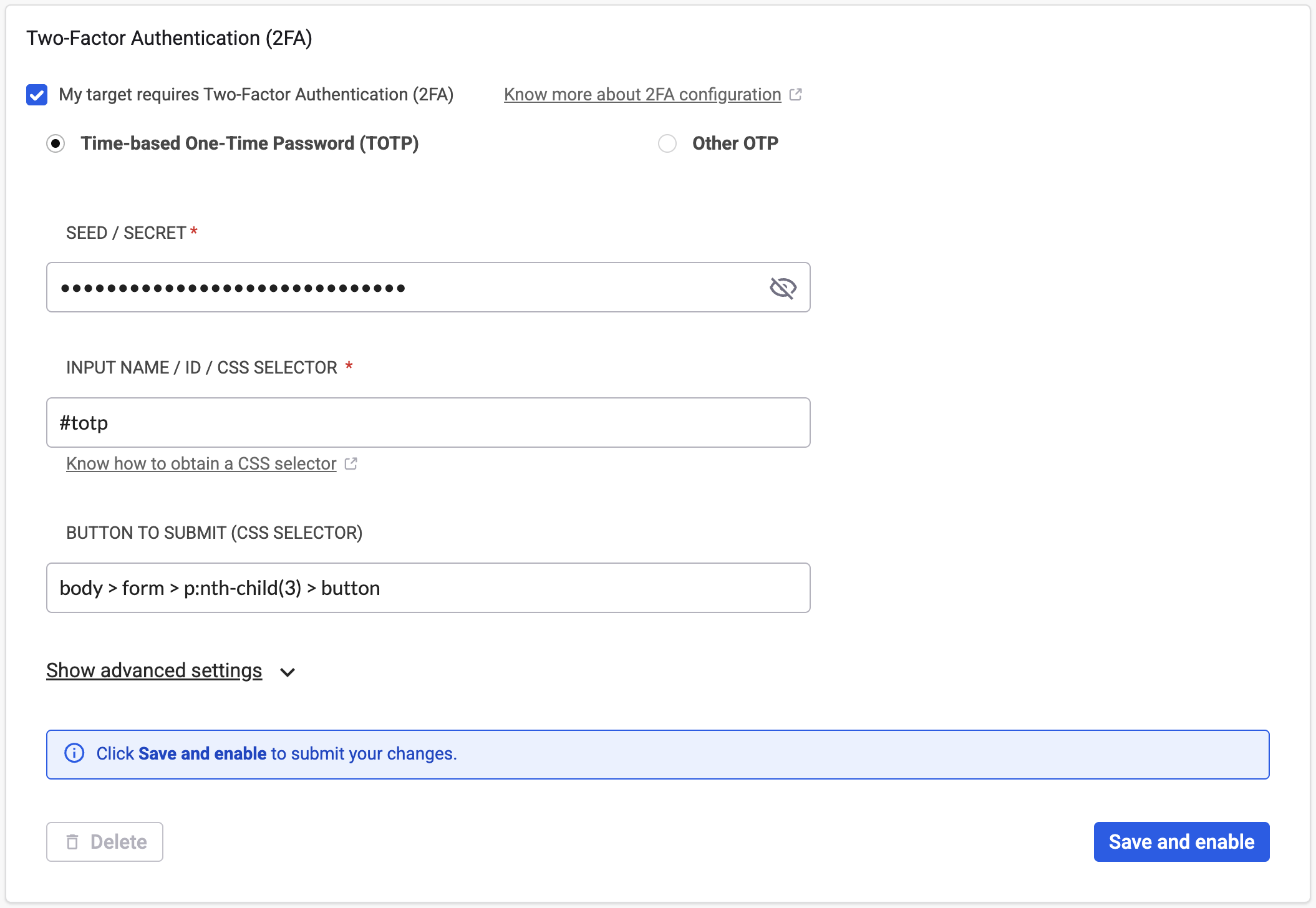
#### Configure TOTP with Login Form
When the 2FA form requests the TOTP code, obtain the following:
1. CSS selector for the TOTP input field: This selector depends on whether your site uses a single input field or multiple fields for the authenticator code.
* Single input field:
* In the following example, the CSS selector could be:
* `#totp`
```html
```
* Multiple input fields:
* If your site has the form split into several input fields, configure this using multiple CSS selectors. In the following example, the CSS selector could be:
* `split::#otp-digit-1::#otp-digit-2::#otp-digit-3::#otp-digit-4::#otp-digit-5::#otp-digit-6`
```html
```
2. CSS selector for the submit button, for example:
* `body > form > p:nth-child(3) > button`
```html
```
Then configure 2FA in Snyk API & Web as follows:
1. Navigate to the **Authentication** tab of the target settings.
2. Scroll down to the **Two-Factor Authentication (2FA)** section.
3. Select the **My target requires Two-Factor Authentication (2FA)** checkbox.
4. Leave the default **Time-based One-Time Password (TOTP)** selected.
5. Enter the **Seed / Secret** obtained from the 2FA configuration.
6. Enter the two **CSS Selectors**:
* CSS selector for the TOTP input field
* CSS selector for the submit button
7. Click **Save and enable**.
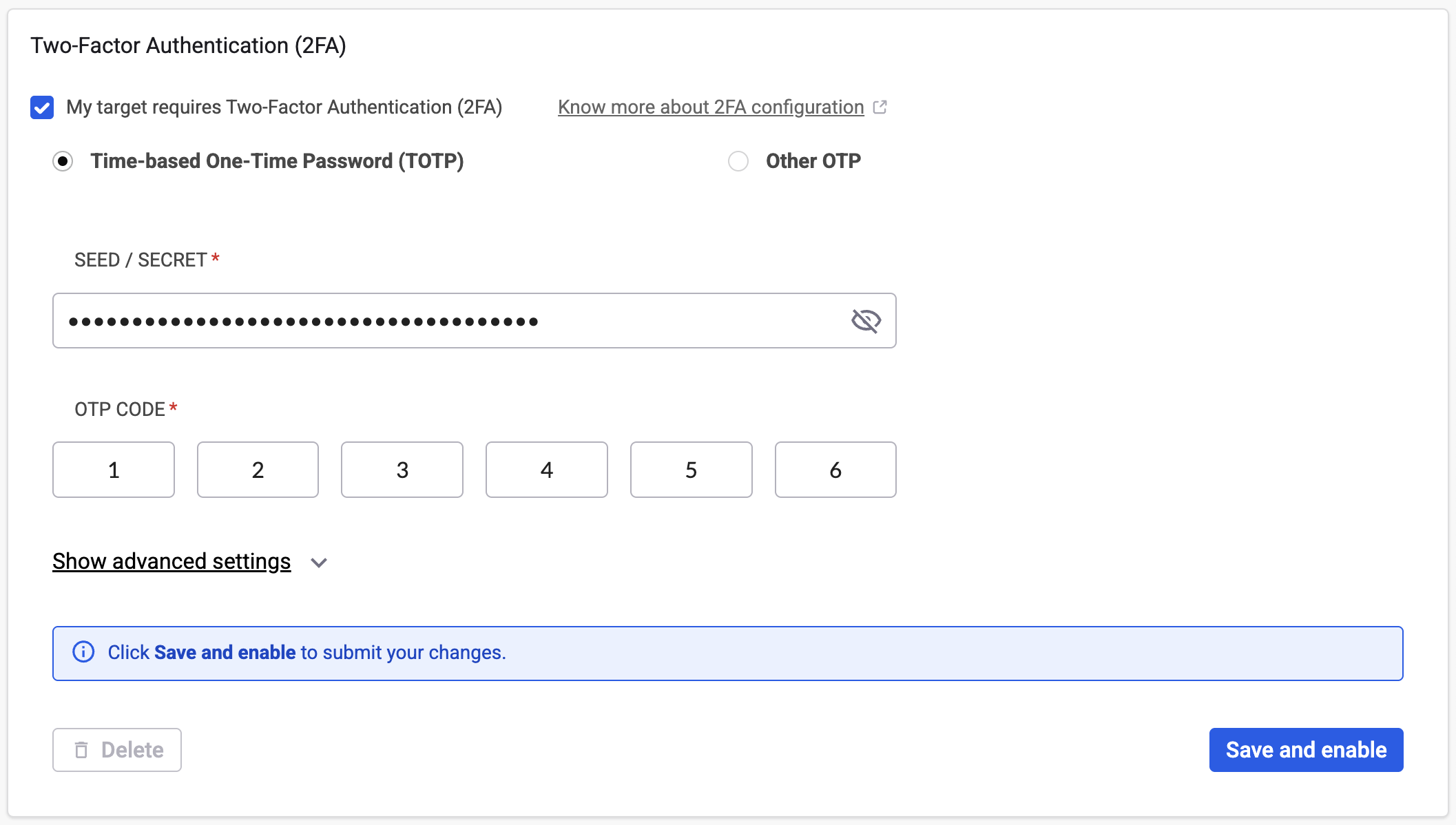
#### Configure TOTP with Login Sequence
To use the TOTP code in a login sequence, record a new login sequence with 2FA and update the target login sequence. Visit [Configure login sequence authentication](/scan-fix-and-prevent/scan-with-snyk/snyk-api-web/configure-targets/configure-authentication/configure-login-sequence.md) for instructions. During the recording, take note of the TOTP code that you used because you need it for the configuration.
Then configure 2FA in Snyk as follows:
1. Navigate to the **Authentication** tab of the target settings.
2. Scroll down to the **Two-Factor Authentication (2FA)** section.
3. Select the **My target requires Two-Factor Authentication (2FA)** checkbox.
4. Leave the default **Time-based One-Time Password (TOTP)** selected.
5. Enter the **Seed / Secret** obtained from the 2FA configuration.
6. Enter the **OTP Code** (the code saved while recording the login sequence).
7. Click **Save and enable**.
### Configure alternative OTP
Alternative OTP sends a random code through a communication channel like email or text message. You enter this code during the login process to complete authentication.
#### Configure OTP with Login Form
When the 2FA form requests the OTP code, obtain the following:
1. **CSS selector for the OTP input field**: This selector depends on whether your site uses a single input field or multiple fields for the authenticator code.
2. **CSS selector for the submit button**: For example, `.2fa-submit-button`.
Then configure 2FA in Snyk as follows:
1. Navigate to the **Authentication** tab of the target settings.
2. Scroll down to the **Two-Factor Authentication (2FA)** section.
3. Select the **My target requires Two-Factor Authentication (2FA)** checkbox.
4. Select **Other OTP**.
5. Enter the two **CSS Selectors**:
* CSS selector for the OTP input field
* CSS selector for the submit button
6. Click **Save and enable**.
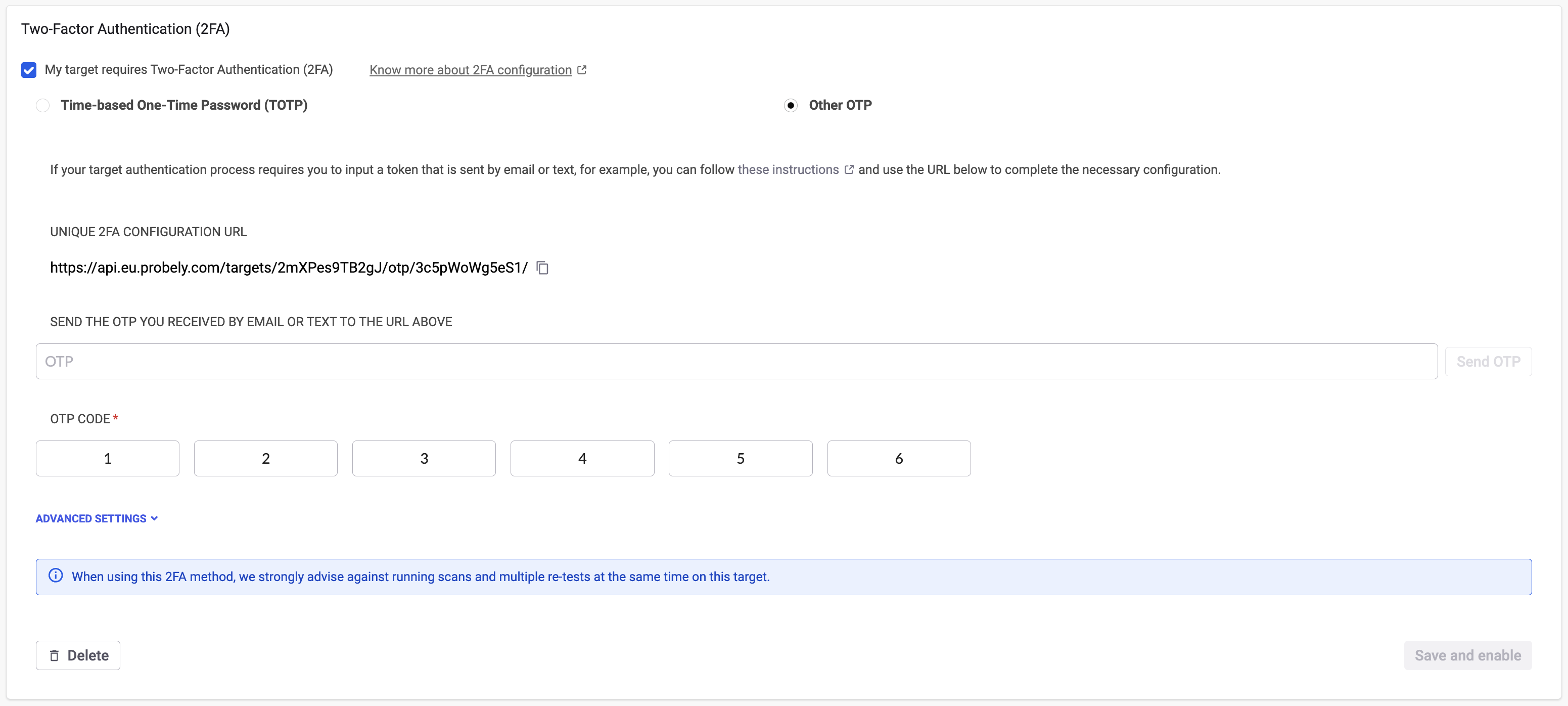
#### Configure OTP with Login Sequence
To use the OTP code in a login sequence, record a new login sequence with 2FA and update the target login sequence. Visit [Configure login sequence authentication](/scan-fix-and-prevent/scan-with-snyk/snyk-api-web/configure-targets/configure-authentication/configure-login-sequence.md) for instructions. During the recording, take note of the OTP code that you used because you need it for the configuration.
Then configure 2FA in Snyk API & Web as follows:
1. Navigate to the **Authentication** tab of the target settings.
2. Scroll down to the **Two-Factor Authentication (2FA)** section.
3. Select the **My target requires Two-Factor Authentication (2FA)** checkbox.
4. Select **Other OTP**.
5. Enter the **OTP Code** (the code saved while recording the login sequence).
6. Click **Save and enable**.
#### Communicate OTP to Snyk API & Web
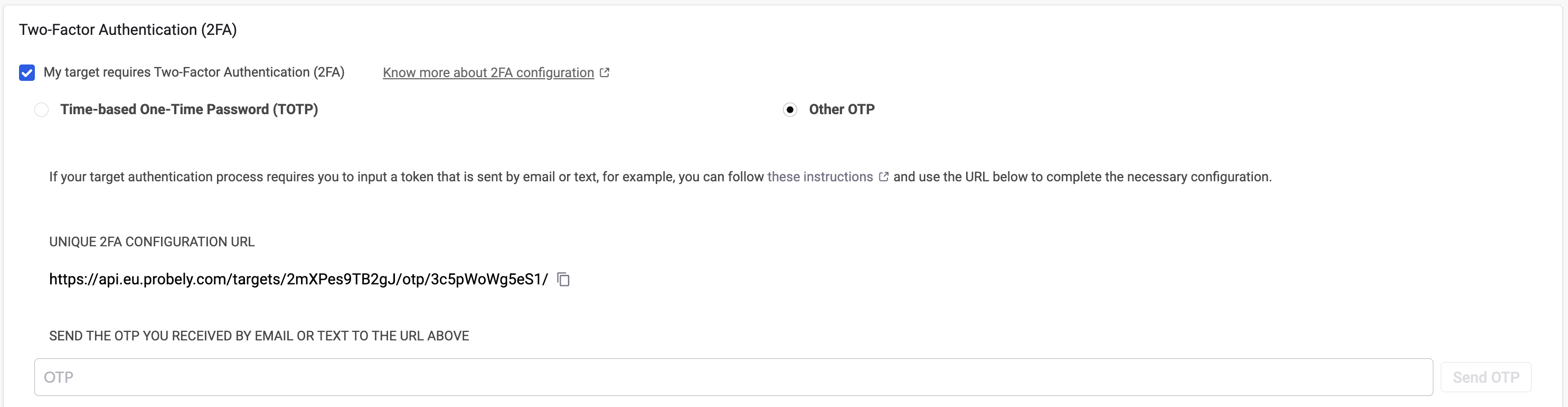
With 2FA configured on the target settings, you must communicate the OTP to Snyk API & Web when your 2FA requests it. Send the OTP from the target settings, or by calling the Snyk API.
**Send the OTP from the target settings**
1. When your 2FA sends the code by email or text message, navigate to the **Authentication** tab of the target settings.
2. Scroll down to the **Two-Factor Authentication (2FA)** section.
3. Enter the code in the **OTP** field below the **Unique 2FA Configuration URL**.
4. Click **Send OTP**, or press **Enter**.
Snyk API & Web shows the **Other OTP sent** message and clears the field.
{% hint style="info" %}
The **OTP** field and **Send OTP** button appear only after you save and enable **Other OTP** 2FA for the target.
{% endhint %}
**Send the OTP with the API**
Use the API to automate sending the OTP. Send the OTP in the request body.
Curl example:
```bash
curl -X POST '' \
-H 'Content-type: application/json' \
-d '{"otp": ""}'
```
Where:
* **\** is the URL provided under **Unique 2FA Configuration URL** in your target settings.
* **\** is the OTP to send to Snyk API & Web to authenticate in your 2FA.
#### Automate OTP extraction
For automated OTP extraction and submission, visit [Automate OTP extraction](/scan-fix-and-prevent/scan-with-snyk/snyk-api-web/configure-targets/configure-authentication/automate-otp-extraction.md) for examples using:
* Google Apps Script
* Microsoft Power Automate
### Related content
* [Configure login form authentication](/scan-fix-and-prevent/scan-with-snyk/snyk-api-web/configure-targets/configure-authentication/configure-login-form.md)
* [Configure login sequence authentication](/scan-fix-and-prevent/scan-with-snyk/snyk-api-web/configure-targets/configure-authentication/configure-login-sequence.md)
* [Automate OTP extraction](/scan-fix-and-prevent/scan-with-snyk/snyk-api-web/configure-targets/configure-authentication/automate-otp-extraction.md)
---
# Agent Instructions
This documentation is published with GitBook. GitBook is the documentation platform designed so that both humans and AI agents can read, navigate, and reason over technical content effectively. Learn more at gitbook.com.
## Querying This Documentation
If you need additional information that is not directly available in this page, you can query the documentation by asking a question.
Perform an HTTP GET request on the following URL with the `ask` and `goal` query parameters:
```
GET https://docs.snyk.io/scan-fix-and-prevent/scan-with-snyk/snyk-api-web/configure-targets/configure-authentication/configure-two-factor-authentication.md?ask=&goal=
```
`ask` is the immediate question: it should be specific, self-contained, and written in natural language.
`goal` is what the user is ultimately trying to achieve, the reason they need the answer. Sharing it helps GitBook give you a better, more relevant answer. A goal is most helpful when it describes the outcome the user wants rather than restating the question. For example, with `ask=how do I create an API token`, a goal like `automate deployments from our CI pipeline` lets GitBook tailor the answer to that use case.
The response will contain a direct answer to the question and relevant excerpts and sources from the documentation.
Use this mechanism when the answer is not explicitly present in the current page, you need clarification or additional context, or you want to retrieve related documentation sections.