> For the complete documentation index, see [llms.txt](https://docs.snyk.io/llms.txt). Markdown versions of documentation pages are available by appending `.md` to page URLs; this page is available as [Markdown](https://docs.snyk.io/scan-fix-and-prevent/scan-with-snyk/snyk-api-web/configure-targets/configure-authentication/configure-graphql-authentication.md).
# GraphQL authentication
How to configure GraphQL authentication for Snyk API & Web targets
{% hint style="info" %}
**Snyk is rolling out a new navigation.** The steps on this page describe the classic interface. If your view looks different, visit [Navigate the Snyk Web UI](https://docs.snyk.io/navigate-the-snyk-web-ui#where-things-moved) to map these options to the new interface.
{% endhint %}
## GraphQL authentication
Configure authentication to scan an API using a GraphQL schema.
If your GraphQL API requires authentication, you can configure Snyk API & Web to run authenticated requests and scan the API endpoints.
After adding an API target, configure authentication before starting the scan. This is especially important when you select the introspection option for your schema, because best practice is to allow introspection only for authenticated requests.
{% hint style="warning" %}
GraphQL Introspection enabled is considered a Low Severity vulnerability. When enabled, restrict access to your GraphQL API using authentication.
{% endhint %}
### Authentication methods
The authentication scenarios described in [Configure OpenAPI authentication](/scan-fix-and-prevent/scan-with-snyk/snyk-api-web/configure-targets/configure-authentication/configure-openapi-authentication.md) work the same way for your GraphQL API:
* **Authenticate with an API token in the request header**: Using `application/json` or `application/x-www-form-urlencoded` media types
* **Authenticate with a static header or cookie**
* **Authenticate with a fixed API key in a request parameter**
### Use application/graphql media type
GraphQL also supports `application/graphql` as the authentication media type. GraphQL servers support this format.
When using `application/graphql` as the authentication media type, the request body contains only the raw GraphQL query or mutation string.
#### Configure authentication
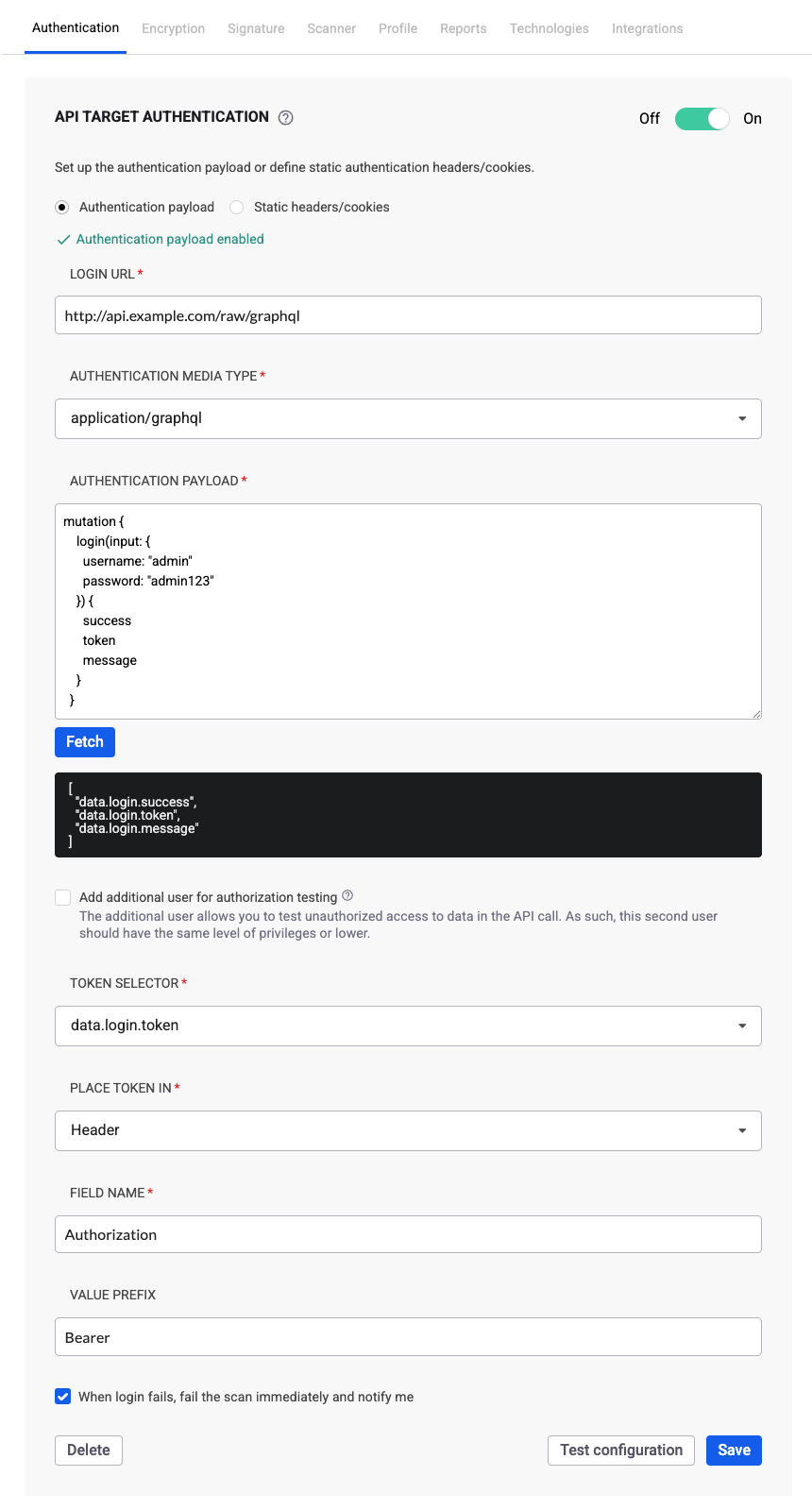
1. Navigate to the **Targets** page and click the **gear icon** to access the target settings.
2. Select the **Authentication** tab and locate the **API TARGET AUTHENTICATION** section.
1. Configure the authentication:
1. **AUTHENTICATION MEDIA TYPE**: Select `application/graphql`.
2. **LOGIN URL**: Enter the authentication URL.
3. **AUTHENTICATION PAYLOAD**: Enter the GraphQL mutation to send in the body of the POST request to the login URL.
2. Click **Fetch** to authenticate. The **TOKEN SELECTOR** field populates with fields from the authentication response. If authentication fails, Snyk displays an error.
3. In the **TOKEN SELECTOR**, choose the field that contains the authentication token.
4. In **PLACE TOKEN IN**, choose where to place the token in API requests (usually **header**, but **cookie** is also available).
5. In **FIELD NAME**, enter the name of the field in the header or cookie that holds the token.
6. (Optional) Set a **VALUE PREFIX** for the token value.
This is often needed for JWTs. For example, if your API requires a header like `Authorization: JWT `, configure:
* **FIELD NAME**: `Authorization`
* **VALUE PREFIX**: `JWT`
7. Click **Save and enable**.
You can turn this authentication on or off anytime using the **Off/On** toggle button, or delete the configuration using the **Delete** button.
{% hint style="info" %}
To test for Broken Object Level Authorization (BOLA) vulnerabilities, you can add an additional user for authorization testing. Visit [Set up your target for testing BOLA vulnerabilities](/scan-fix-and-prevent/scan-with-snyk/snyk-api-web/start-scanning/overview-scan-settings/test-bola-vulnerabilities.md) for details.
{% endhint %}
### Related content
* [Configure OpenAPI authentication](/scan-fix-and-prevent/scan-with-snyk/snyk-api-web/configure-targets/configure-authentication/configure-openapi-authentication.md)
---
# Agent Instructions
This documentation is published with GitBook. GitBook is the documentation platform designed so that both humans and AI agents can read, navigate, and reason over technical content effectively. Learn more at gitbook.com.
## Querying This Documentation
If you need additional information that is not directly available in this page, you can query the documentation by asking a question.
Perform an HTTP GET request on the following URL with the `ask` and `goal` query parameters:
```
GET https://docs.snyk.io/scan-fix-and-prevent/scan-with-snyk/snyk-api-web/configure-targets/configure-authentication/configure-graphql-authentication.md?ask=&goal=
```
`ask` is the immediate question: it should be specific, self-contained, and written in natural language.
`goal` is what the user is ultimately trying to achieve, the reason they need the answer. Sharing it helps GitBook give you a better, more relevant answer. A goal is most helpful when it describes the outcome the user wants rather than restating the question. For example, with `ask=how do I create an API token`, a goal like `automate deployments from our CI pipeline` lets GitBook tailor the answer to that use case.
The response will contain a direct answer to the question and relevant excerpts and sources from the documentation.
Use this mechanism when the answer is not explicitly present in the current page, you need clarification or additional context, or you want to retrieve related documentation sections.