For the complete documentation index, see llms.txt. This page is also available as Markdown.

Configure Postman Collection targets

How to configure Postman Collection targets for Snyk API and Web

Use Postman Collections to define API endpoints for scanning with Snyk API & Web.

Configure Snyk API & Web to scan API endpoints using a Postman Collection. The configuration involves three main steps:

  1. Prepare the Postman Collection

  2. Configure an API target using the Postman Collection

  3. Configure the API target with Postman environment variables

Example scenario

This example uses a Postman Collection with the following requests:

  • Authenticate and obtain an authentication token - requires a username and password in the request body.

  • Get a list of users - requires the authentication token in the request header.

  • Get user details - requires the authentication token in the request header and the user identifier as a parameter.

Prepare the Postman Collection

Prepare the Postman Collection to run the sequence of requests from start to end without errors. This ensures a clean export for configuring an API target in Snyk API & Web.

Create variables

  1. Navigate to the Variables tab of the collection to create auxiliary variables:

    • username: hard-coded value of the username to obtain the token.

    • password: hard-coded value of the password to obtain the token.

    • user_id: value to get user details by ID. Leave the value as null because the script sets it dynamically.

    Set the username and password variables as Shared, so that the exported collection contains their hard-coded values. Set the user_id variable as Unshared, because the script sets the value dynamically.
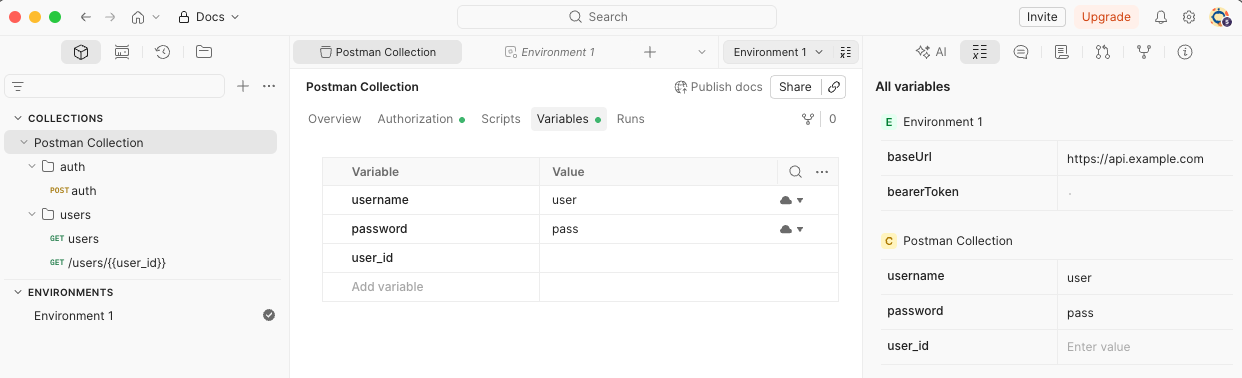
  2. Navigate to Environments to create the variable for storing the authentication token, and other variables that you set in Snyk API & Web:

    • bearerToken: variable to store the authentication token. Leave the value as null because the script sets it dynamically.

    • baseUrl: hard-coded value of the API URL.

Your collection and environment variables look like the following example:

Collection and environment variables showing username, password, user_id, bearerToken and baseUrl variables

Configure the authentication request

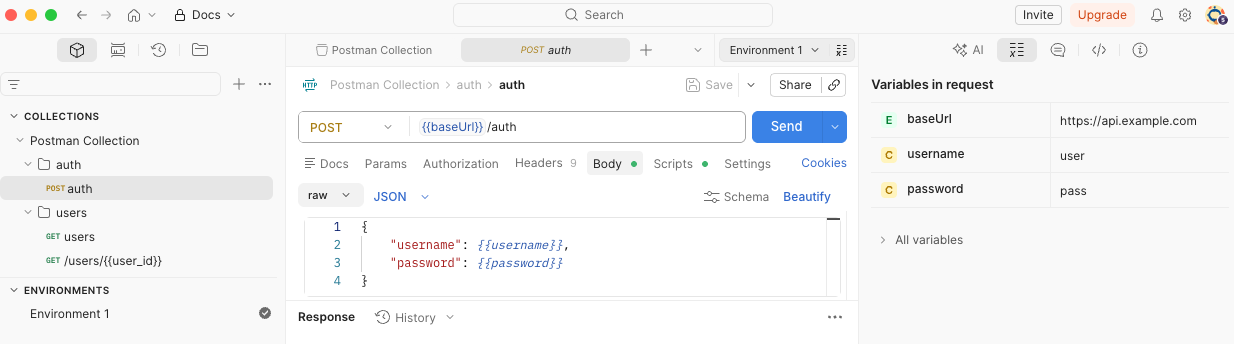
  1. To obtain the authentication token, navigate to the authentication request and set the payload in the Body tab with the username and password variables.

    Request body configuration with username and password variables
  2. To set the returned authentication token in the bearerToken variable, navigate to the Scripts tab of the authentication request and add the following JavaScript in the Post-response:

  3. After the token is configured, add the bearerToken variable to all requests in the Headers tab.

Configure request parameters

In this example, the request to obtain user details requires the user identifier as a parameter.

  1. To set the returned value in the user_id variable, navigate to the Scripts tab of the users request and add the following JavaScript in the Post-response:

  2. Navigate to the request that gets the user details and add the user_id variable as a parameter.

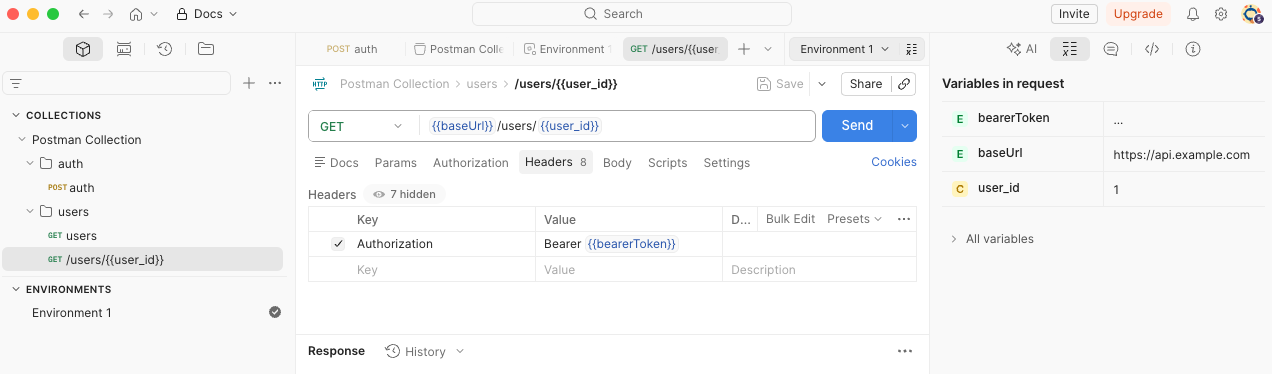
The following image shows an example of a request to get user details.

User details request showing the variables in request and the authorization header configuration

Test and export the collection

With all requests configured, run the collection to test it. If there are no issues, export the collection.

Add a Postman Collection target

After the Postman Collection is prepared and exported, add an API target.

  1. Navigate to Targets and click Add.

  2. Complete the Add target form:

    • Name: Enter a meaningful identifier for your target.

    • URL: Enter the base URL for your API.

    • API Type: Select API, then select Postman Collection.

    • Select Schema file upload.

    • File: Choose the file exported from Postman.

  3. Click Add.

Configure Postman environment variables

This example added two variables to Environments: baseUrl and bearerToken. Because the baseUrl was hard-coded in Postman, you must also set its value in Snyk.

For security reasons, set the password variable using the credentials manager. Variables added to Environments take precedence over the variables added in the collection.

Manual configuration

Configure environment variables manually in the user interface:

  1. Navigate to the target Settings.

  2. In the Scanner section, select API SCANNING SETTINGS.

  3. Enter the required Postman environment variables in the corresponding fields.

Automated configuration using script

Alternatively, import environment variables using an automated script:

  1. In Postman, export the Postman environment to a file.

  2. Retrieve the Python script to import Postman environment variables into Snyk. Find this script on the Probely API Scripts GitHub page.

  3. Run the Python script and enter the following values:

    • Target ID: The Snyk identifier of the API target, which you find in the URL of the API target. For example, the target ID in https://plus.probely.app/targets/2yzxnYgwmqbd is 2yzxnYgwmqbd.

    • Postman collection file: The file exported from Postman containing the environment variables.

  4. Navigate to the Postman Environment Values section of the API target to see the newly added environment variables.

Verify the configuration

After configuration is complete, the target is ready to scan. Test your configuration and then run a scan to verify that all requests in the collection are tested.

Last updated

Was this helpful?