> For the complete documentation index, see [llms.txt](https://docs.snyk.io/llms.txt). Markdown versions of documentation pages are available by appending `.md` to page URLs; this page is available as [Markdown](https://docs.snyk.io/platform-administration/user-management/single-sign-on-sso-for-authentication-to-snyk/configure-self-serve-single-sign-on-sso/ping-identity-setup.md).

# Ping Identity setup

How to set up a Ping Identity application and connect it to Snyk for SSO

{% hint style="info" %}
**Snyk is rolling out a new navigation.** The steps on this page describe the classic interface. If your view looks different, visit [Navigate the Snyk Web UI](https://docs.snyk.io/navigate-the-snyk-web-ui#where-things-moved) to map these options to the new interface.
{% endhint %}

## Ping Identity setup

This page explains how to set up a Ping Identity Application and connect it to Snyk to facilitate SSO.

You need the Group Admin role on a Snyk Enterprise plan, self-serve SSO turned on for your Group, and permissions in Ping Identity to create an application. To turn on self-serve SSO, contact your Snyk account team or [Snyk Support](https://support.snyk.io). Self-serve SSO does not support [custom role mapping](/platform-administration/user-management/single-sign-on-sso-for-authentication-to-snyk/custom-mapping.md).

Before configuring your Ping Identity Application to use SSO with Snyk, obtain an entity ID and a reply URL (Assertion Consumer Service URL) from Snyk. Then follow these steps:

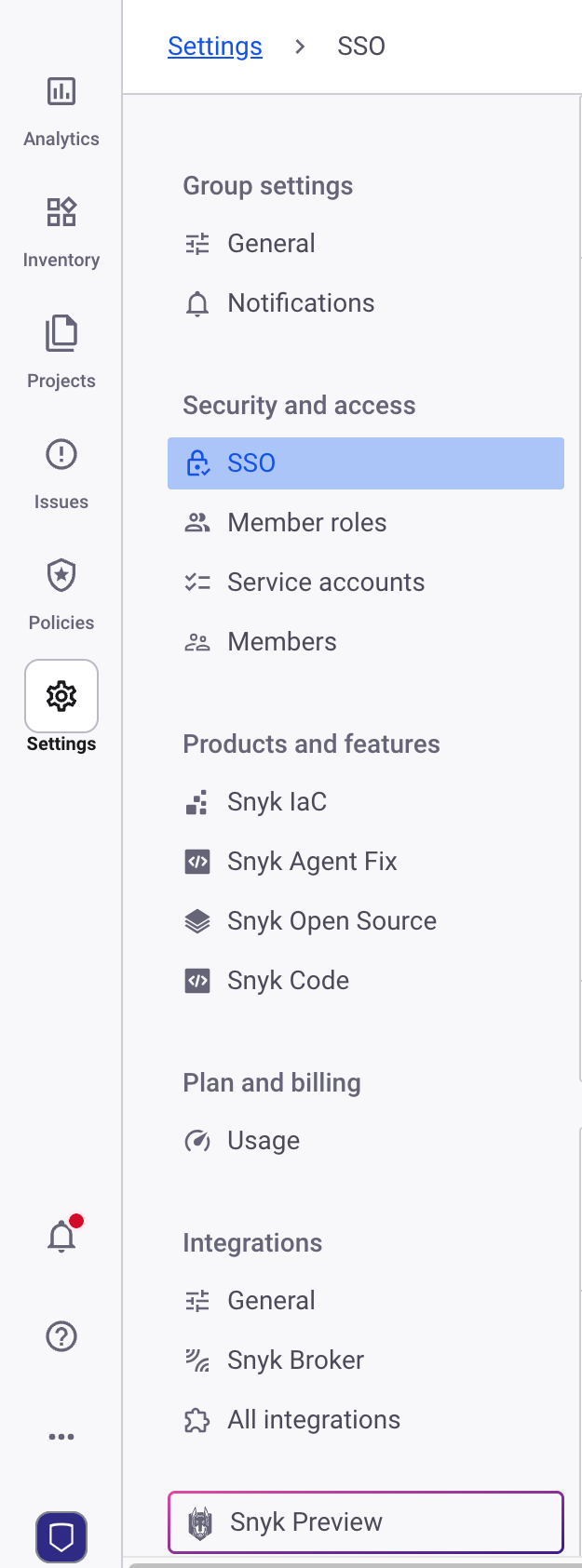
1. In the left menu, select your **Group**, then **Settings**.

   <figure><img src="https://1005789498-files.gitbook.io/~/files/v0/b/gitbook-x-prod.appspot.com/o/spaces%2FIgtgtomLQ2TUgSKOMSAm%2Fuploads%2Fgit-blob-22539b6b1b5577d25624c8fcc06f71b4bb82c869%2Fgroup-settings-sso-2.png?alt=media" alt="Entity ID and ACS URL under the Group SSO settings" width="375"><figcaption></figcaption></figure>
2. Select **SSO** and copy the values under **Entity ID** and **ACS URL** or leave the browser tab open for easy access.

   <figure><img src="https://1005789498-files.gitbook.io/~/files/v0/b/gitbook-x-prod.appspot.com/o/spaces%2FIgtgtomLQ2TUgSKOMSAm%2Fuploads%2Fgit-blob-8b7939bb9485e4396f209b637449862baaa4ff04%2F2%20(2).png?alt=media" alt="Group Settings: SSO"><figcaption><p>Group Settings: SSO</p></figcaption></figure>
3. Navigate to Ping Identity and select **Applications** in the **Connections** menu. Click on the plus sign to create a new application.

   <figure><img src="https://1005789498-files.gitbook.io/~/files/v0/b/gitbook-x-prod.appspot.com/o/spaces%2FIgtgtomLQ2TUgSKOMSAm%2Fuploads%2Fgit-blob-41e2be20596f435cdbfea408b979b85f795fad08%2F1%20(4).png?alt=media" alt="Create a new application"><figcaption><p>Create a new Application</p></figcaption></figure>
4. Name your application appropriately, select **SAML Application**, and click **Configure.**

   <figure><img src="https://1005789498-files.gitbook.io/~/files/v0/b/gitbook-x-prod.appspot.com/o/spaces%2FIgtgtomLQ2TUgSKOMSAm%2Fuploads%2Fgit-blob-2f027b4e692e37dd56492a950c0a8f48d883e95e%2F2%20(4).png?alt=media" alt="Configure as SAML Application" width="563"><figcaption><p>Configure as SAML Application</p></figcaption></figure>
5. Enter the details you copied from Snyk, the **ACS URL** and **Entity ID,** and select **Save**.

   <figure><img src="https://1005789498-files.gitbook.io/~/files/v0/b/gitbook-x-prod.appspot.com/o/spaces%2FIgtgtomLQ2TUgSKOMSAm%2Fuploads%2Fgit-blob-caa3a1637bd73481fd4f83b897d44d3cb092c323%2F3%20(5).png?alt=media" alt="Add Snyk configuration details" width="563"><figcaption><p>Add Snyk configuration details</p></figcaption></figure>
6. Select **Configuration** and download the signing certificate in PEM format.

   <figure><img src="https://1005789498-files.gitbook.io/~/files/v0/b/gitbook-x-prod.appspot.com/o/spaces%2FIgtgtomLQ2TUgSKOMSAm%2Fuploads%2Fgit-blob-968374853d4c14b7c0355282302bed213bc1d057%2F4%20(4).png?alt=media" alt="Download signing certificate"><figcaption><p>Download signing certificate</p></figcaption></figure>
7. Scroll further down and copy the **Single Signon Service** details.

   <figure><img src="https://1005789498-files.gitbook.io/~/files/v0/b/gitbook-x-prod.appspot.com/o/spaces%2FIgtgtomLQ2TUgSKOMSAm%2Fuploads%2Fgit-blob-07cfaf73a17295f555bec854b848e2160cbd3233%2F5%20(6).png?alt=media" alt="Copy the Single Signon Service details"><figcaption><p>Copy the Single Signon Service details</p></figcaption></figure>
8. Return to the the Snyk portal and paste the single sign-in URL copied at step 2 into the **Sign in URL** field. \\

   <figure><img src="https://1005789498-files.gitbook.io/~/files/v0/b/gitbook-x-prod.appspot.com/o/spaces%2FIgtgtomLQ2TUgSKOMSAm%2Fuploads%2Fgit-blob-a495799ca4b0cf13fdf80f49f21e561529623c74%2Fsingle-sign-on-URL-field.png?alt=media" alt="Paste Sign in URL"><figcaption><p>Paste Sign in URL</p></figcaption></figure>
9. Open the downloaded certificate in your preferred text editor, copy the text and paste it into the Snyk **X509 signing certificate** field, and add the relevant domains that are supported by this SSO connection.\
   Finally, verify if an IdP-initiated workflow should be enabled and then click **Create Auth0 connection** if you are creating a completely new connection or **Save changes** if you are editing an existing connection.

   <figure><img src="https://1005789498-files.gitbook.io/~/files/v0/b/gitbook-x-prod.appspot.com/o/spaces%2FIgtgtomLQ2TUgSKOMSAm%2Fuploads%2Fgit-blob-79db1882760816bdb0a6c5b44af7a5262ce73555%2FScreenshot%202023-09-05%20at%2011.01.53%20AM.png?alt=media" alt="Enter the Ping Identity details"><figcaption><p>Enter the Ping Identity details</p></figcaption></figure>
10. In Ping Identity, select **Attribute mappings** and click the pencil to edit.

    <figure><img src="https://1005789498-files.gitbook.io/~/files/v0/b/gitbook-x-prod.appspot.com/o/spaces%2FIgtgtomLQ2TUgSKOMSAm%2Fuploads%2Fgit-blob-be84ee0fb4db350b687ddfc7d56c77e527fb08cc%2F6%20(4).png?alt=media" alt="Edit attribue mappings"><figcaption><p>Edit attribue mappings</p></figcaption></figure>
11. Click the cog icon and add the following attributes:

    **email**: Email Address\
    **username**: Username\
    **name**: the expression `user.name.given + ' ' + user.name.famil`y; click the cog icon to enter an advanced description.

    <figure><img src="https://1005789498-files.gitbook.io/~/files/v0/b/gitbook-x-prod.appspot.com/o/spaces%2FIgtgtomLQ2TUgSKOMSAm%2Fuploads%2Fgit-blob-81407636846936cf9b6e070ea7e0ed96ae7efa18%2F7%20(2).png?alt=media" alt="Add attribute mappings"><figcaption><p>Add attribute mappings</p></figcaption></figure>

    <figure><img src="https://1005789498-files.gitbook.io/~/files/v0/b/gitbook-x-prod.appspot.com/o/spaces%2FIgtgtomLQ2TUgSKOMSAm%2Fuploads%2Fgit-blob-f24a8954770b6744f88388771b66eea8bb8c991e%2F8%20(3).png?alt=media" alt="Add an advanced expression for the name attribute"><figcaption><p>Add an advanced expression for the name attribute</p></figcaption></figure>
12. In the Snyk portal, decide how new users should be treated when signing in and choose the option you would like to use: **Group member**, **Org collaborator**, or **Org admin**.
13. Change the profile attributes to the attribute names you entered in Ping Identity then click **Save changes.**\\

    <figure><img src="https://1005789498-files.gitbook.io/~/files/v0/b/gitbook-x-prod.appspot.com/o/spaces%2FIgtgtomLQ2TUgSKOMSAm%2Fuploads%2Fgit-blob-7a6c3c946469e05840e56ead32dd7bf2dcde275d%2FScreenshot%202023-09-05%20at%2011.07.37%20AM.png?alt=media" alt="Step 3 Snyk SSO settings"><figcaption><p>Step 3 Snyk SSO settings</p></figcaption></figure>
14. Enable the application and assign it to users.

    <figure><img src="https://1005789498-files.gitbook.io/~/files/v0/b/gitbook-x-prod.appspot.com/o/spaces%2FIgtgtomLQ2TUgSKOMSAm%2Fuploads%2Fgit-blob-0cdedccc16649610862a9f1dc2dbf0670818e0b5%2F10%20(2).png?alt=media" alt="Enable and assign the application to users"><figcaption><p>Enable and assign the application to users</p></figcaption></figure>
15. Verify you can log in, either with the direct URL at the top of **Step 3 Snyk SSO settings** (not shown in the image) or by going to the [generic SSO login](https://app.snyk.io/login/sso).

The connection works when a user assigned to the application logs in through the direct URL at the top of **Step 3** on the Snyk SSO settings page, or through the [generic SSO login](https://app.snyk.io/login/sso), the name and email address Snyk records for that user match the values Ping Identity sends, and the user has the role you chose for new users.


---

# Agent Instructions
This documentation is published with GitBook. GitBook is the documentation platform designed so that both humans and AI agents can read, navigate, and reason over technical content effectively. Learn more at gitbook.com.

## Querying This Documentation
If you need additional information that is not directly available in this page, you can query the documentation by asking a question.

Perform an HTTP GET request on the following URL with the `ask` and `goal` query parameters:

```
GET https://docs.snyk.io/platform-administration/user-management/single-sign-on-sso-for-authentication-to-snyk/configure-self-serve-single-sign-on-sso/ping-identity-setup.md?ask=<question>&goal=<user_goal>
```

`ask` is the immediate question: it should be specific, self-contained, and written in natural language.
`goal` is what the user is ultimately trying to achieve, the reason they need the answer. Sharing it helps GitBook give you a better, more relevant answer. A goal is most helpful when it describes the outcome the user wants rather than restating the question. For example, with `ask=how do I create an API token`, a goal like `automate deployments from our CI pipeline` lets GitBook tailor the answer to that use case.

The response will contain a direct answer to the question and relevant excerpts and sources from the documentation.

Use this mechanism when the answer is not explicitly present in the current page, you need clarification or additional context, or you want to retrieve related documentation sections.
