> For the complete documentation index, see [llms.txt](https://docs.snyk.io/llms.txt). Markdown versions of documentation pages are available by appending `.md` to page URLs; this page is available as [Markdown](https://docs.snyk.io/platform-administration/user-management/single-sign-on-sso-for-authentication-to-snyk/configure-self-serve-single-sign-on-sso/google-workspace-setup.md).

# Google Workspace setup

This example shows setting up an Google Workspace SAML application and connecting it to Snyk to facilitate SSO.

For details in addition to the information provided on this page, see [Set up your own custom SAML app](https://support.google.com/a/answer/6087519).

Start by logging into the Google Workspace [admin area](https://admin.google.com).

1. Go to **Apps** and then click **Web and mobile apps**.

   <figure><img src="/files/R11add6Goc20PukQzMAg" alt="Open Web and Mobile apps"><figcaption><p>Open Web and Mobile apps</p></figcaption></figure>
2. Click on **Add app** and choose **Add custom SAML app**.

   <figure><img src="/files/zQRmNZrnKYOsq1hjO5ZY" alt="Add new custom SAML app"><figcaption><p>Add new custom SAML app</p></figcaption></figure>
3. Name your application appropriately and click **Continue**.

   <figure><img src="/files/RU2l9PPAbKVKKHNYwFGF" alt="Name the SAML app"><figcaption><p>Name the SAML app</p></figcaption></figure>
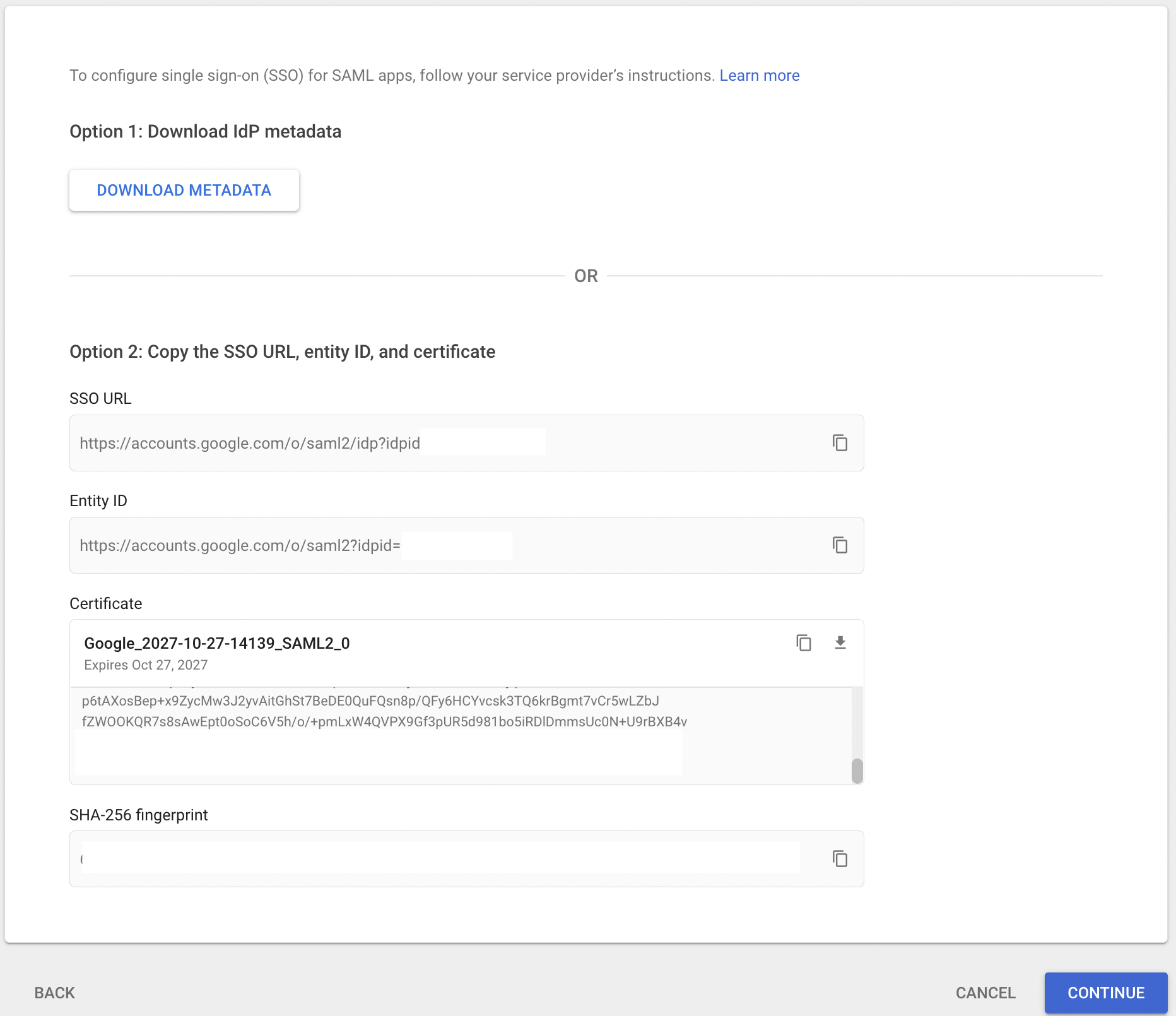
4. Download the certificate and open it in your preferred text editor.

   <figure><img src="/files/eyyKVmWLUEiGKyXcK1t9" alt="Download signing certificate"><figcaption><p>Download signing certificate</p></figcaption></figure>
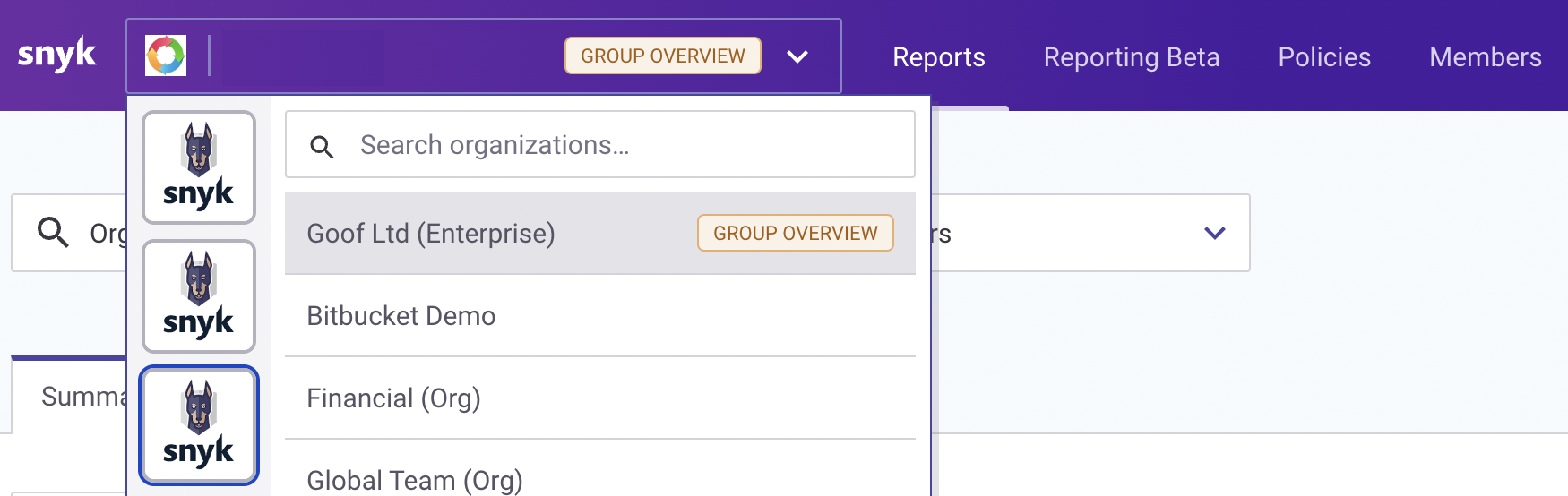
5. Navigate to the Snyk portal, login and from the drop down at the top left select **GROUP OVERVIEW** and then the cog wheel (top right corner) to get to your group settings.

   <figure><img src="/files/d0oFmDlRUxMtZeo10oHk" alt="Open group view in Snyk"><figcaption><p>Open group view in Snyk</p></figcaption></figure>
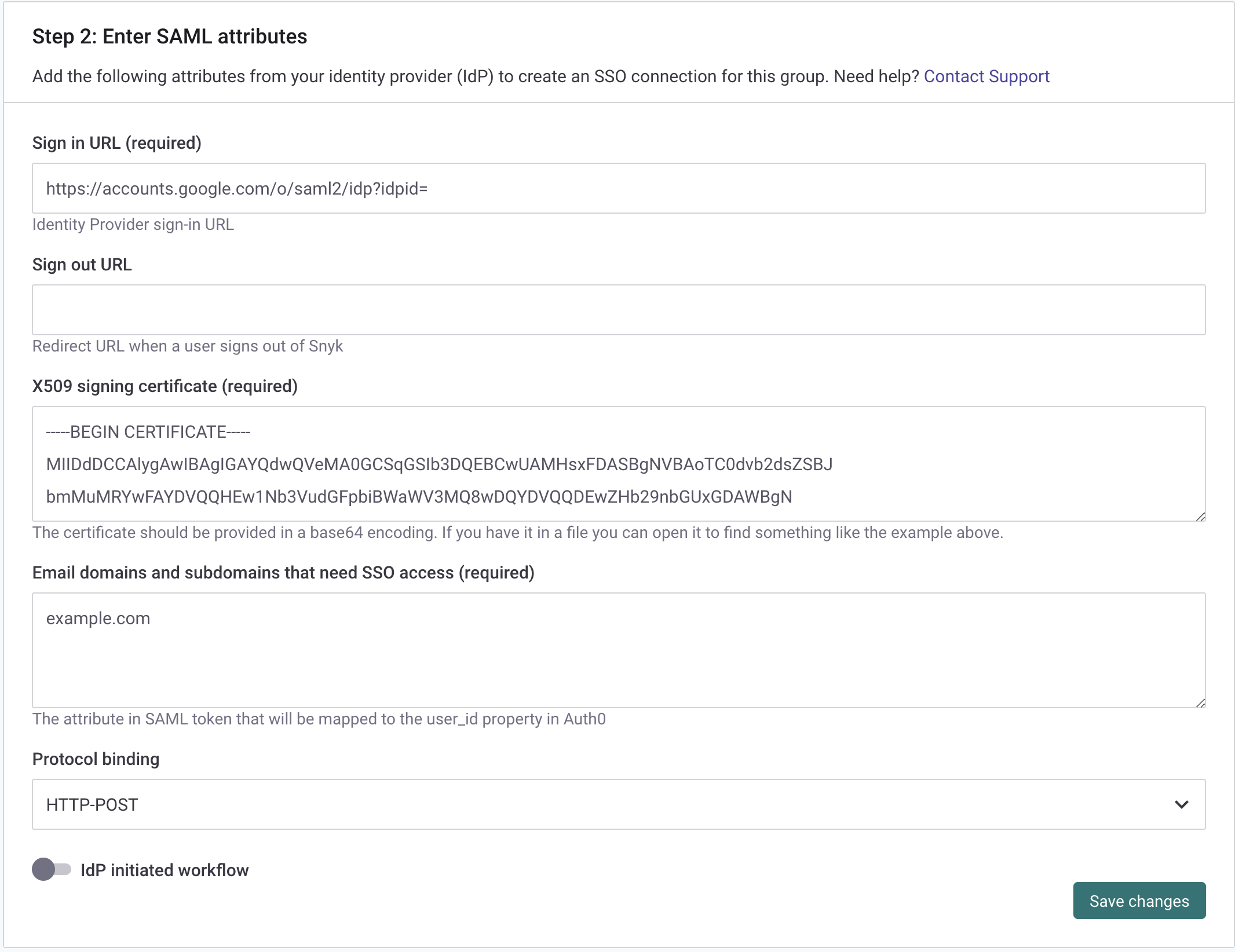
6. Click on **SSO**, scroll down to step 2, and paste the Google SSO URL from step 4 into **Sign in URL** and the certificate in your text editor into **X509 signing certificate**.\
   Add the domain name(s) you are configuring this connection for in **Email domains and subdomains that need SSO access**.\
   Verify if an **IdP-initiated workflow** should be enabled and then save your modifications

   <figure><img src="/files/PvZ6zkf45oUXSOm9hKAz" alt="Enter details from Google Workspace"><figcaption><p>Enter details from Google Workspace</p></figcaption></figure>
7. Scroll up to step 1 and copy the **Entity ID** and **ACS URL**.

   <figure><img src="/files/RXMJEEgXHG9GVKcTBHKc" alt="Copy details from Snyk"><figcaption><p>Copy details from Snyk</p></figcaption></figure>
8. Go back to the Google admin portal , click **Continue,** and paste those two values into their respective fields. Then tick **Signed response**.

   <figure><img src="/files/GpimPE93TT2mlteJbfnQ" alt="Enter details from Snyk in Google"><figcaption><p>Enter details from Snyk in Google</p></figcaption></figure>
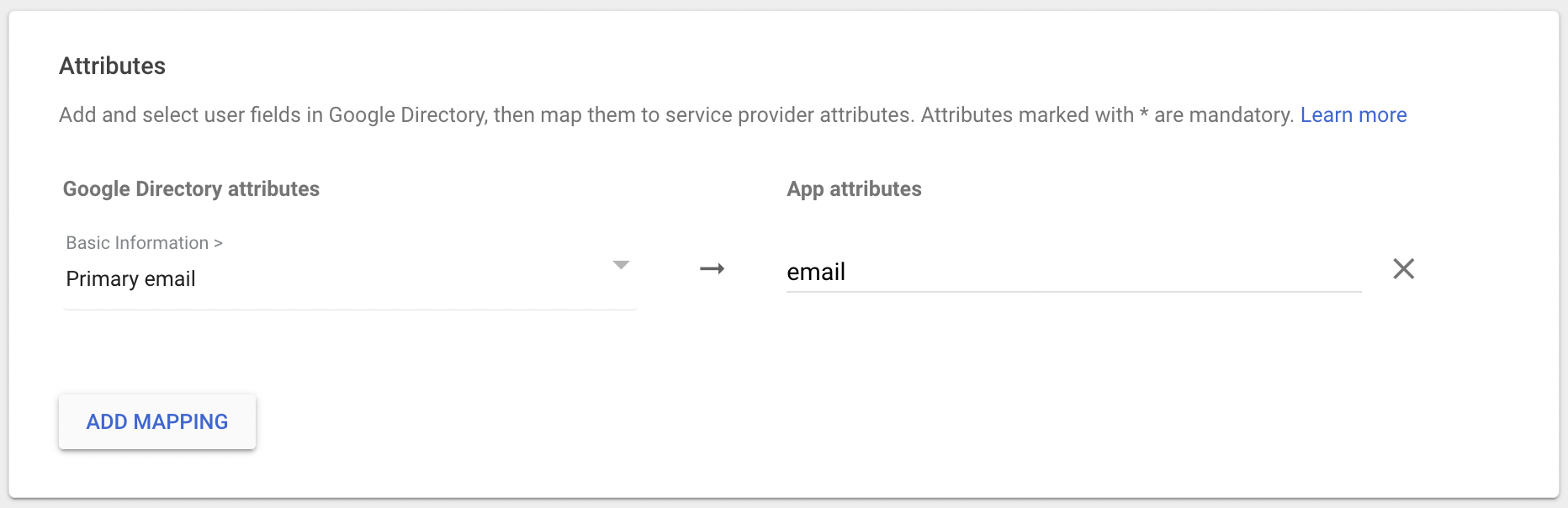
9. Click **Continue**, add an app attribute named email tied to the **Primary Email**, and save the configuration.

   <figure><img src="/files/WMVNnQUTWY7FP2ox6Tes" alt="Add email attribute"><figcaption><p>Add email attribute</p></figcaption></figure>
10. Enable access to your app for your users by clicking **User Access**, tick **On for everyone**, and **Save**. Modify organizational access as needed.

    <figure><img src="/files/zUaiuvr3hUtpmATFRsNd" alt="Enable SSO app for the organization"><figcaption><p>Enable SSO app for the organization</p></figcaption></figure>
11. Finalize the setup by going back to the Snyk portal and decide how new users should be processed when signing in. Choose the option you would like to use: **Group member**, **Org collaborator**, or **Org admin**.
12. Then add the previously created **email** app attribute to both **Email** and **Username** and save the configuration. If you wish to populate the full name you may configure a custom attribute in Google Workspace.

    <figure><img src="/files/2aTcg8hdU0NnFUZ5zP8h" alt="Tie together attributes from Google to Snyk"><figcaption><p>Tie together attributes from Google to Snyk</p></figcaption></figure>


---

# Agent Instructions
This documentation is published with GitBook. GitBook is the documentation platform designed so that both humans and AI agents can read, navigate, and reason over technical content effectively. Learn more at gitbook.com.

## Querying This Documentation
If you need additional information that is not directly available in this page, you can query the documentation dynamically by asking a question.

Perform an HTTP GET request on the current page URL with the `ask` query parameter, and the optional `goal` query parameter:

```
GET https://docs.snyk.io/platform-administration/user-management/single-sign-on-sso-for-authentication-to-snyk/configure-self-serve-single-sign-on-sso/google-workspace-setup.md?ask=<question>&goal=<endgoal>
```

`ask` is the immediate question: it should be specific, self-contained, and written in natural language.
`goal` is optional and describes the broader end goal you are ultimately trying to accomplish on behalf of the user. GitBook uses it to tailor the answer towards what is most useful for that goal.

The response will contain a direct answer to the question and relevant excerpts and sources from the documentation.

Use this mechanism when the answer is not explicitly present in the current page, you need clarification or additional context, or you want to retrieve related documentation sections.