> For the complete documentation index, see [llms.txt](https://docs.snyk.io/llms.txt). Markdown versions of documentation pages are available by appending `.md` to page URLs; this page is available as [Markdown](https://docs.snyk.io/platform-administration/snyk-hierarchy/manage-notifications.md).
# Manage notifications
How to manage Snyk notifications that alert you to new vulnerabilities found in the Projects you monitor
{% hint style="info" %}
**Snyk is rolling out a new navigation.** The steps on this page describe the classic interface. If your view looks different, visit [Navigate the Snyk Web UI](https://docs.snyk.io/navigate-the-snyk-web-ui#where-things-moved) to map these options to the new interface.
{% endhint %}
## Manage notifications
Snyk notifies you automatically when new issues are found in the Projects you are monitoring to alert you to new possible risks in these Projects.
### How notifications are sent
Snyk can send notifications in the following ways:
* By email, if you have configured [email notifications in your account settings](https://app.snyk.io/account/notifications).
* By Slack, if you have set up [Slack integration](https://docs.snyk.io/developer-tools/integrations/jira-and-slack-integrations/slack-integration).
Snyk also sends you a weekly update summarizing the security status across all of your Organizations.
Snyk offers notifications for:
* vulnerabilities
* license issues
* weekly summary report
* usage alerts
* report status
{% hint style="info" %}
Setting a Project to inactive does not stop Snyk from sending notifications. You must disable notifications for that Project separately.
{% endhint %}
{% hint style="info" %}
**FedRAMP environment notifications**\
Both [issue alert emails](#group-defaults-for-issue-alert-emails) and [weekly report emails](#group-defaults-for-weekly-report-emails) are disabled for FedRAMP environments. Their notification settings may be hidden from the page.
{% endhint %}
### How to manage notifications
Snyk provides controls to manage your own notifications. Administrators can manage the notification defaults for others in the [Group](#define-group-notification-defaults) or [Organization](#define-organization-notification-defaults).
{% hint style="info" %}
Weekly notification emails are sent only to Organization users, so Group Admins must add themselves as Organization members for the Organizations where they need to receive the emails.
{% endhint %}
You can also send notifications for an Organization to a designated Slack channel. For details, see [Slack integration](https://docs.snyk.io/developer-tools/integrations/jira-and-slack-integrations/slack-integration).
#### Notification precedence rules
Snyk resolves your effective email notification settings by following precedence rules from most specific to least specific. Snyk stops at the first explicitly set value:
* User preference for a specific Project: Most specific; always wins.
* User preference for an Organization: Overrides the Organization default for that user.
* Organization default: Overrides the system-wide default for everyone in the Organization.
#### Define Group notification defaults
Define the notification settings at the Group level to set the template for Snyk's issue alert, weekly report, usage alert, and report status emails for Organizations within that Group. You also access default settings for existing individual Organizations at the Group level.
{% hint style="info" %}
Changing the Group default settings does not change the settings for existing Organizations or Projects. Individual users can override the default notification settings.
{% endhint %}
Defining Group defaults requires an account with Group administration permissions.
To navigate to the Group level notification settings:
1. Navigate to the Group overview for the Group you want to change.
2. Select **Settings**.
3. Select **Notifications**.
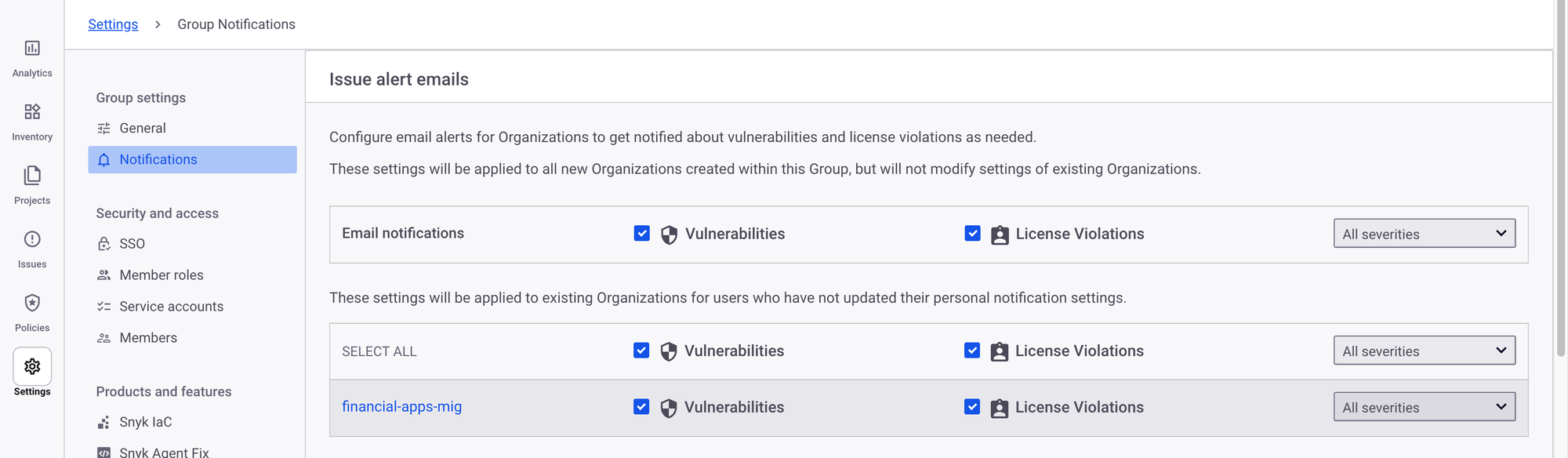
Notification settings at the Group level
**Group defaults for issue alert emails**
Snyk sends issue alert emails when it finds new vulnerabilities, license issues, or remediations.
To set the defaults for issue alert emails:
1. Check the **Vulnerabilities** box to send alert emails by default for new issues or remediations across all Projects in new Organizations created in this Group.
2. Check the **License Violations** box to send alert emails by default for new license issues or remediations across all Projects in new Organizations created in this Group.
3. If you select the **Vulnerabilities** or **License** **Violations** checkboxes, indicate the issue severity for Snyk alert emails by selecting **All severities** or **Critical and high severity** from the drop-down list.
4. To change the default settings for organizations, change the **Vulnerabilities**, **License** **Violations**, and **Severity** settings next to the Organization name. When you create new Organizations in this Group, these settings apply by default to any user who has not updated their personal notifications.
The Group notifications page has no save button. Your changes take effect when you check or clear a box.
**Group defaults for weekly report emails**
Weekly report emails are notifications Snyk sends to provide a summary of the vulnerability status across all Projects and Organizations to which a user belongs. For an Organization with zero vulnerabilities across its Projects, the notification lists the number of active Projects, the number of known vulnerabilities, and the total number of dependencies.
To set the defaults for weekly report emails:
* Check the **Email notifications** box to send a weekly summary email by default to users of new Organizations created in this Group.
* To change the defaults for individual Organizations, clear or check the box next to the Organization name. The defaults will apply to new Organizations created in this Group.
{% hint style="info" %}
Individual Projects cannot be excluded from Weekly reports. They can be excluded only from Issue Alert emails and new vulnerabilities or remediations.
{% endhint %}
**Group defaults for usage alerts**
Usage alert emails are notifications Snyk sends to warn you when you are approaching usage limits.
To set the defaults for usage alerts:
* Check the **Email notifications** box to send usage alert emails by default to users of new Organizations created in this Group.
* To change the defaults for individual Organizations, clear or check the box next to the Organization name. The defaults will apply to new Organizations created in this Group.
#### Define Organization notification defaults
Define the notification settings for the Organization to determine how Snyk sends emails to all individuals in the Organization who have not changed their personal notification preferences.
{% hint style="info" %}
Changing the Organization default settings does not change the settings for existing Projects or individual users. Individual users can override the default notification settings.
{% endhint %}
Defining Organization defaults requires an account with administration permissions for that Organization.
To navigate to the Organization-level notification settings:
1. Navigate to the Organization you want to change.
2. Select **Settings**.
3. Select **Notifications**.
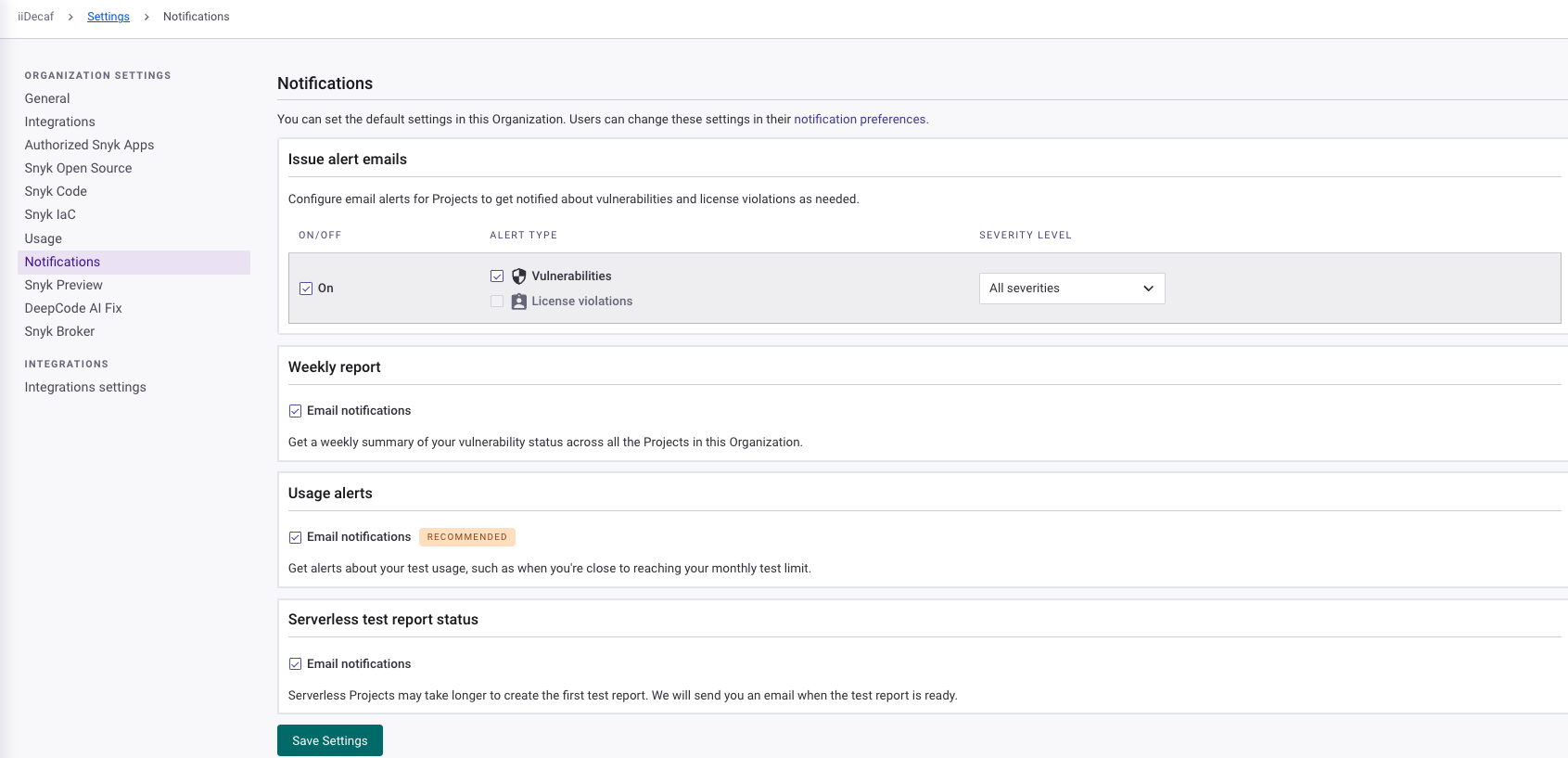
Notification settings at the Organization level
**Organization defaults for issue alert emails**
Issue alert emails notify you when Snyk finds new vulnerabilities, license issues, or remediations.
To set the defaults for issue alert emails:
* Clear the **On** box to turn off issue alert emails for new Projects imported into this Organization. Check the box to indicate that new Projects in this Organization should receive the defined alerts.
* Check the **Vulnerabilities** box to set the default for all Projects in this Organization to generate alert emails for new issues or remediations.
* Check the **License violations** box to set the default for all Projects in this Organization to generate alert emails for new license issues or remediations.
* If either the **Vulnerabilities** or **License violations** boxes are checked, indicate the severity of issues for which Snyk should send alert emails by selecting **All severities** or **Critical and high severity** from the drop-down Projects list.
Select **Save Settings**.
**Organization defaults for weekly report emails**
Weekly report emails are notifications Snyk sends to provide a summary of the vulnerability status across all Projects and Organizations to which a user belongs.
Select the **Email notifications** checkbox under **Weekly report** to set the default for Organization members to receive weekly summary emails.
Select **Save Settings**.
**Organization defaults for usage alerts**
Usage alert emails are notifications Snyk sends to warn you when you are approaching usage limits.
Set default usage alerts for your Organization. Select the **Approaching test limit** checkbox to ensure members receive usage alert emails by default.
Select **Save Settings**.
### Change personal notification preferences
The organizations you belong to have default settings for how Snyk sends emails.
To override these settings, change your notification preferences:
1. Select the dropdown next to your name.
2. Select **Notification preferences**.
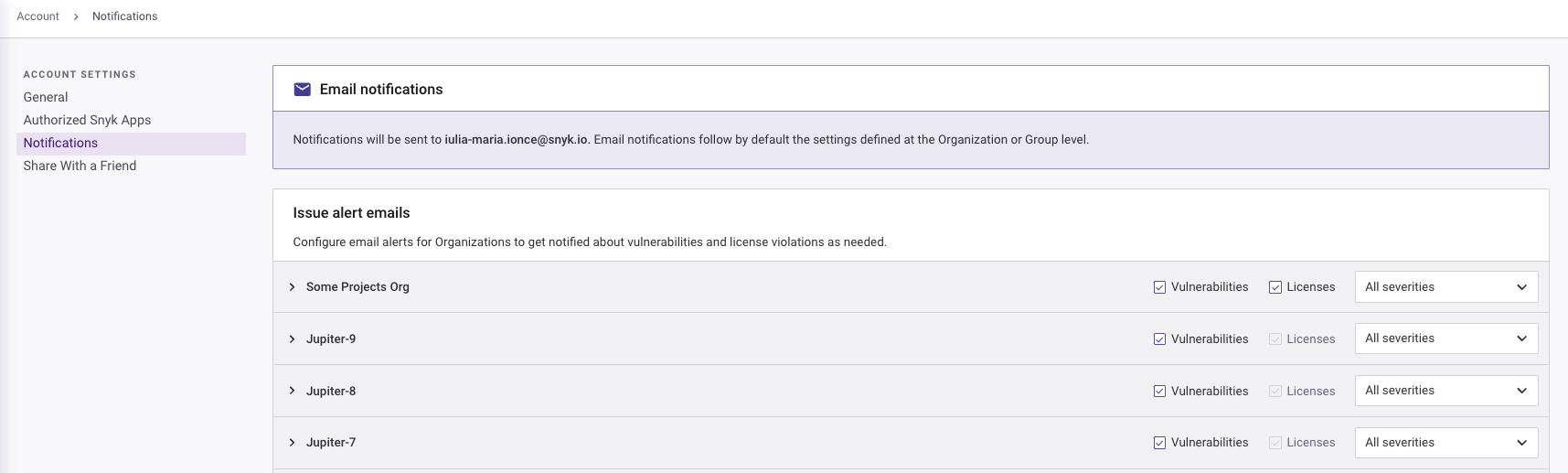
Notification settings at the Account level
The Account Settings page allows you to change the types of notifications for each Organization to which you belong. You can also customize the notifications for individual Projects.
#### Preferences for issue alert emails
Issue alert emails are notifications Snyk sends the day it finds a new vulnerability, license issue or remediation.
To customize your settings for issue alert emails for each Organization for which you are a member:
* Check the **Vulnerabilities** box to receive alert emails for new issues or remediations for all Projects in the Organization.
* Check the **Licenses** box for Open Source to receive alert emails for new license issues for all Projects in the Organization.
* If either the **Vulnerabilities** or **Licenses** boxes are checked, indicate the severity of issues for which Snyk should send alert emails by selecting **All severities** or **Critical and high severity** from the drop-down list.
To customize your settings for individual Projects:
1. Expand the Organization to see a list of Projects in the Organization.
2. Next to each Project name, clear or check the **Vulnerabilities** or **Licenses** boxes and set the severity for the Project.
#### Preferences for weekly report emails
Weekly report emails are notifications Snyk sends to provide a summary of the vulnerability status for the Projects in the Organizations to which you belong.
To include Organizations in your weekly report emails, check the box next to each Organization for which you want to receive alerts.
#### Preferences for usage alerts
Usage alert emails are notifications Snyk sends to warn you when you are approaching usage limits.
To receive usage alerts for an Organization, check the box next to the Organization.
---
# Agent Instructions
This documentation is published with GitBook. GitBook is the documentation platform designed so that both humans and AI agents can read, navigate, and reason over technical content effectively. Learn more at gitbook.com.
## Querying This Documentation
If you need additional information that is not directly available in this page, you can query the documentation by asking a question.
Perform an HTTP GET request on the following URL with the `ask` and `goal` query parameters:
```
GET https://docs.snyk.io/platform-administration/snyk-hierarchy/manage-notifications.md?ask=&goal=
```
`ask` is the immediate question: it should be specific, self-contained, and written in natural language.
`goal` is what the user is ultimately trying to achieve, the reason they need the answer. Sharing it helps GitBook give you a better, more relevant answer. A goal is most helpful when it describes the outcome the user wants rather than restating the question. For example, with `ask=how do I create an API token`, a goal like `automate deployments from our CI pipeline` lets GitBook tailor the answer to that use case.
The response will contain a direct answer to the question and relevant excerpts and sources from the documentation.
Use this mechanism when the answer is not explicitly present in the current page, you need clarification or additional context, or you want to retrieve related documentation sections.