> For the complete documentation index, see [llms.txt](https://docs.snyk.io/llms.txt). Markdown versions of documentation pages are available by appending `.md` to page URLs; this page is available as [Markdown](https://docs.snyk.io/developer-tools/integrations/jira-and-slack-integrations/jira-integration.md).
# Jira integration
How to set up the Snyk Jira integration to create tickets from vulnerabilities
{% hint style="info" %}
**Snyk is rolling out a new navigation.** The steps on this page describe the classic interface. If your view looks different, visit [Navigate the Snyk Web UI](https://docs.snyk.io/navigate-the-snyk-web-ui#where-things-moved) to map these options to the new interface.
{% endhint %}
## Jira integration
{% hint style="info" %}
For Snyk Infrastructure as Code, see [Jira Integration for IaC](https://docs.snyk.io/scan-fix-and-prevent/scan-with-snyk/snyk-iac/snyk-iac-integrations/jira-integration-for-iac).
{% endhint %}
### Set up your Jira integration
Snyk Jira integration allows you to manually raise Jira issues in the Snyk UI for vulnerabilities or license issues. The Jira integration also includes the API endpoints [Create jira issue](/developer-tools/snyk-api/reference/jira-v1.md#org-orgid-project-projectid-issue-issueid-jira-issue) and [List all jira issues](/developer-tools/snyk-api/reference/jira-v1.md#org-orgid-project-projectid-jira-issues).
{% hint style="info" %}
If your Jira instance is private, use [the Snyk Broker deployment method](https://docs.snyk.io/platform-administration/snyk-broker/classic-broker/install-and-configure-snyk-broker/jira-prerequisites-and-steps-to-install-and-configure-broker/jira-install-and-configure-using-docker).
{% endhint %}
### Prerequisites for Jira integration with Snyk
* Snyk supports Jira from version 5 to version 10.
* The following [Jira permissions](https://confluence.atlassian.com/adminjiraserver073/managing-project-permissions-861253293.html) are required: **Browse Projects** and **Create Issues.**
### How to set up your Jira integration
It is best practice to set up a new user in Jira for this integration, instead of using the credentials of an existing account.
{% hint style="info" %}
Jira Service Accounts cannot be used to authenticate the integration at this stage. You must use an individual user account with the appropriate permissions.
{% endhint %}
Cloud-hosted Jira implementations require a username and API token authentication. Jira API tokens are generated in [Atlassian API tokens](https://id.atlassian.com/manage/api-tokens). Self-hosted implementations can also authenticate with a username and password.
Enter the Jira account credentials in the Snyk Web UI: **Organization Settings > Integrations** page: Base URL, Username/email, and API token.
After entering the details into the integration, click **Save and continue**.
{% hint style="info" %}
If the connection is not successful, check that the Base URL starts with exactly `https://` It must not have capitals or be http.
{% endhint %}
If the connection is successful, you will see the connection details in orange at the top of the page.
Fill in the following fields:
* Default Project (required) - Select a Jira Project from the list.
* Default Issue Type (required) - Select an issue type from the list. The list is populated from available issue types in your Project.
* Ignored Fields (optional) - Specified fields will be excluded from the prompt users see when creating Jira issues in Snyk. For custom fields, use the [custom field id](https://confluence.atlassian.com/jirakb/find-my-custom-field-id-number-in-jira-744522503.html) in the format `customfield_XXXXXX`.
### Create a Jira issue
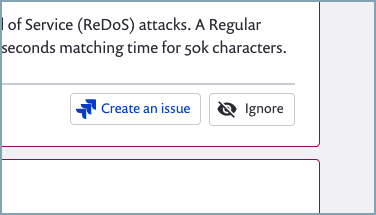
After you set up the Jira integration connection, open one of your Snyk Projects in the Snyk Web UI. A new button, **Create an issue**, appears at the bottom of each vulnerability and license issue card. This button allows you to create a Jira issue.
Create an issue button
If the **Create an issue** button is not visible in the UI, ensure that **Group by none** is selected at the top of the Project vulnerabilities table. This displays the **Create an issue** button under Project vulnerabilities.
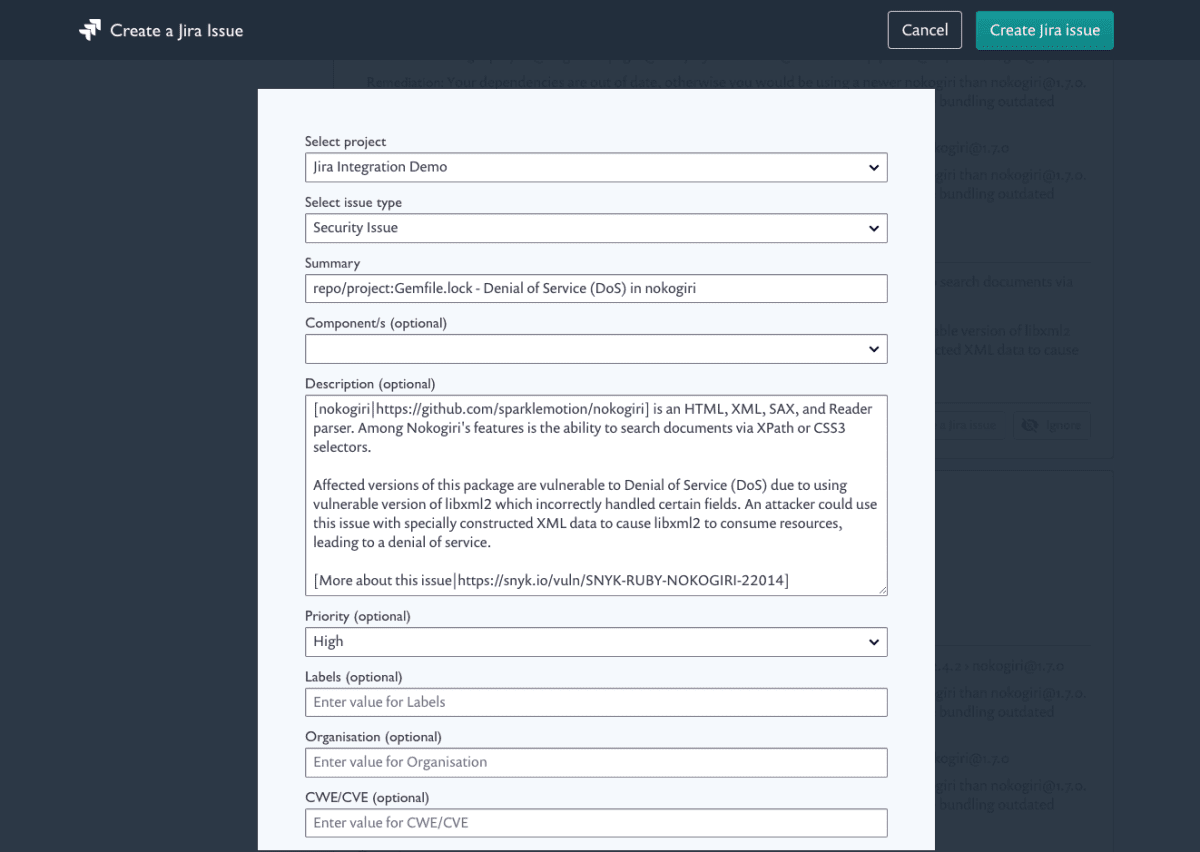
When you select **Create an issue**, a Jira issue creation form appears. This form includes the Snyk issue details, which are copied into the associated fields. You can review and edit this form before creating the issue.
Select the Jira project to which you want to send the issue. The fields in the example that follows are based on the fields that the specific Project has, so switching between Projects may show different options.
Create a Jira issue
After you create a Jira issue, the Jira key with a link is displayed on the issue card. If you are using the Jira API, you can generate multiple Jira issues for the same issue in Snyk.
### Integrate with Jira using Snyk Broker
See [Set up Snyk Broker with Jira](https://docs.snyk.io/platform-administration/snyk-broker/classic-broker/install-and-configure-snyk-broker/jira-prerequisites-and-steps-to-install-and-configure-broker/jira-install-and-configure-using-docker).
### See also
[Snyk Security in Jira Cloud](/developer-tools/integrations/jira-and-slack-integrations/snyk-security-in-jira-cloud-integration.md)
---
# Agent Instructions
This documentation is published with GitBook. GitBook is the documentation platform designed so that both humans and AI agents can read, navigate, and reason over technical content effectively. Learn more at gitbook.com.
## Querying This Documentation
If you need additional information that is not directly available in this page, you can query the documentation by asking a question.
Perform an HTTP GET request on the following URL with the `ask` and `goal` query parameters:
```
GET https://docs.snyk.io/developer-tools/integrations/jira-and-slack-integrations/jira-integration.md?ask=&goal=
```
`ask` is the immediate question: it should be specific, self-contained, and written in natural language.
`goal` is what the user is ultimately trying to achieve, the reason they need the answer. Sharing it helps GitBook give you a better, more relevant answer. A goal is most helpful when it describes the outcome the user wants rather than restating the question. For example, with `ask=how do I create an API token`, a goal like `automate deployments from our CI pipeline` lets GitBook tailor the answer to that use case.
The response will contain a direct answer to the question and relevant excerpts and sources from the documentation.
Use this mechanism when the answer is not explicitly present in the current page, you need clarification or additional context, or you want to retrieve related documentation sections.