> For the complete documentation index, see [llms.txt](https://docs.snyk.io/llms.txt). Markdown versions of documentation pages are available by appending `.md` to page URLs; this page is available as [Markdown](https://docs.snyk.io/developer-tools/integrations/event-forwarding/amazon-eventbridge.md).
# Amazon EventBridge
How to forward Snyk platform events to Amazon EventBridge
{% hint style="info" %}
**Snyk is rolling out a new navigation.** The steps on this page describe the classic interface. If your view looks different, visit [Navigate the Snyk Web UI](https://docs.snyk.io/navigate-the-snyk-web-ui#where-things-moved) to map these options to the new interface.
{% endhint %}
## Amazon EventBridge
The [Amazon EventBridge](https://aws.amazon.com/eventbridge/) integration sends Snyk platform events to EventBridge, allowing you to integrate Snyk events into your existing AWS environments. The integration can be configured to send two different types of events:
* **Snyk issue events**: These events are sent when new issues are discovered in a Snyk Project, or when an issue is updated. Each event contains information about the vulnerability or other problem found, including whether a remediation is available.
* **Snyk platform audit events**: These events are sent every time a Snyk user performs an action within the Snyk platform. For more information, see [Retrieve audit logs of user-initiated activity by API for an Org or Group](https://docs.snyk.io/platform-administration/user-management/user-management-with-the-api/retrieve-audit-logs-of-user-initiated-activity-by-api-for-an-org-or-group). This event type is available with Snyk Enterprise plans. For more information, see this page about [trials](https://docs.snyk.io/implementation-guides/enterprise-implementation-guide/trial-limitations) and [Plans and pricing](https://snyk.io/plans/).
To set up the integration, there are two steps:
1. Configure an EventBridge integration in the Snyk dashboard. This will create a Snyk **Partner Event Source** in your AWS account, which you can see in the EventBridge dashboard.
2. Configure the Snyk integration in Amazon EventBridge. This step involves associating the Snyk event source created in step one with an EventBridge **Event Bus**.
After you complete these steps, Snyk immediately starts sending events to the configured event bus.
### Configuring EventBridge in the Snyk dashboard
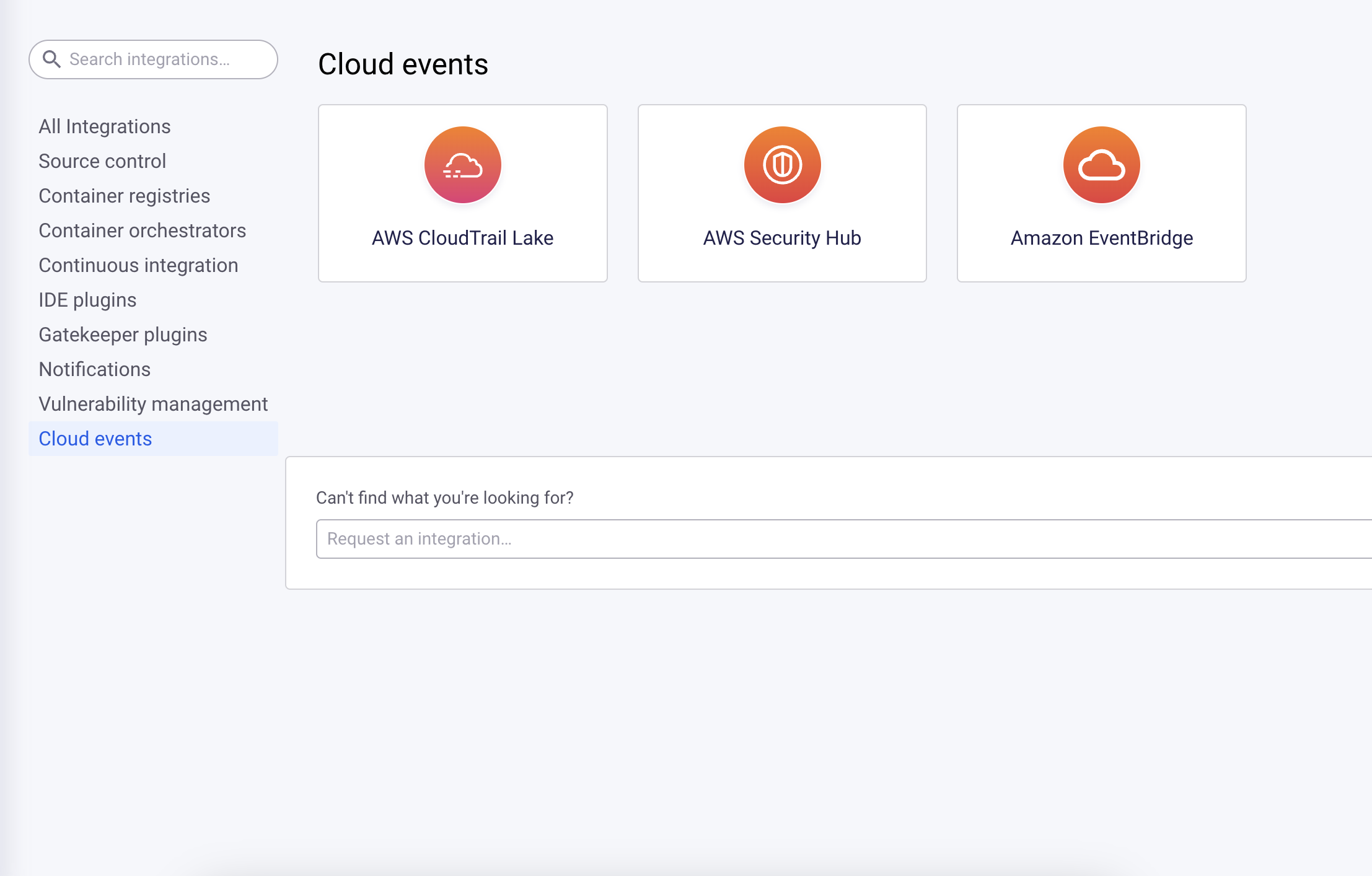
Navigate to [the Snyk integrations page](https://app.snyk.io/integrations) and search for **EventBridge** or navigate to the **Cloud events** section. Click on the **EventBridge** tile to start creating a new integration.
Create new EventBridge integration
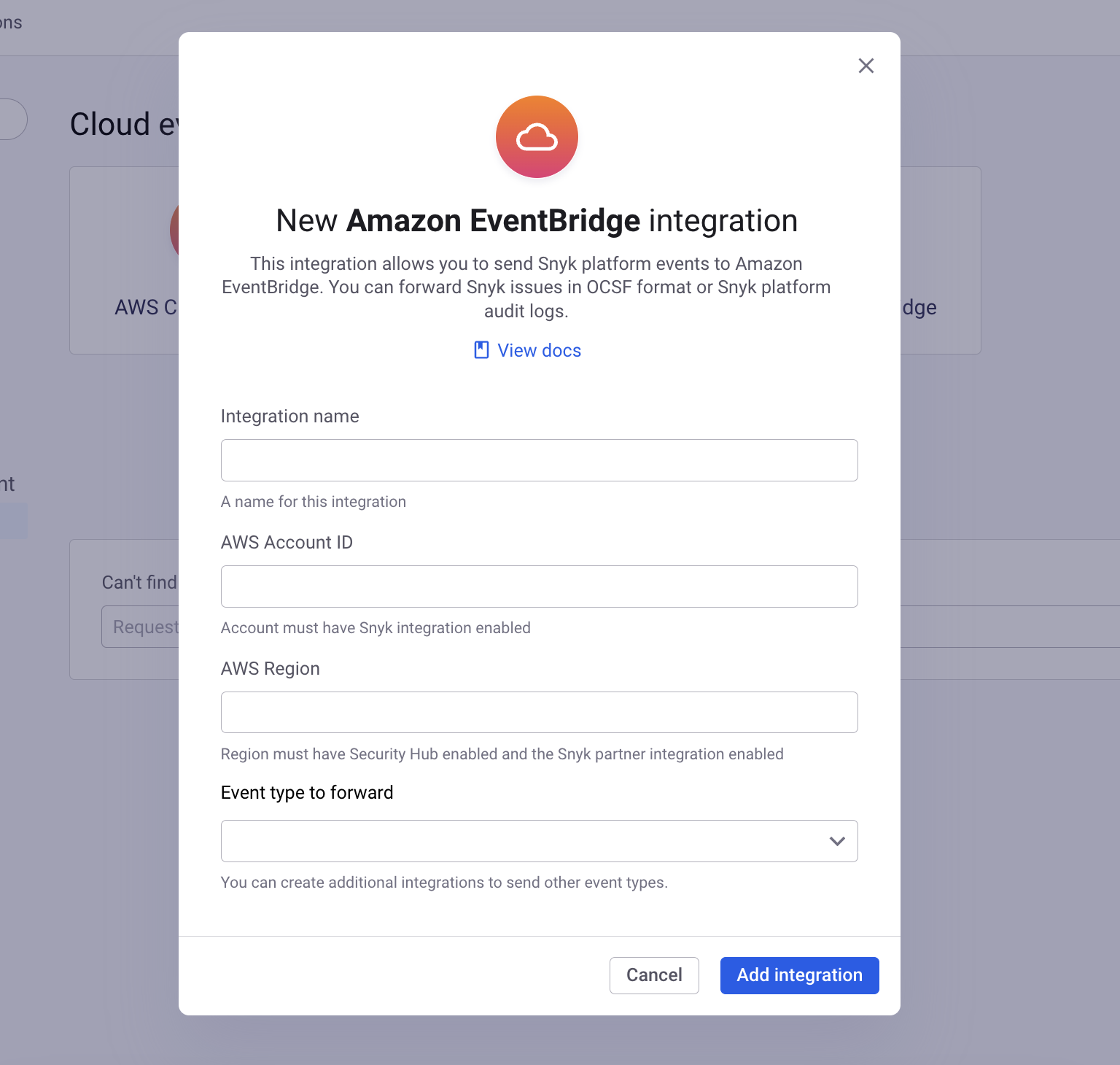
Enter a **name** for this integration, along with the **AWS Account ID** and **AWS Region** where you want to receive events. Then, select the **Event Type** you want to forward with this integration. To send more than one event type to the same account/region, create a separate integration for each event type.
Enter integration details
When the form is completed, click **Add integration**. After this step is done, you must complete the integration setup in the Amazon EventBridge console.
### Snyk App authorization
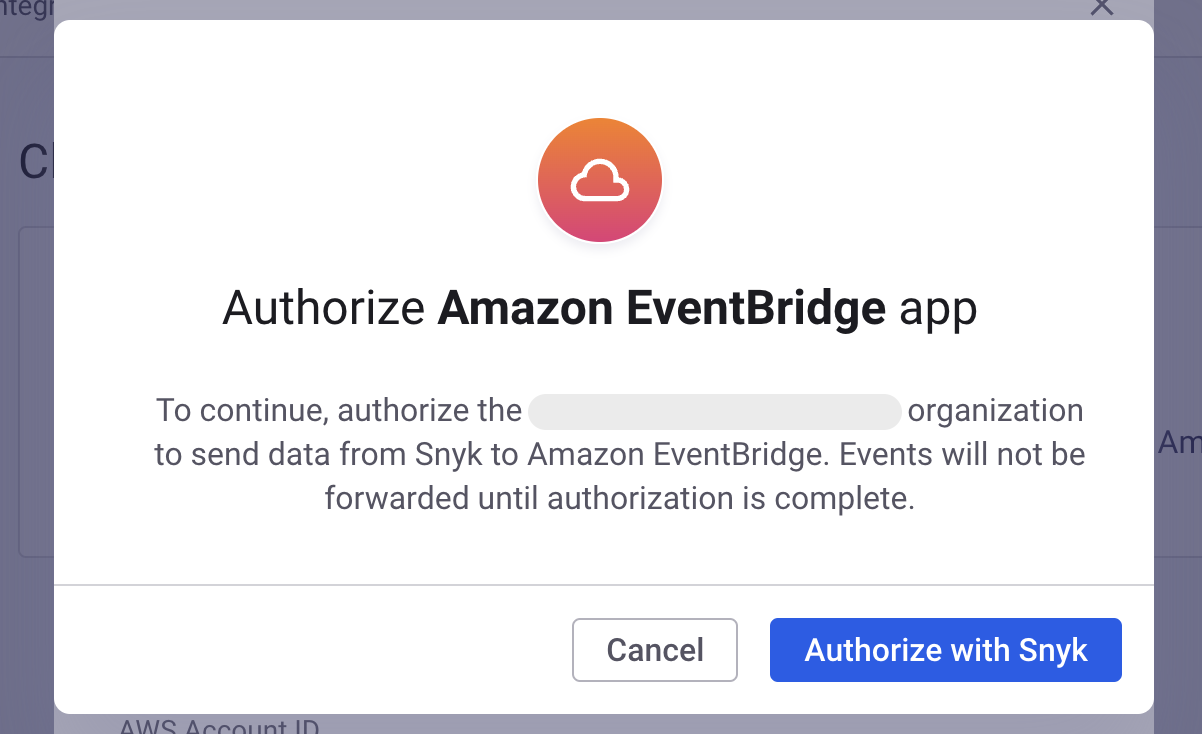
If this is the first time you have set up an Amazon EventBridge integration for your Organization, you will be prompted to complete the Snyk App authorization flow.
After completing the authorization flow, you will be redirected to the settings page for the integration.
### Configure the integration in Amazon EventBridge
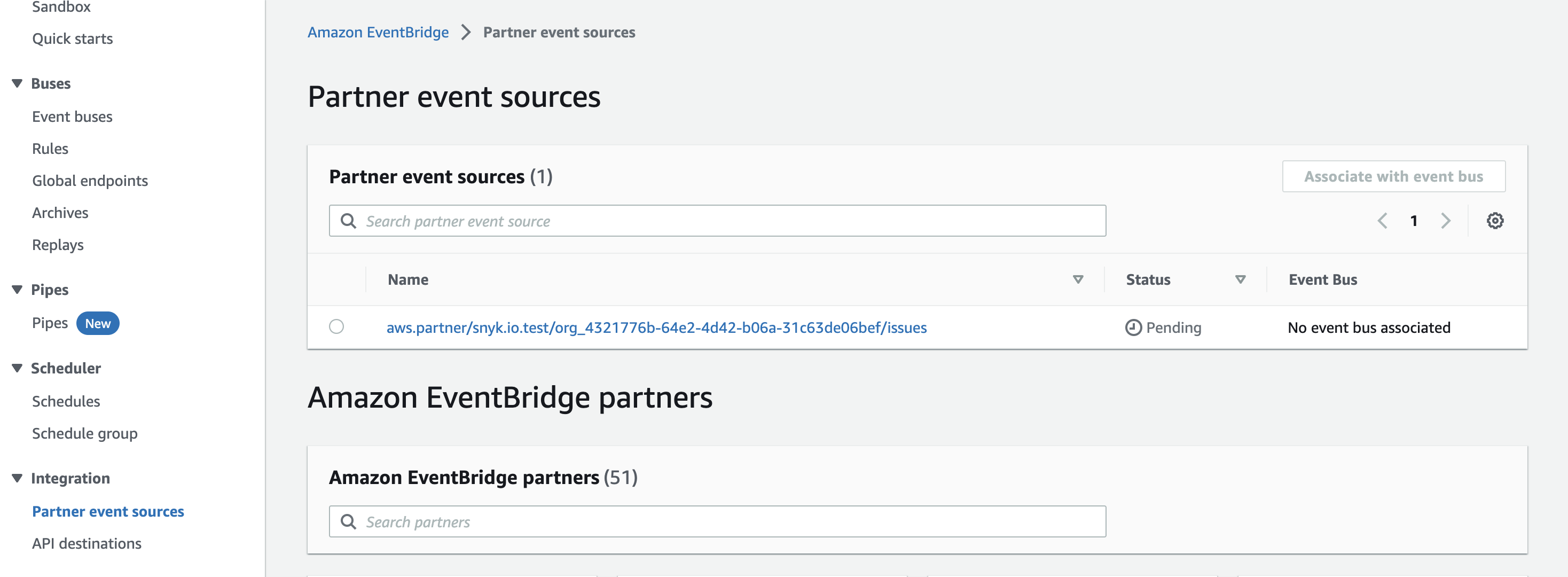
After configuring the EventBridge integration on the Snyk side, you should see a new **Partner Event Source** in the EventBridge console. Navigate to the EventBridge console and navigate to the **Partner event sources** page under the **Integration** section.
Partner event sources
Snyk-generated event sources will have a naming pattern like this:
`aws.partner/snyk.io/org_/`\
\
Click on the name of the event source, and then click **Associate with event bus** and follow the prompts to associate the event source with an event bus. After the event source is associated with an event bus, Snyk can immediately start sending events, which you can use for any actions supported by EventBridge.
### Managing and deleting an EventBridge integration
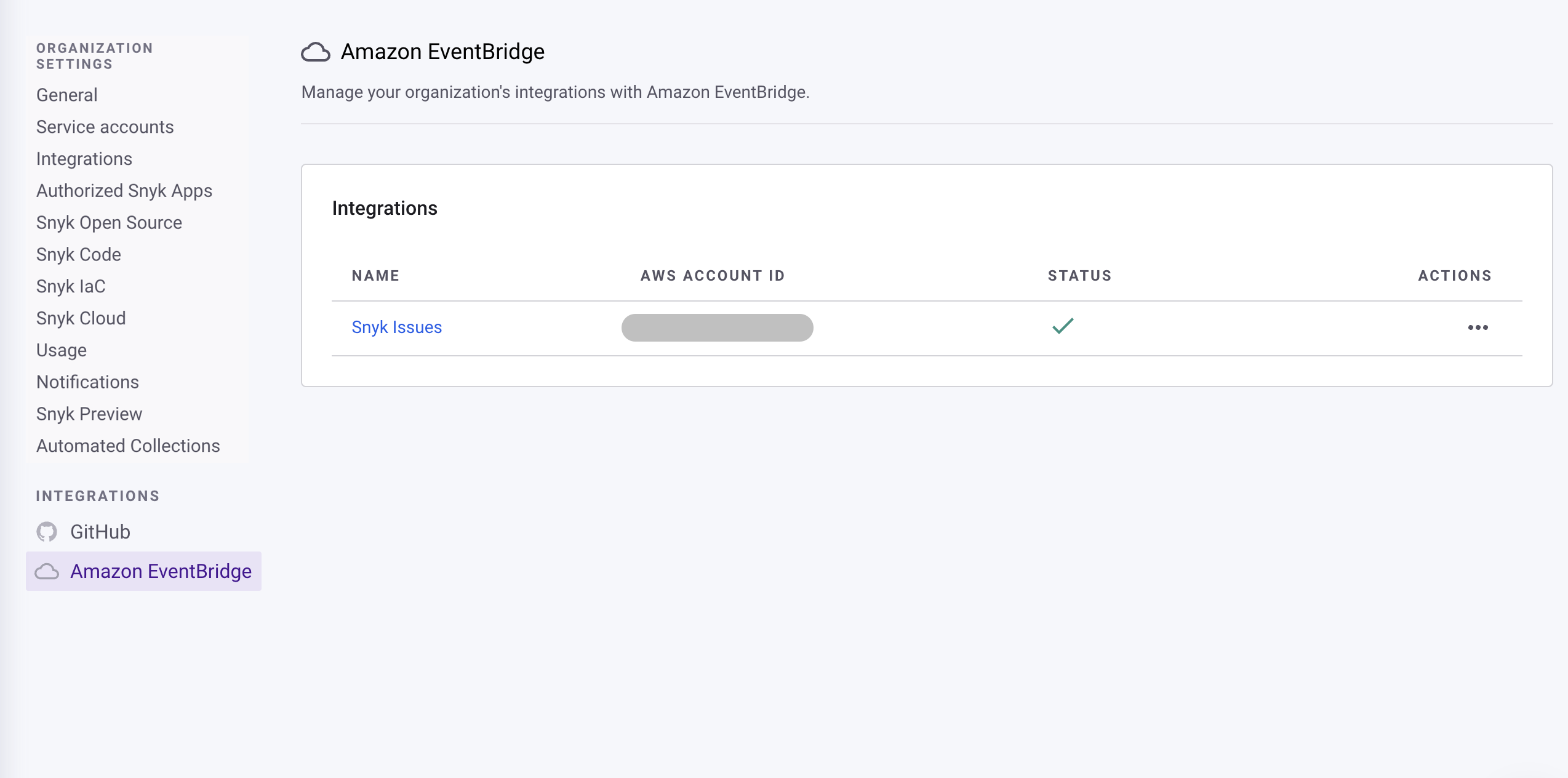
Navigate to the [EventBridge integration settings page](https://app.snyk.io/manage/integrations/aws-eventbridge) in the Snyk dashboard and click on the name of the integration you want to manage.
Select Amazon EventBridge integration
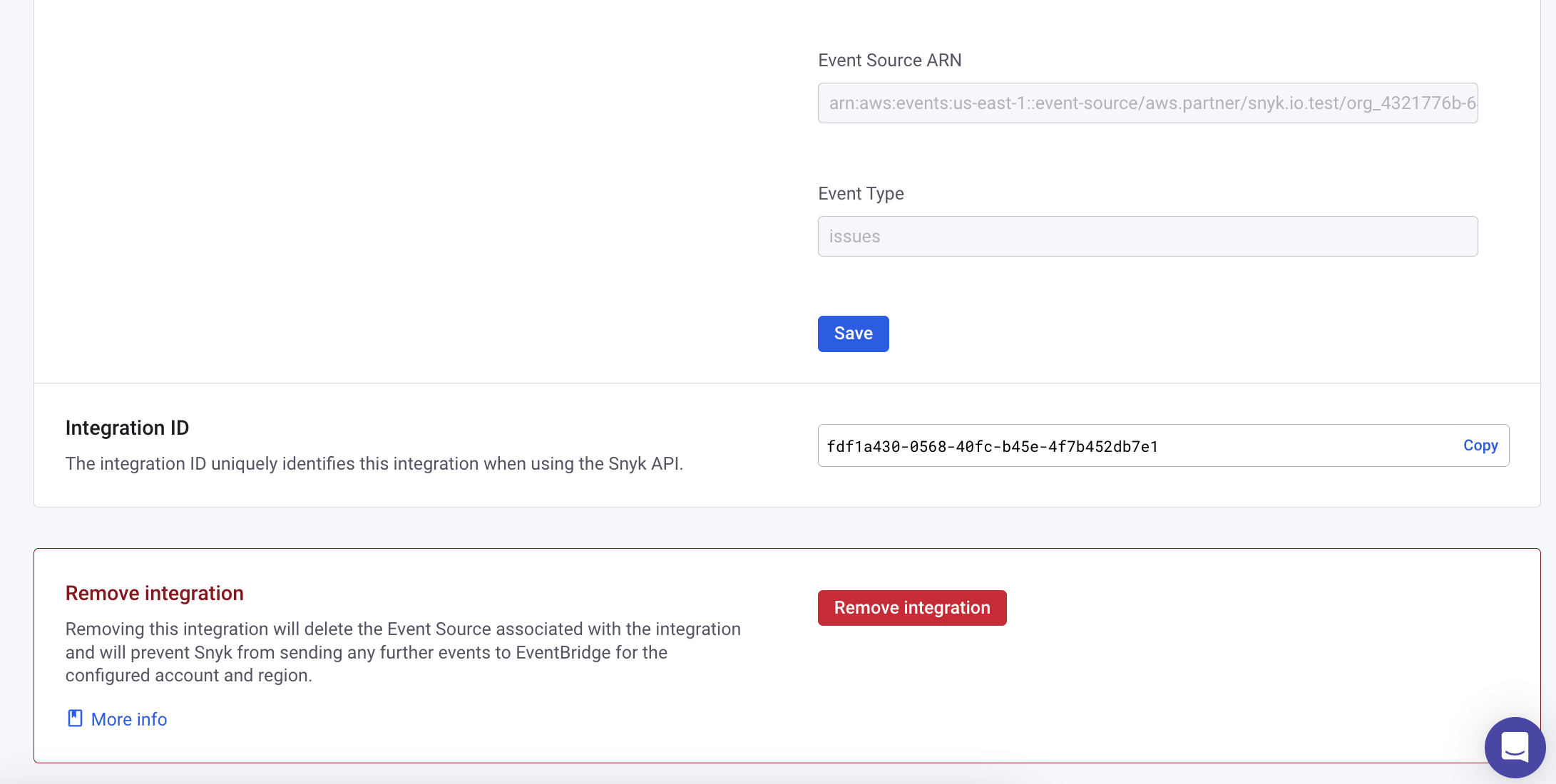
Clicking on the name of the integration opens the integration settings page, which displays configuration information for the integration.
{% hint style="info" %}
Because EventBridge integrations create an external resource that depends on the configured AWS Account ID, Region, and event type, it is not possible to edit these configuration fields. If you need to change one of these fields, delete the integration and create a new one. This deletes the existing **partner event source** in AWS and creates a new one, which you will need to associate with an **event bus** as described above.
{% endhint %}
To delete an integration, scroll to the bottom of the page and click the **Remove integration** button, then confirm the deletion.
Remove integration
This deletes the integration configuration on the Snyk side and the **Partner Event Source** associated with this integration in AWS. You can verify that the event source has been deleted in the EventBridge console.
### Understanding event data
#### Snyk issue events
This event type includes core data about Snyk issues, including:
* Vulnerability type and CVE identifiers
* Issue severity
* Whether a remediation is available
Events are JSON formatted using the [Open Cybersecurity Schema Framework *finding*](https://schema.ocsf.io/1.0.0-rc.2/classes/security_finding?extensions=) schema.
{% hint style="info" %}
Not all Snyk issue data is included in these events, though Snyk is continually working to provide more complete event data.
{% endhint %}
#### Snyk audit events
This event type is available with Snyk Enterprise plans. See [Plans and pricing](https://snyk.io/plans/) for details.
---
# Agent Instructions
This documentation is published with GitBook. GitBook is the documentation platform designed so that both humans and AI agents can read, navigate, and reason over technical content effectively. Learn more at gitbook.com.
## Querying This Documentation
If you need additional information that is not directly available in this page, you can query the documentation by asking a question.
Perform an HTTP GET request on the following URL with the `ask` and `goal` query parameters:
```
GET https://docs.snyk.io/developer-tools/integrations/event-forwarding/amazon-eventbridge.md?ask=&goal=
```
`ask` is the immediate question: it should be specific, self-contained, and written in natural language.
`goal` is what the user is ultimately trying to achieve, the reason they need the answer. Sharing it helps GitBook give you a better, more relevant answer. A goal is most helpful when it describes the outcome the user wants rather than restating the question. For example, with `ask=how do I create an API token`, a goal like `automate deployments from our CI pipeline` lets GitBook tailor the answer to that use case.
The response will contain a direct answer to the question and relevant excerpts and sources from the documentation.
Use this mechanism when the answer is not explicitly present in the current page, you need clarification or additional context, or you want to retrieve related documentation sections.