> For the complete documentation index, see [llms.txt](https://docs.snyk.io/llms.txt). Markdown versions of documentation pages are available by appending `.md` to page URLs; this page is available as [Markdown](https://docs.snyk.io/developer-tools/integrations/snyk-ide-plugins-and-extensions/visual-studio-code-extension/authentication-for-visual-studio-code-extension.md).
# Authentication for Visual Studio Code extension
How to authenticate the Snyk Visual Studio Code extension, including the supported protocols
{% hint style="info" %}
**Snyk is rolling out a new navigation.** The steps on this page describe the classic interface. If your view looks different, visit [Navigate the Snyk Web UI](https://docs.snyk.io/navigate-the-snyk-web-ui#where-things-moved) to map these options to the new interface.
{% endhint %}
## Authentication for Visual Studio Code extension
To scan your Projects, you must authenticate with Snyk.
Snyk supports the following protocols for authentication:
* OAuth 2.0 (Recommended)
* Personal Access Token
* Snyk API token (Legacy)
For all authentication methods, Snyk uses the [Secret Storage API](https://code.visualstudio.com/api/references/vscode-api#SecretStorage) to store the token securely. This storage uses the keychain of the system to manage the token.
{% hint style="warning" %}
Before authenticating, ensure you have set your region properly. For details, see [IDEs URLs](https://docs.snyk.io/snyk-data-and-governance/regional-hosting-and-data-residency#ides-urls).
{% endhint %}
### Steps to authenticate using the OAuth 2.0 protocol
Follow these steps to authenticate:
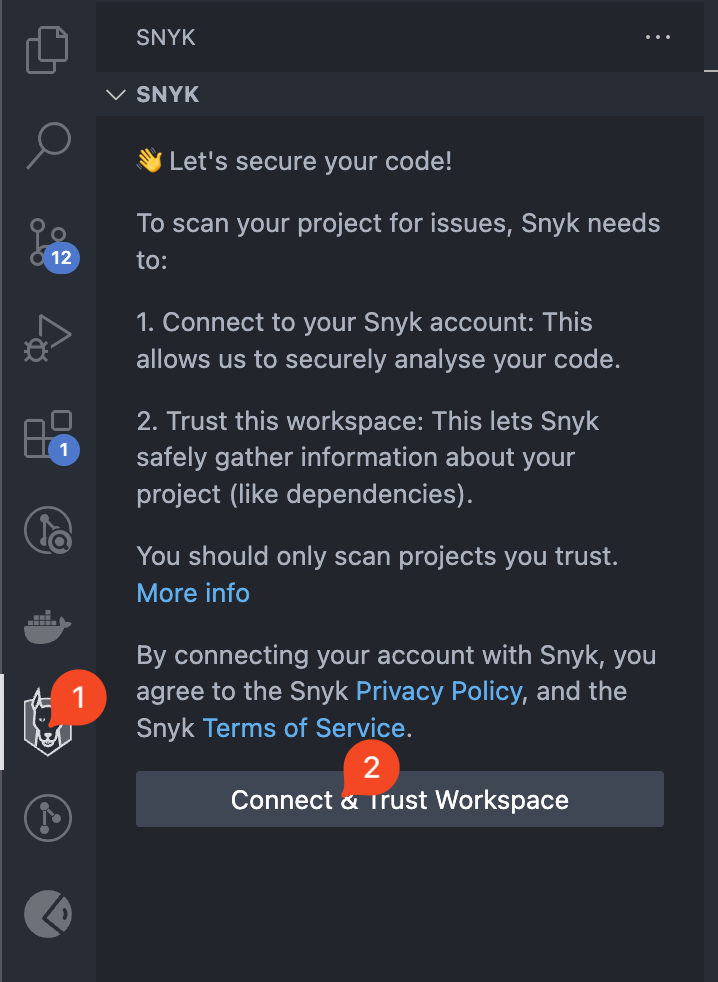
1. After the extension is installed, click the **Snyk Icon** in the navigation bar, then click **Connect & Trust Workspace**:
Connect and trust workspace
2. A new browser window opens, requiring you to log in to your Snyk account.
3. In the next prompt, the Snyk IDE extension requests access to act on your behalf. Click **Grant app access**.
4. When you have authenticated successfully, a confirmation message appears. Close the browser window and return to the IDE.
5. The IDE reads and saves the authentication on your local machine. Close the browser window and return to the IDE.
The analysis starts automatically. The IDE reads and saves the authentication on your local machine.
{% hint style="info" %}
OAuth 2.0 tokens are not static and cannot be copied from the Snyk account page.
{% endhint %}
If you have problems, see [OAuth 2.0 authentication does not work](/developer-tools/integrations/snyk-ide-plugins-and-extensions/troubleshooting-ides/how-to-set-environment-variables-by-operating-system-os-for-ides-and-cli-1.md).
### Steps to authenticate using your Personal Access Token
{% hint style="info" %}
Snyk recommends authenticating with OAuth 2.0. It is the default method for the Snyk IDE plugins, and its tokens are not static. Use token authentication only where OAuth 2.0 is not available to you.
{% endhint %}
{% hint style="warning" %}
The Personal Access Token (PAT) authentication is progressively rolled out to all Enterprise customers. To check if this feature is available for your Organization at this time, please reach out to your Snyk account team.
{% endhint %}
When using this feature, ensure you generate and use a Personal Access Token (PAT). This feature is not compatible with Service Account tokens, and using them may result in unexpected behavior or errors.
{% hint style="info" %}
Whenever you use this feature in your IDE, ensure to also retrieve the PAT details from the Snyk Web UI. Contact Snyk Support to enable the PAT feature within your Snyk Web UI Organization.
{% endhint %}
To authenticate using the Personal Access token, follow these steps:
1. Click the **Snyk Icon** in the navigation bar, then click the **Settings** icon, find **Authentication Method**, and change it to **Personal Access Token**.
2. Create your **Personal Access** **Token**. For details, see the [Authentication for API](/developer-tools/snyk-api/authentication-for-api.md) page.
3. Run the `Snyk: Set Token` command and paste the token in the text field.
### Steps to authenticate using your Snyk API token
{% hint style="info" %}
Snyk recommends authenticating with OAuth 2.0. It is the default method for the Snyk IDE plugins, and its tokens are not static. Use token authentication only where OAuth 2.0 is not available to you.
{% endhint %}
Follow these steps to authenticate:
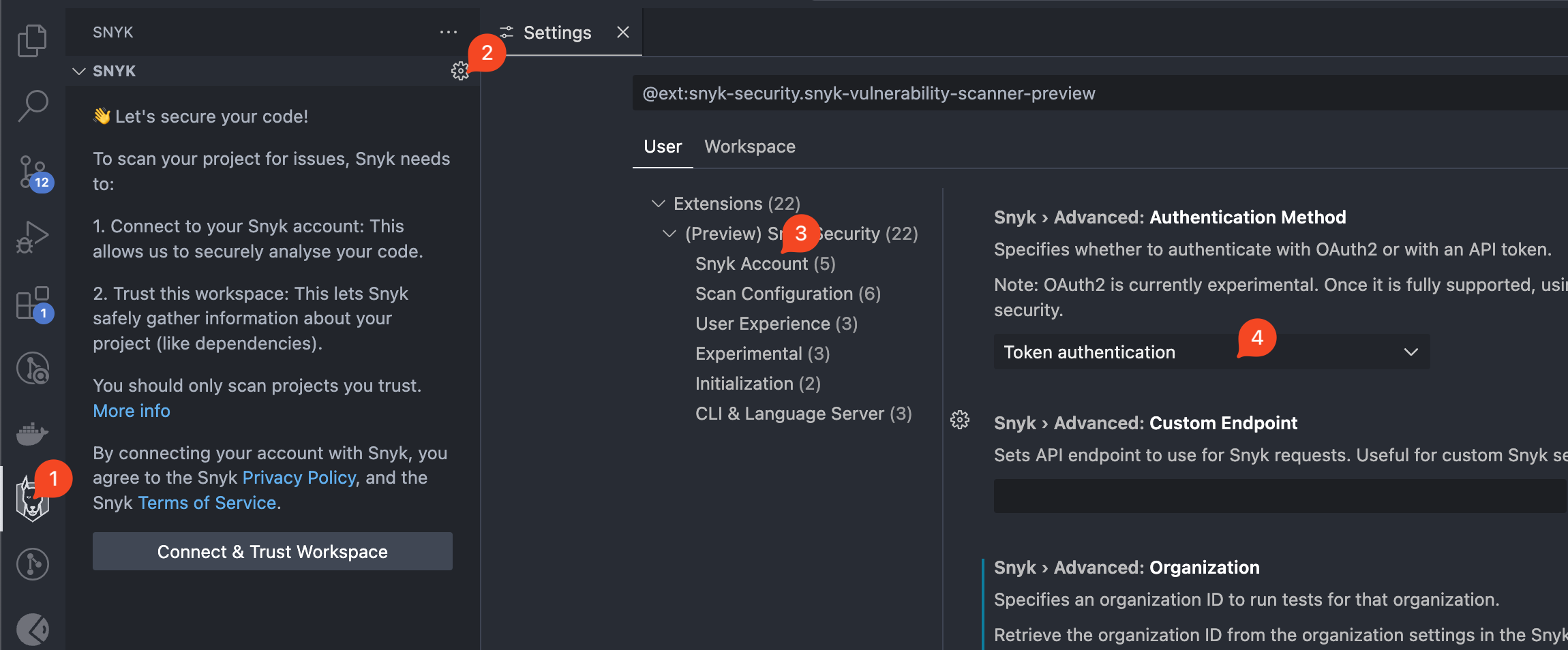
1. After the extension is installed, click the **Snyk Icon** in the navigation bar, then click the **Settings** icon, find **Authentication Method**, and change it to **Token authentication**:
Change authentication method
2. Press **Connect & Trust Workspace**.
3. Click **Authenticate** in the web browser window that opens.
The analysis starts automatically.
{% hint style="info" %}
Alternatively, run the `Snyk: Set Token` command and paste the token in the text field.
{% endhint %}
Set token manually
### How to switch accounts
To re-authenticate with a different account, follow these steps:
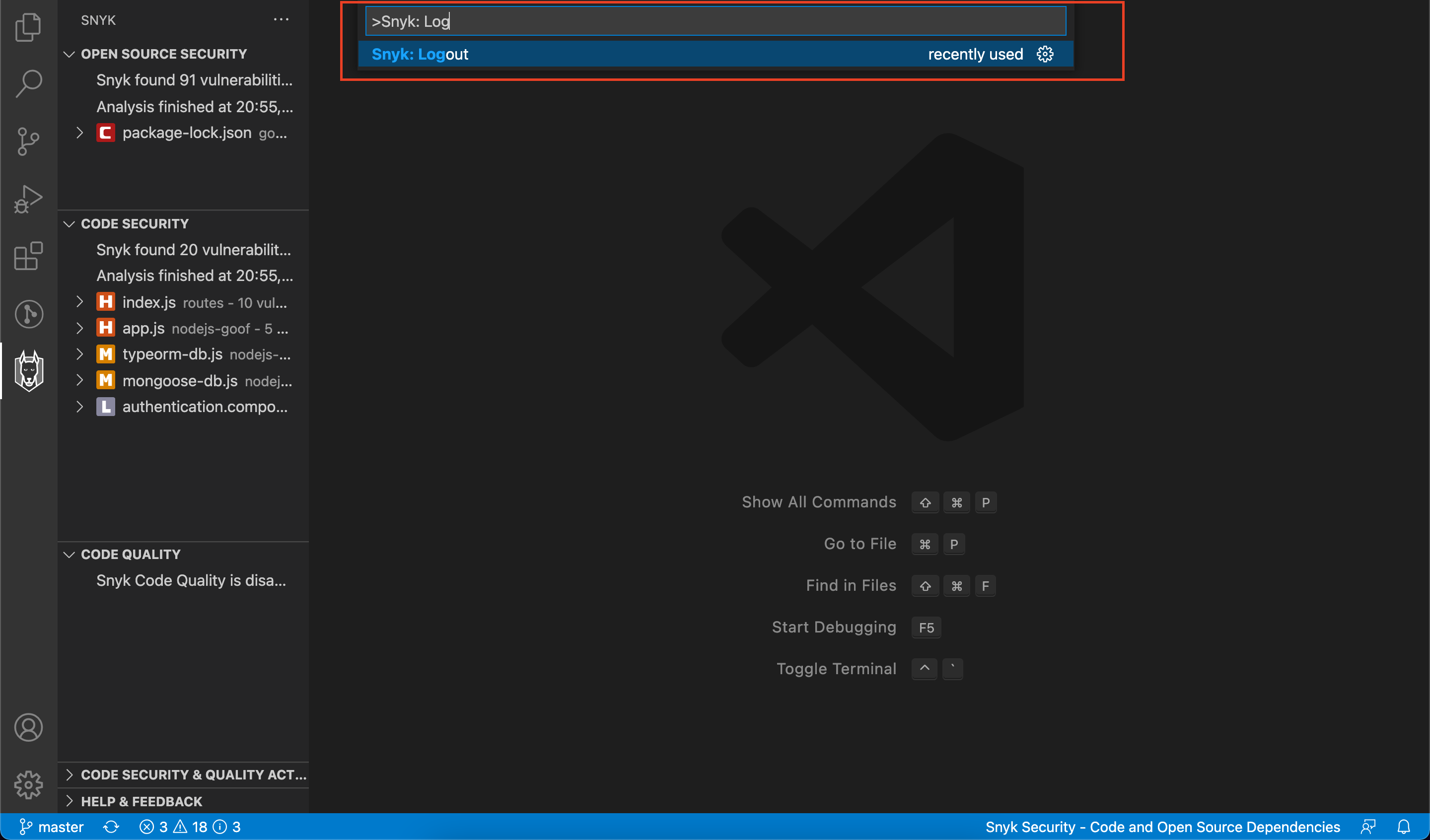
1. Run the provided `Snyk: Log Out` command.
Snyk: Log out
2. When you have logged out, start authentication again from the beginning.
### Requirements for Linux and Unix
When authenticating with Snyk, users have the option to copy the authentication URL to their clipboard.
For Linux and Unix users, this requires the `xclip` or `xsel` utility to be installed.
---
# Agent Instructions
This documentation is published with GitBook. GitBook is the documentation platform designed so that both humans and AI agents can read, navigate, and reason over technical content effectively. Learn more at gitbook.com.
## Querying This Documentation
If you need additional information that is not directly available in this page, you can query the documentation by asking a question.
Perform an HTTP GET request on the following URL with the `ask` and `goal` query parameters:
```
GET https://docs.snyk.io/developer-tools/integrations/snyk-ide-plugins-and-extensions/visual-studio-code-extension/authentication-for-visual-studio-code-extension.md?ask=&goal=
```
`ask` is the immediate question: it should be specific, self-contained, and written in natural language.
`goal` is what the user is ultimately trying to achieve, the reason they need the answer. Sharing it helps GitBook give you a better, more relevant answer. A goal is most helpful when it describes the outcome the user wants rather than restating the question. For example, with `ask=how do I create an API token`, a goal like `automate deployments from our CI pipeline` lets GitBook tailor the answer to that use case.
The response will contain a direct answer to the question and relevant excerpts and sources from the documentation.
Use this mechanism when the answer is not explicitly present in the current page, you need clarification or additional context, or you want to retrieve related documentation sections.
.png?alt=media)
.png?alt=media)
.png?alt=media)
%20(1).png?alt=media)