> For the complete documentation index, see [llms.txt](https://docs.snyk.io/llms.txt). Markdown versions of documentation pages are available by appending `.md` to page URLs; this page is available as [Markdown](https://docs.snyk.io/developer-tools/integrations/snyk-ide-plugins-and-extensions/jetbrains-plugin/configuration-for-the-snyk-jetbrains-plugin-and-ide-proxy.md).
# Configuration for the Snyk JetBrains plugin and IDE proxy
Legacy configuration for the Snyk JetBrains plugin and IDE proxy, kept available for versions before the unified IDE configuration dialog
{% hint style="info" %}
**Snyk is rolling out a new navigation.** The steps on this page describe the classic interface. If your view looks different, visit [Navigate the Snyk Web UI](https://docs.snyk.io/navigate-the-snyk-web-ui#where-things-moved) to map these options to the new interface.
{% endhint %}
## Configuration for the Snyk JetBrains plugin and IDE proxy
{% hint style="info" %}
Snyk now configures all IDEs through the [new unified configuration dialog](/developer-tools/integrations/snyk-ide-plugins-and-extensions/unified-ide-configuration-dialog.md). This page describes the earlier settings and remains available for older versions of the plugin.
{% endhint %}
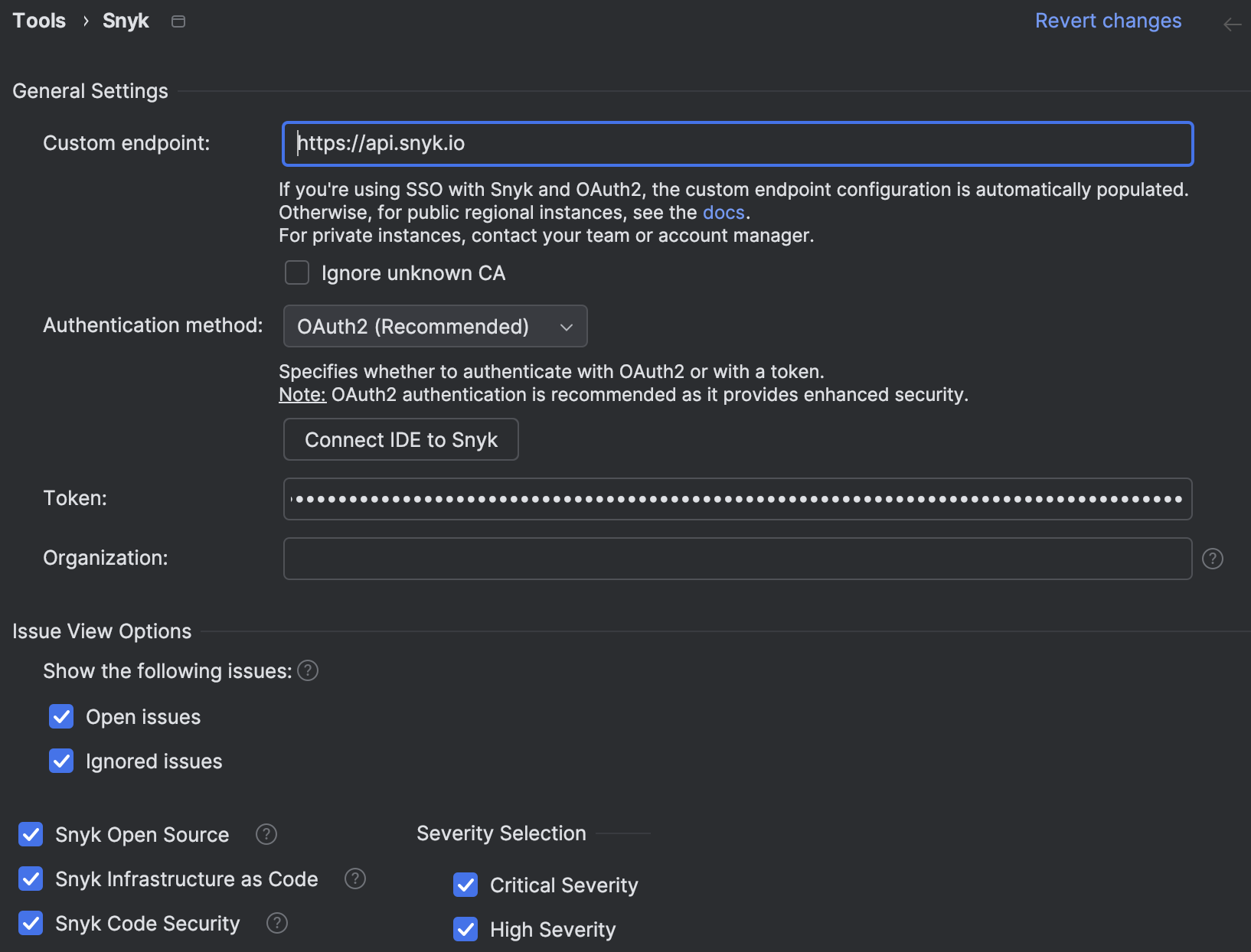
Navigate to **Preferences** > **Tools** > **Snyk** to set the following configurations for the plugin:
### General settings
* **Authentication method**: Specify whether to authenticate with OAuth2 or with an API token. `OAuth2` is the default
* **Token**: Set the token to use for authentication with Snyk. For details, see [Authentication for the JetBrains plugins](/developer-tools/integrations/snyk-ide-plugins-and-extensions/jetbrains-plugin/authentication-for-the-jetbrains-plugins.md).
* **Custom endpoint**: Specify the Snyk API endpoint for a custom multi-tenant or single-tenant setup. If you are using `https://api.snyk.io`, no configuration is required. For details, see the list of [IDE URLs](https://docs.snyk.io/snyk-data-and-governance/regional-hosting-and-data-residency#ides-urls).\
Snyk automatically redirects multi-tenant users outside the `SNYK-US-01` region to the domain of their authenticated email. Snyk does not redirect users who use a custom URL, such as those in single-tenant setups.
* **Ignore unknown CA**: Ignore the SSL cert, if needed.
* **Organization**: Set the Organization to run `snyk test` against (similar to the `--org=` option in the CLI). Snyk recommends using the `ORG_ID`. If you specify an Organization slug name, the value must match the URL slug as displayed in the URL of your Organization in the Snyk Web UI: `https://app.snyk.io/org/[orgslugname]`.\
Organization selection follows this order:
1. [Project-specific settings](#project-settings) (if configured)
2. [General setting](#general-settings) (if the project-specific setting is empty)
3. Your [web account's](https://app.snyk.io/account) preferred Organization (if both General and Project-specific settings are empty).
* **Snyk Open Source**: Enable a scanner for open-source dependencies. Enabled by default.
* **Snyk IaC**: Enable a scanner for insecure configurations in Terraform and Kubernetes code. Enabled by default.
* **Snyk Code security issues**: Enable a scanner for security vulnerabilities in your application code. Enabled by default.
* **Severity selection**: Filter issues by their severity, from Low to Critical.
* **Issue View Options**: Filter issues by their [Code Consistent Ignores](https://docs.snyk.io/scan-fix-and-prevent/fix/prioritize-issues-for-fixing/ignore-issues/consistent-ignores-for-snyk-code) status. These filters do not apply if you disable **Code Consistent Ignores** for the Organization.
* **All Issues vs Net New Issues**: Specify whether to see all issues or only net new issues. The latter requires an SCM integration, where it compares findings with those in the base branch.
### Project settings
* **Additional parameters**: Set additional `snyk test` [CLI options](/developer-tools/snyk-cli/cli-commands-and-options-summary.md) for Open Source scanning. For **unmanaged** [**C/C++**](https://docs.snyk.io/supported-languages/supported-languages-list/c-c++) **scanning**, use the CLI option `--unmanaged` to find vulnerabilities in open-source packages. This option works only for unmanaged C/C++ scanning. Additional parameters do not apply to Snyk Code or IaC.
* **Auto-select Organization**: When enabled, Snyk automatically selects the most appropriate Organization for your Project based on context in your repository and your authentication. If an Organization is configured manually, this feature is overridden. If no appropriate Organization can be automatically identified, the preferred Organization defined in your [web account settings](https://app.snyk.io/account) is used as a fallback.
* **Preferred Organization**: Specify the Organization (ID or name) for Snyk to run scans against for this specific IDE Project. Retrieve the Organization ID from the Organization settings in the Snyk Web UI: `https://app.snyk.io/org/[ORG_NAME]/manage/settings` and copy the ID from the Organization ID section. If the Organization value is blank or invalid, the value from the global Organization field is used.
### Executable settings
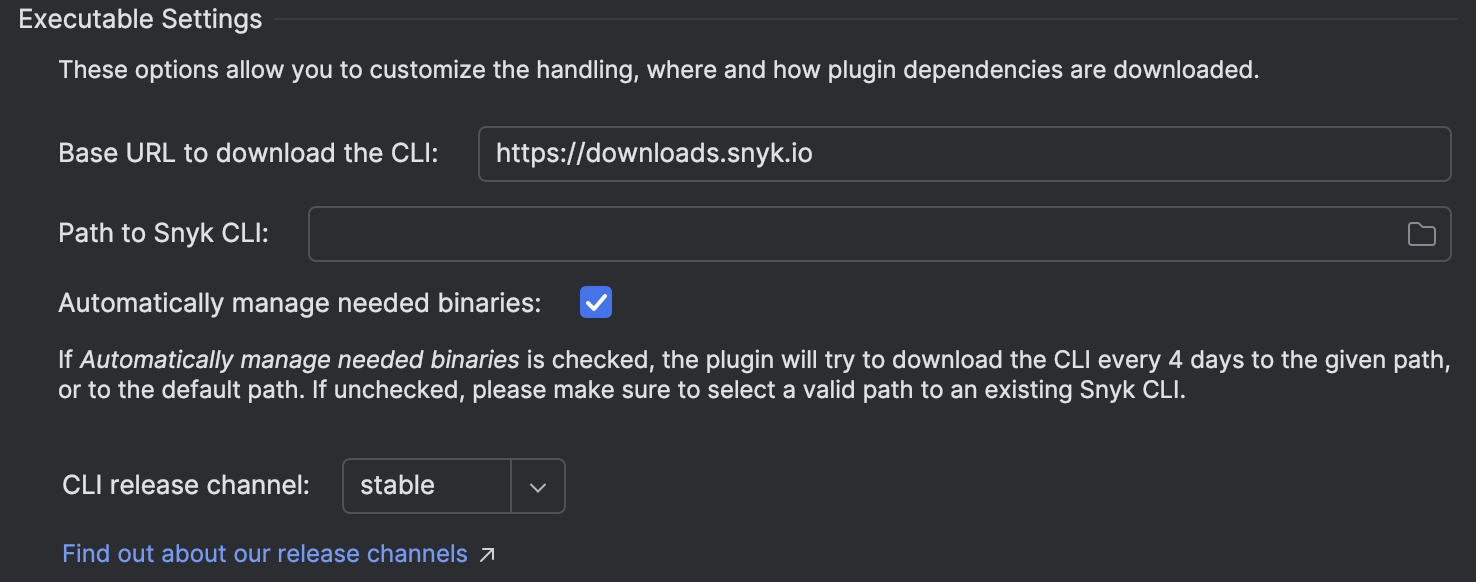
These options allow you to customize how the plugin dependency is handled by the Snyk CLI.
* **Base URL to download the CLI**: Allow specifying an alternative download location of the CLI. This location must conform to the same file and folder layout as `https://downloads.snyk.io`. For example, FIPS-supported CLIs would use the base URL `https://static.snyk.io/fips`.
* **Path to Snyk CLI**: Allow changing the Snyk CLI file path.
* **Automatically manage needed binaries**: Check to have the plugin download the CLI and update it regularly to the defined CLI path. Uncheck this option if downloading the CLI is not possible due to your network configuration, for example, due to firewall rules, and you need to obtain the CLI through other means.
* **CLI release channel**: Allow specifying a release channel (**preview**, **rc**, **stable**) for the CLI. You can also pin the CLI to a version here, specifying the version, for example, `v1.1293.1`.
### User experience
**Scan automatically on start-up and save**: Enable automatic scans when saving files and when opening a Project.
### Proxy for the JetBrains plugins
If you need to use a proxy server to connect to the internet, configure it using the [JetBrains IDE settings](https://www.jetbrains.com/help/idea/settings-http-proxy.html). The Snyk plugin automatically uses the IDE settings.
---
# Agent Instructions
This documentation is published with GitBook. GitBook is the documentation platform designed so that both humans and AI agents can read, navigate, and reason over technical content effectively. Learn more at gitbook.com.
## Querying This Documentation
If you need additional information that is not directly available in this page, you can query the documentation by asking a question.
Perform an HTTP GET request on the following URL with the `ask` and `goal` query parameters:
```
GET https://docs.snyk.io/developer-tools/integrations/snyk-ide-plugins-and-extensions/jetbrains-plugin/configuration-for-the-snyk-jetbrains-plugin-and-ide-proxy.md?ask=&goal=
```
`ask` is the immediate question: it should be specific, self-contained, and written in natural language.
`goal` is what the user is ultimately trying to achieve, the reason they need the answer. Sharing it helps GitBook give you a better, more relevant answer. A goal is most helpful when it describes the outcome the user wants rather than restating the question. For example, with `ask=how do I create an API token`, a goal like `automate deployments from our CI pipeline` lets GitBook tailor the answer to that use case.
The response will contain a direct answer to the question and relevant excerpts and sources from the documentation.
Use this mechanism when the answer is not explicitly present in the current page, you need clarification or additional context, or you want to retrieve related documentation sections.