> For the complete documentation index, see [llms.txt](https://docs.snyk.io/llms.txt). Markdown versions of documentation pages are available by appending `.md` to page URLs; this page is available as [Markdown](https://docs.snyk.io/developer-tools/integrations/scm-integrations/organization-level-integrations/bitbucket-cloud.md).
# Bitbucket Cloud
How to set up the Snyk Bitbucket Cloud SCM integration, with the Bitbucket Cloud App recommended
{% hint style="info" %}
**Snyk is rolling out a new navigation.** The steps on this page describe the classic interface. If your view looks different, visit [Navigate the Snyk Web UI](https://docs.snyk.io/navigate-the-snyk-web-ui#where-things-moved) to map these options to the new interface.
{% endhint %}
## Bitbucket Cloud
{% hint style="info" %}
Snyk recommends installing or migrating to the [Bitbucket Cloud Application](/developer-tools/integrations/scm-integrations/organization-level-integrations/bitbucket-cloud-app.md) for smoother integration and to ensure long-term support.
{% endhint %}
The Bitbucket Cloud API token integration lets you:
* Continuously perform security scanning across all the integrated repositories
* Detect vulnerabilities in your open-source components
* Provide automated fixes and upgrades
#### How to set up the Bitbucket Cloud Integration
{% hint style="info" %}
Admin permissions are required; however, Snyk's access is ultimately limited by the [permissions assigned to the API Token](https://support.atlassian.com/bitbucket-cloud/docs/create-an-api-token/).\
\
To improve security, the use of app passwords in Bitbucket Cloud is transitioning to API tokens. Existing integrations that use app passwords will continue to function temporarily until 9 June 2026.\
To ensure continued support and functionality, update your Bitbucket Cloud integration in Snyk to use an API token.
{% endhint %}
1. To give Snyk access to your Bitbucket account, set up a dedicated service account in Bitbucket with admin permissions. See the [Bitbucket documentation](https://support.atlassian.com/bitbucket-cloud/docs/grant-access-to-a-workspace/) to learn more about adding users to a workspace. The newly created user must have **Admin** permissions to all the repositories you need to monitor with Snyk.
2. In Snyk, go to the **Integrations** page, open the **Bitbucket Cloud** card, and configure the **Account credentials**.
3. In BitBucket, under the Personal settings, select **Atlassian account settings** > **Security** > **Create and manage API tokens**.
4. Follow the Bitbucket procedure to set up an API Token with the scopes as defined in [Bitbucket permission requirements](/developer-tools/integrations/scm-integrations/user-permissions-and-access-scopes.md#bitbucket-cloud-and-bitbucket-data-center-server-scopes).
See the [Bitbucket documentation](https://support.atlassian.com/bitbucket-cloud/docs/create-an-api-token/) for more details about the procedure.
5. Enter the email and the [API key for the Bitbucket account](https://developer.atlassian.com/cloud/bitbucket/rest/intro/#api-tokens) you created, and **save** your changes.\
You can find your email under the Bitbucket **Personal settings**.\
Snyk connects to your Bitbucket Cloud account. When the connection succeeds, the confirmation message **Bitbucket Cloud settings successfully updated** appears.
#### How to add Bitbucket repositories to Snyk
After you connect Snyk to your Bitbucket Cloud account, you can select repositories for Snyk to monitor.
1. In Snyk, go to **Integrations** > **Bitbucket Cloud** card, and click **Add your Bitbucket Cloud repositories to Snyk** to start importing repositories to Snyk.
2. Choose the repositories you want to import to Snyk and click **Add selected repositories**.
After you add the selected repositories, Snyk scans them for dependency files in the entire directory tree, that is, `package.json`, `pom.xml`, and so on, and imports them to Snyk as Projects.
The imported projects appear on your **Projects** page and are continuously checked for vulnerabilities.
#### Bitbucket integration features
After the integration is in place, you will be able to use capabilities such as:
* [Project-level security reports](#project-level-security-reports)
* [Project monitoring and automatic fix pull requests](#project-monitoring-and-automatic-fix-pull-requests)
* [Pull request testing](#pull-request-tests)
**Project-level security reports**
Snyk produces advanced [remediation reports](https://docs.snyk.io/scan-fix-and-prevent/prevent/analytics/reports-tab/remediation-reports) that let you explore the vulnerabilities found in your repositories and fix them immediately by opening a fix pull request directly to your repository, with the required upgrades or patches.
**Project monitoring and automatic fix Pull Requests**
Snyk scans your Projects on either a daily or a weekly basis. When new vulnerabilities are found, Snyk notifies you by email and by opening [automated pull requests](https://docs.snyk.io/scan-fix-and-prevent/fix/snyk-pull-or-merge-requests/enable-automatic-fix-prs) with fixes for your repositories.
To review and adjust the automatic fix pull request settings:
1. In Snyk, go to **Organization settings** > **Integrations** > **Bitbucket Cloud**, and click **Edit Settings**.
2. Scroll to the **Automatic fix PRs** section and configure the relevant options.
{% hint style="info" %}
Unlike manual pull requests opened from the Bitbucket interface, Snyk pull requests are *not* automatically assigned to the default reviewer set in your Bitbucket Cloud account.
For more information, see [Snyk automated pull requests](https://docs.snyk.io/scan-fix-and-prevent/fix/snyk-pull-or-merge-requests/enable-automatic-fix-prs).
{% endhint %}
**Pull request tests**
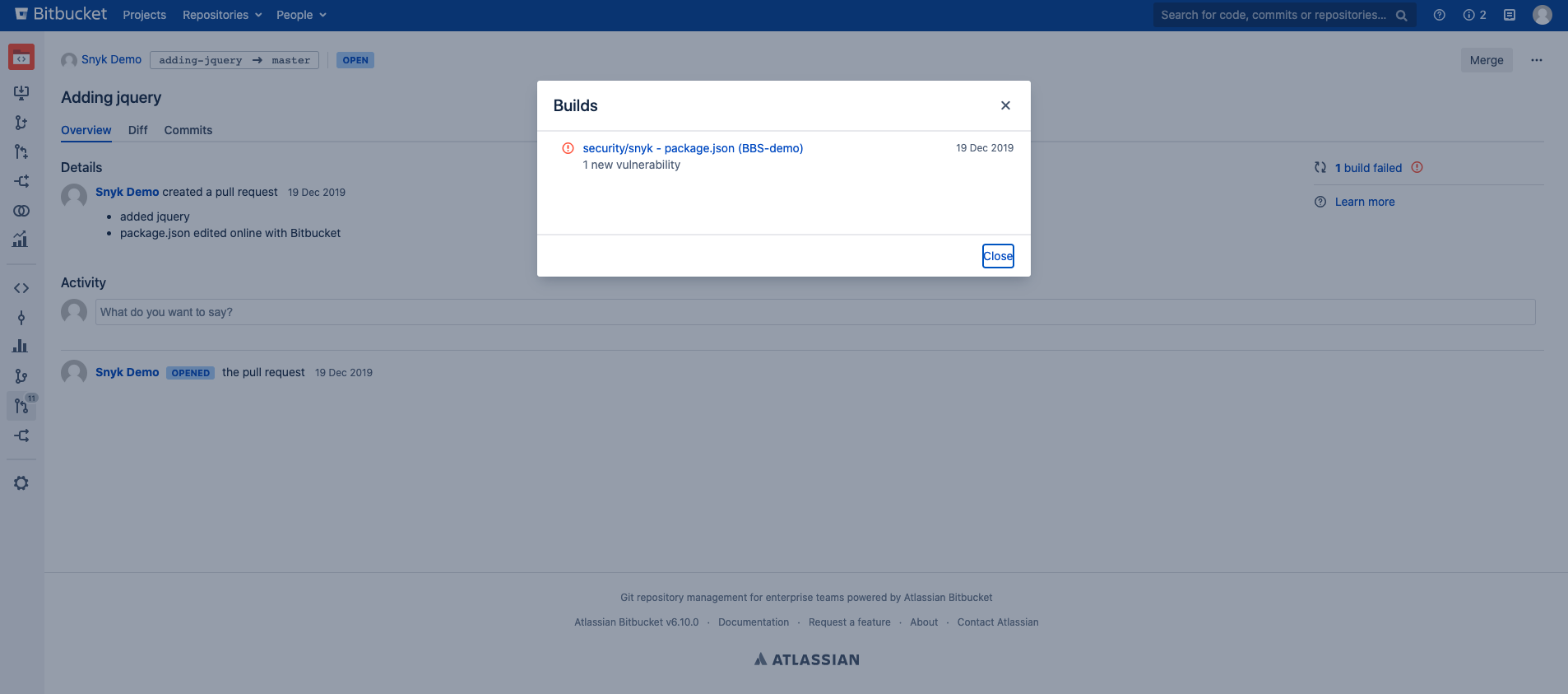
Snyk tests any newly created pull request in your repositories for security vulnerabilities and sends a build check to Bitbucket Cloud. You can see directly from Bitbucket Cloud whether or not the pull request introduces new security issues.
The example that follows shows a Snyk pull request build check on the Bitbucket Cloud **Pull Request** page.
Example of a Snyk pull request build check on the Bitbucket Cloud Pull Request page
To review and adjust the pull request tests settings:
1. In Snyk, go to **Organization settings** > **Integrations > Source control** > **Bitbucket Cloud**, and click **Edit Settings**.
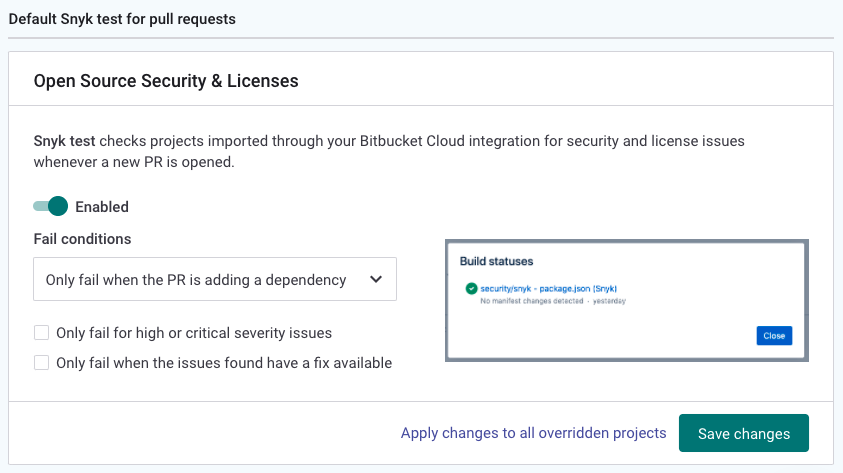
2. Scroll to **Default Snyk test for pull requests** > **Open Source Security & Licenses**, and configure the relevant options.
Configuring the options for pull request Open Source Security Licenses
#### Required permission scope for the Bitbucket Cloud integration
{% hint style="warning" %}
Bitbucket Cloud replaces App Passwords with API tokens
You must use API tokens for new integrations. Update your App Password-based integrations to use API tokens before the deprecation to prevent integration failures.
If you have an App Password-based integration, a banner appears on the integration page prompting you to update. Existing credentials work until Bitbucket Cloud deprecates them. For more information, see the [Bitbucket Cloud deprecation](https://www.atlassian.com/blog/bitbucket/bitbucket-cloud-transitions-to-api-tokens-enhancing-security-with-app-password-deprecation) details.
{% endhint %}
The integrated Bitbucket Cloud account requires Admin permissions on imported repositories. This allows Snyk to perform required operations on monitored repositories, such as reading manifest files and opening fix or upgrade pull requests.
Snyk performs all manual and automatic operations using the Bitbucket Cloud user account API token configured in the **Integration settings**.
For more information on required permission scopes, see [Bitbucket permission requirements](https://docs.snyk.io/implementation-guides/team-implementation-guide/phase-1-discovery-and-planning/choose-rollout-integrations).
#### How to disconnect Snyk from Bitbucket Cloud
{% hint style="warning" %}
When you disconnect Snyk from your repository Projects, your credentials are removed from Snyk, and any integration-specific Projects that Snyk is monitoring are deactivated in Snyk.\
If you choose to re-enable this integration, you must re-enter your credentials and activate your Projects.
{% endhint %}
To disconnect this integration, in **Organization settings** > **Integrations**:
1. In your list of integrations, select the Bitbucket integration you want to deactivate and click **Edit settings** to open a page with the current status of your integration.\
\
The page includes sections specific to each integration, where you can manage your credentials, API key, Service Principal, and connection details.
2. Scroll to the relevant section and click **Disconnect**.
#### Migrate to the Bitbucket Cloud App
This section describes how to migrate your existing [Bitbucket Cloud API token integration](/developer-tools/integrations/scm-integrations/organization-level-integrations/bitbucket-cloud.md), displayed in Snyk as Bitbucket Cloud, to the [Bitbucket Cloud App](/developer-tools/integrations/scm-integrations/organization-level-integrations/bitbucket-cloud-app.md) integration.
To migrate to the new app integration, you must remove all the previously imported Projects from Snyk, delete the API token and its Projects, set up the new app integration, and reimport your Projects to Snyk from the new integration.
{% hint style="info" %}
Before going through the migration process, you should note that the following Project-level information will not persist:
* Historic Project-related data, including trend numbers for fixing vulnerabilities
* Project-related metadata: ignores and tags
{% endhint %}
#### Migration process
The migration process includes the following steps:
1. [Deleting the existing Projects](#delete-existing-projects) that are connected to the Bitbucket Cloud API token integration in Snyk.
2. [Disconnecting the PAT integration](#disconnect-the-pat-integration) in Snyk.
3. Removing the first-party extension for the PAT integration in Bitbucket (optional). This step is explained in the [Disconnect the PAT integration](#disconnect-the-pat-integration) section.
4. [Connecting the Bitbucket Cloud App](#set-up-the-bitbucket-cloud-app-integration) and importing Projects.
#### Delete existing Projects
Delete all existing Snyk Projects previously imported from the Legacy integration:
1. Navigate to the **Projects** page.
2. Change the grouping filter to **Group by none** to enable the bulk delete action.
3. Select multiple Projects individually, or select the **Select all visible projects** checkbox.
4. Click the **Delete selected projects** trash icon.
#### Disconnect the PAT integration
To disconnect the Bitbucket Cloud PAT integration, navigate to the Bitbucket Cloud integration settings and click **Disconnect**.
The Bitbucket Cloud integration includes an optional first-party interface app. You can install this app on your Bitbucket Cloud workspace to add a Snyk tab to the PAT integration.
If you use this app, remove it before you set up the **Snyk Bitbucket Cloud App**. The Snyk App integration includes this functionality.
To remove the app:
1. Navigate to **Workspace settings** > **Manage installed apps** in Bitbucket.
2. Expand the **Snyk Security for Bitbucket Cloud** app.
3. Click **Remove**.
#### Set up the Bitbucket Cloud App integration
See the [Bitbucket Cloud App integration](/developer-tools/integrations/scm-integrations/organization-level-integrations/bitbucket-cloud-app.md) topic for instructions.
---
# Agent Instructions
This documentation is published with GitBook. GitBook is the documentation platform designed so that both humans and AI agents can read, navigate, and reason over technical content effectively. Learn more at gitbook.com.
## Querying This Documentation
If you need additional information that is not directly available in this page, you can query the documentation by asking a question.
Perform an HTTP GET request on the following URL with the `ask` and `goal` query parameters:
```
GET https://docs.snyk.io/developer-tools/integrations/scm-integrations/organization-level-integrations/bitbucket-cloud.md?ask=&goal=
```
`ask` is the immediate question: it should be specific, self-contained, and written in natural language.
`goal` is what the user is ultimately trying to achieve, the reason they need the answer. Sharing it helps GitBook give you a better, more relevant answer. A goal is most helpful when it describes the outcome the user wants rather than restating the question. For example, with `ask=how do I create an API token`, a goal like `automate deployments from our CI pipeline` lets GitBook tailor the answer to that use case.
The response will contain a direct answer to the question and relevant excerpts and sources from the documentation.
Use this mechanism when the answer is not explicitly present in the current page, you need clarification or additional context, or you want to retrieve related documentation sections.